Once you have completed an inspection in PIM, there are two ways to send or share the report — directly from the Submit Inspection flow, or manually at any time from the Report Folder. You can share as PDF, Word document, or via cloud services such as Dropbox, OneDrive, or AirDrop.
Contents
- Sending via Submit Inspection
- Sharing from the Report Folder
- Sharing options explained
- Sharing photos separately
Sending via Submit Inspection
The Submit Inspection option generates and emails your report in one step. The report is sent to the email address (or addresses) configured for that inspection — typically the inspector’s office email.
Report formats are sent as PDF and/or Word according to the format you have set under Settings › PIM Admin › Report Format.
Note: Once generated, the report also appears in the Report Folder (the drawer icon in your inspection) so you can access and re-share it at any time without resubmitting. |
Sharing from the Report Folder
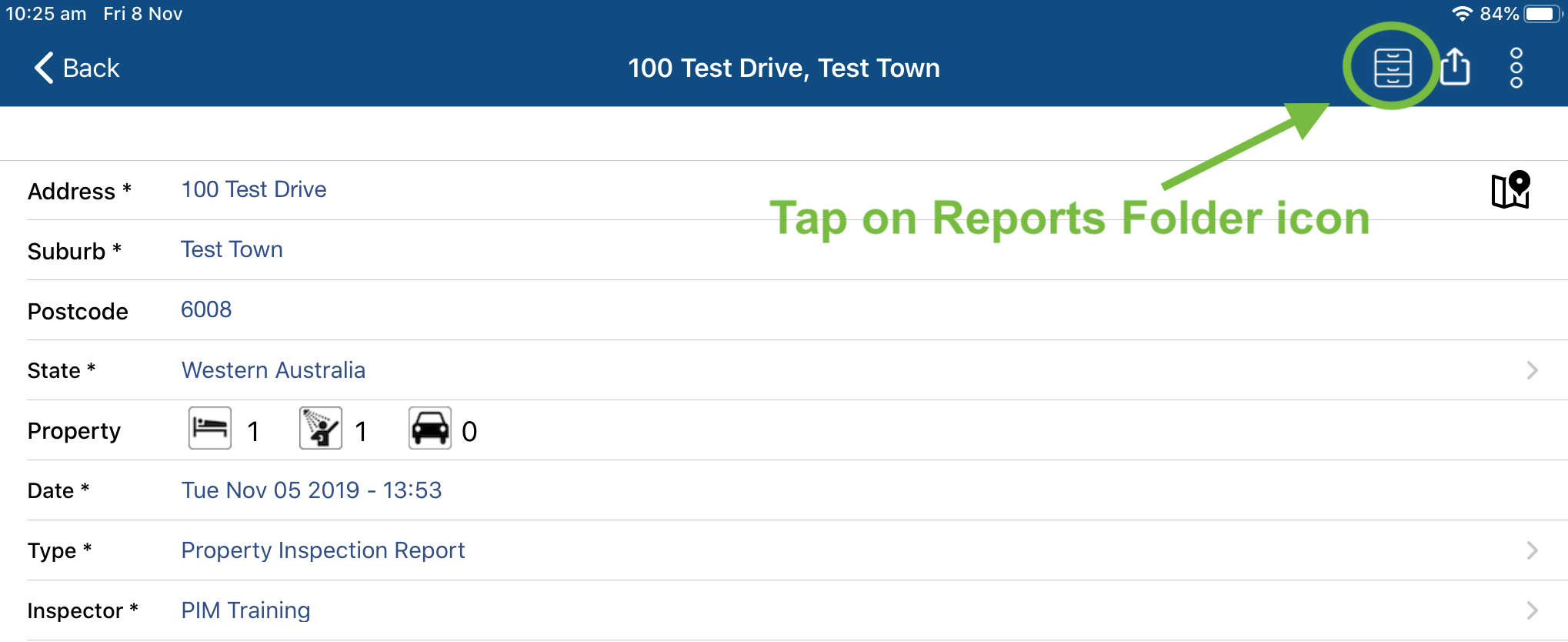
You can share a report at any time without resubmitting. From within your inspection, tap the drawer icon to open the Report Folder.
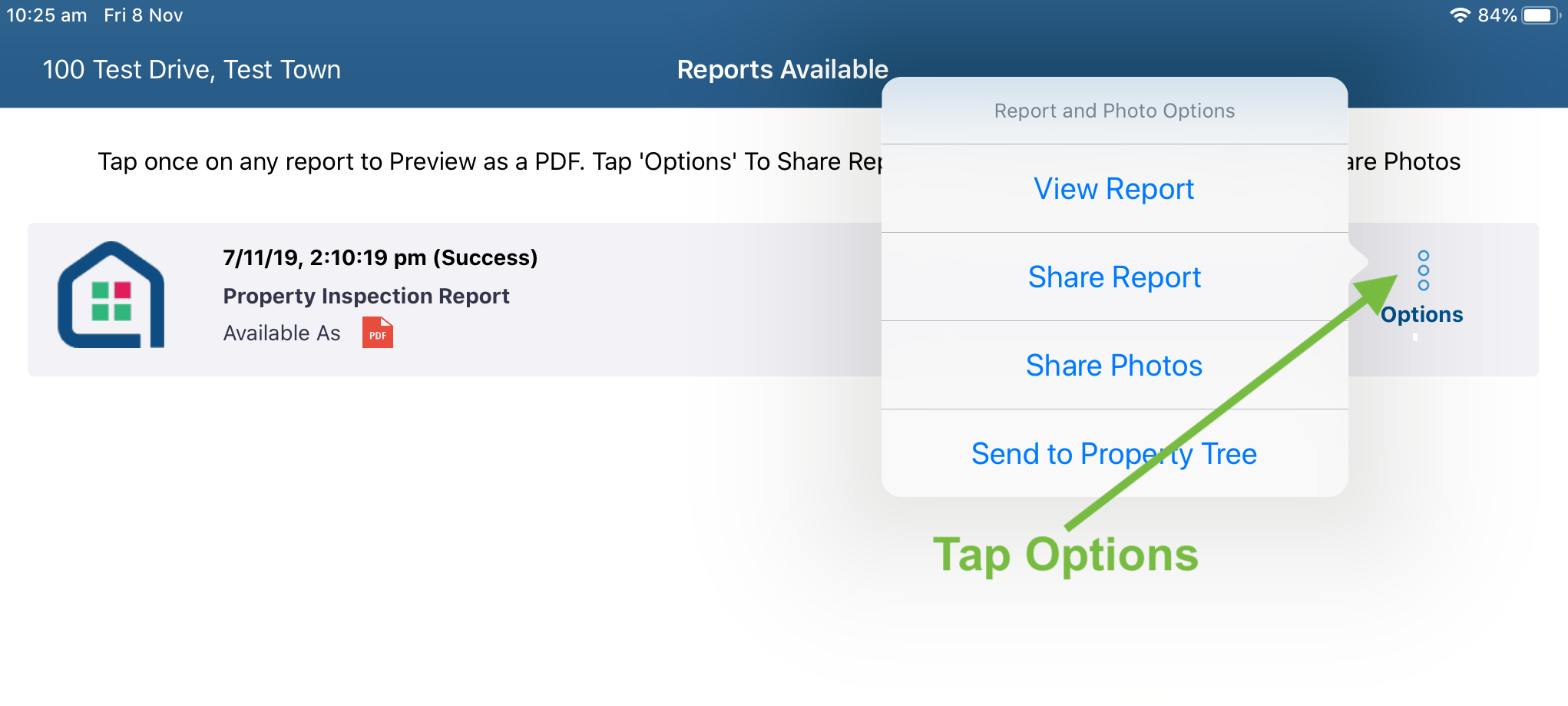
The Report Folder lists each generated report type (for example, Routine and Cleaning reports). Tap Options next to the report you want to share.
Sharing options explained
| Option | What it does |
|---|---|
| View Report | Opens the report on your device. When viewing the report, a Mail icon appears in the toolbar — tap it to email the report directly. If the Mail icon is not visible, Mail is not yet set up on your device or the report is over 15 MB. |
| Share Report | Opens the iOS Share sheet so you can send the report to yourself, the owner, the tenant, or any contact — via email, cloud storage, or AirDrop (see below). |
Share sheet options
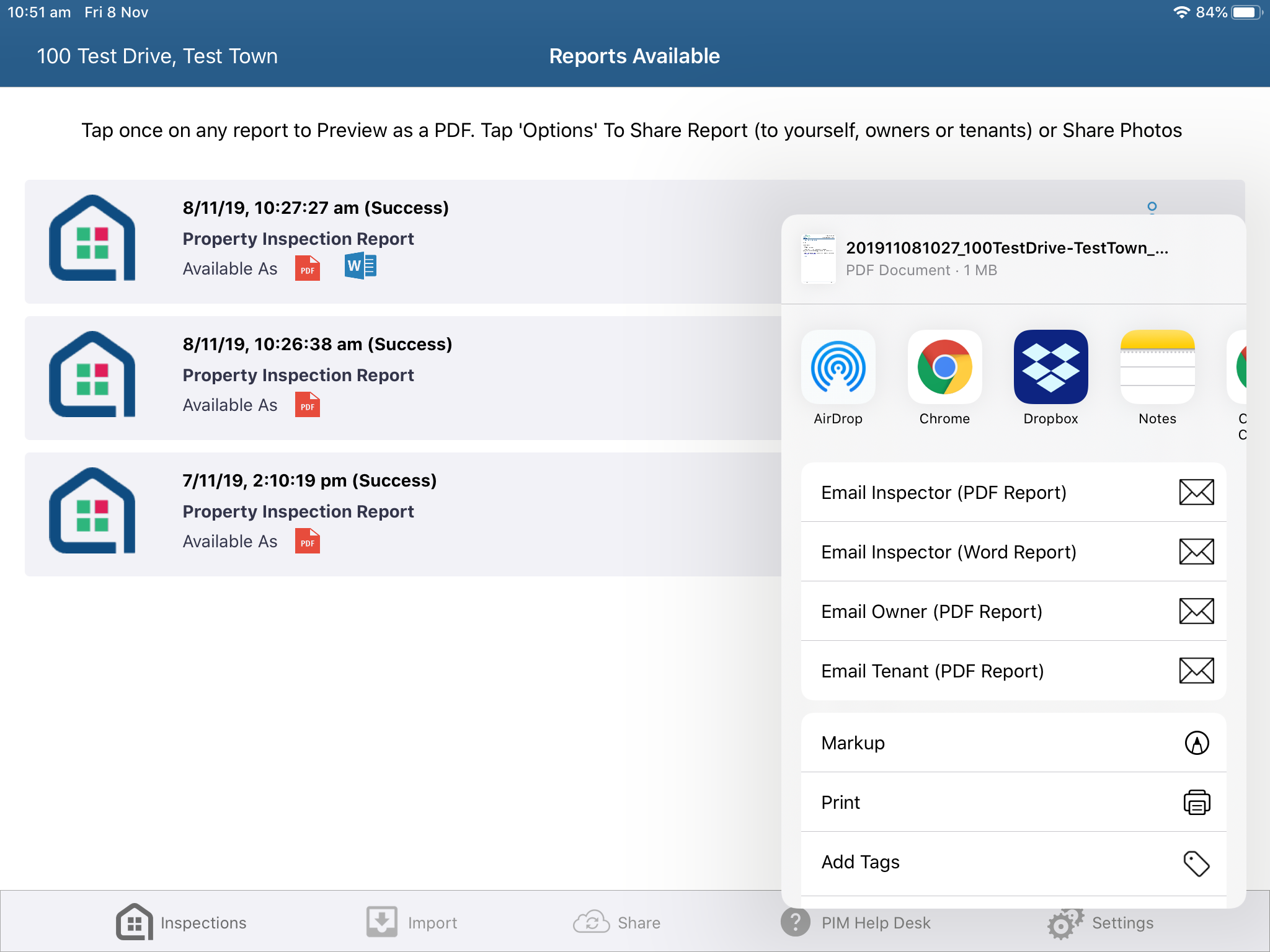
When you tap Share Report, the iOS share sheet appears with the following options:
- Email — Send directly to the Inspector, Owner, Tenant, or any other email address.
- Cloud services — Share to Dropbox, Box, OneDrive, iCloud Drive, or other cloud apps installed on your device.
- AirDrop — Transfer instantly to a nearby Apple device.
- Other apps — Any app on your device that supports document sharing will also appear.
Tip: If the Mail option does not appear in the share sheet, the Mail app is not configured on your device. Follow our Mail Setup Guide to add your email account, then try sharing again. |
Sharing photos separately
If you only need to share photos rather than the full report, PIM gives you two quick options from within the inspection:
- Single photo — Tap and hold on any photo in the inspection, then tap Share Photo.
- Multiple photos — Tap Edit in the photo view, select the images you want, tap the … menu, then tap Share Photos.
For full details on sharing photos, see Sharing Photos from my Inspection. To download all photos from a completed inspection at once, see Viewing Media Gallery and Downloading Media.
If you need any help, please contact PIM Support and we’ll be glad to assist.
Was this article helpful?
That’s Great!
Thank you for your feedback
Sorry! We couldn't be helpful
Thank you for your feedback
Feedback sent
We appreciate your effort and will try to fix the article