Once you tap Submit Inspection or Save & Preview in the PIM app, all your photos are uploaded to the PIM Cloud Dashboard. From there you can open the Media Gallery for any inspection to browse, view, and download individual photos — or download everything at once as a zip file.
PIM report templates also include a Photo Link above each photo in the report, as well as a link to the full media gallery. Owners and tenants can tap these links to browse the inspection photos directly — they will be prompted to enter the property postcode to gain access.
Contents
Viewing the Media Gallery
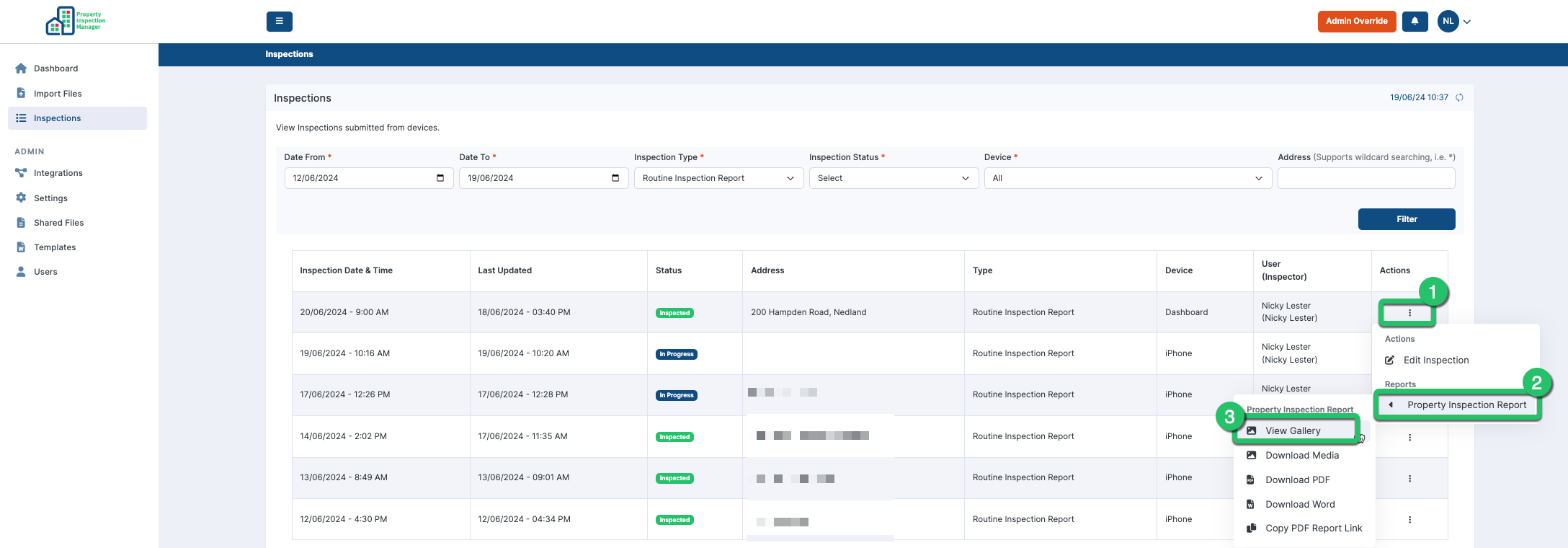
Log into your PIM Cloud Dashboard and locate the inspection you need. Under the Actions column, tap the three dots (1), select the report type — Property Inspection Report or Condition Report (2) — then tap View Gallery (3).
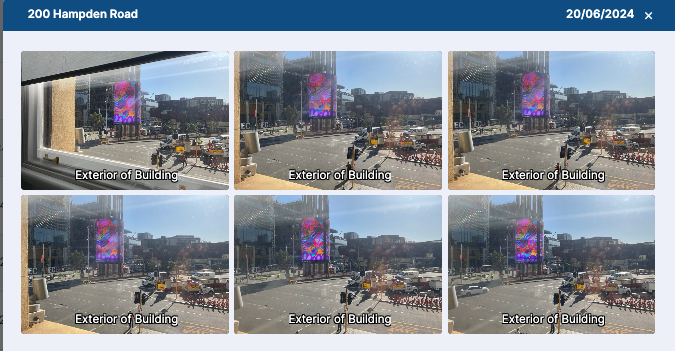
The full media gallery for that inspection will open, showing all uploaded photos in one view. Tap any image to view it at full size, zoom in for detail, or download it individually to your computer.
Downloading All Photos as a Zip File
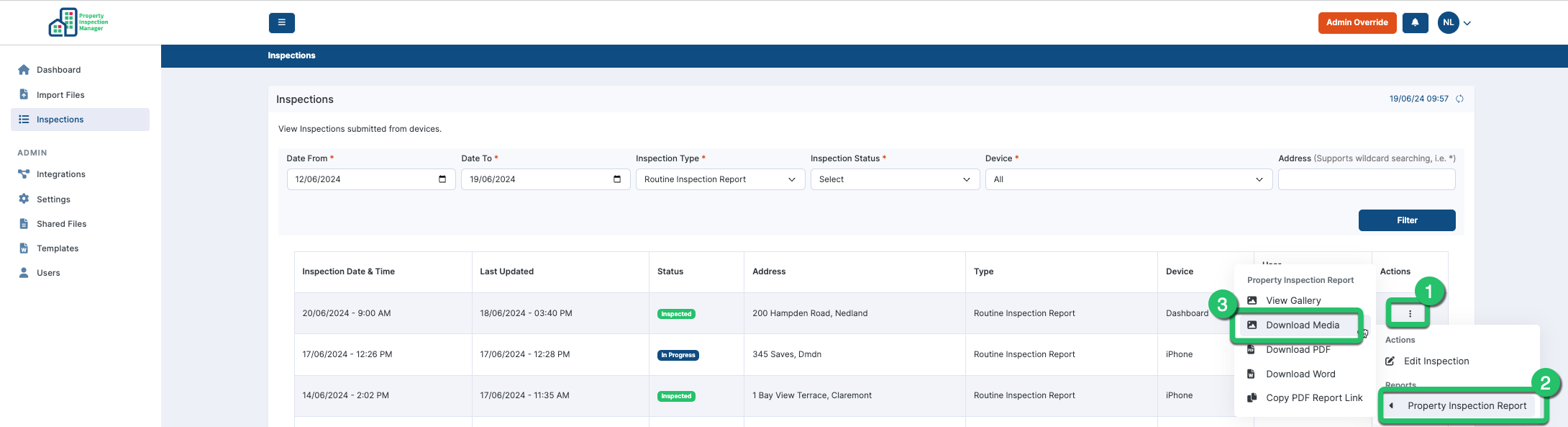
To download all photos from an inspection in one go, locate the inspection in the Dashboard and tap the three dots (1) under the Actions column. Select the report type — Property Inspection Report or Condition Report (2) — then tap Download Media (3).
A zip file containing all the full-resolution photos from that inspection will be downloaded to your computer, ready to extract and use.
Tip: If you only need a handful of specific photos rather than the full set, use the View Gallery option instead and download individual images from there — it's faster than extracting them from a zip file. |
Was this article helpful?
That’s Great!
Thank you for your feedback
Sorry! We couldn't be helpful
Thank you for your feedback
Feedback sent
We appreciate your effort and will try to fix the article