PIM includes a built-in AI assistant to help you write better inspection notes — faster and with less effort. There are two ways to use it depending on where you are in your inspection workflow.
There are two ways to use it — choose based on where you are in your inspection:
- Option A — After taking your photos, PIM analyses all of them at once and auto-generates notes across every inspection area in seconds.
- Option B — Tap and hold any individual inspection area to auto-generate notes for just that one area from its photos.
- Option C — While inside any inspection area, tap the AI icon on the notes field to generate, rephrase, or polish notes for that area.
Note: To get started with AI Assisted Inspections, register your interest directly in the PIM app under Settings > Account > AI Assist > Register Interest or simply Turn On, if if has already been activated for your office |
Contents
- Option A — Auto-Generate Notes Across All Areas (from Photos)
- Option B — Auto-Generate Notes for a Single Inspection Area
- Option C — Generate or Refine Notes Within a Specific Area
- Watch How It Works
- A Note on AI-Generated Content
- We Would Love to Hear From You
Option A — Auto-Generate Notes Across All Areas (from Photos)
Already taken your photos? With a single tap, PIM can analyse every photo across all your inspection areas and generate notes automatically — ready for you to review before submitting.
Step 1. From the Inspection Areas screen, tap the wizard icon in the top right corner.
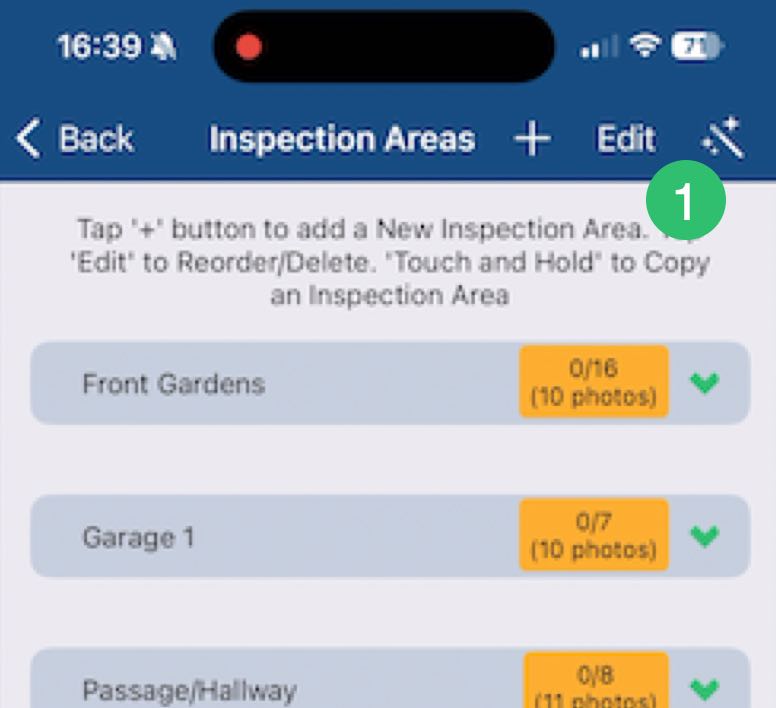
Step 2. Select Auto-Populate Notes from Photos. A summary screen will appear listing all inspection areas that contain photos, showing exactly what PIM will analyse before it begins.
Step 3. Tap Generate Notes. PIM will get to work immediately — you can watch in real time as it works through each inspection area and begins populating notes.
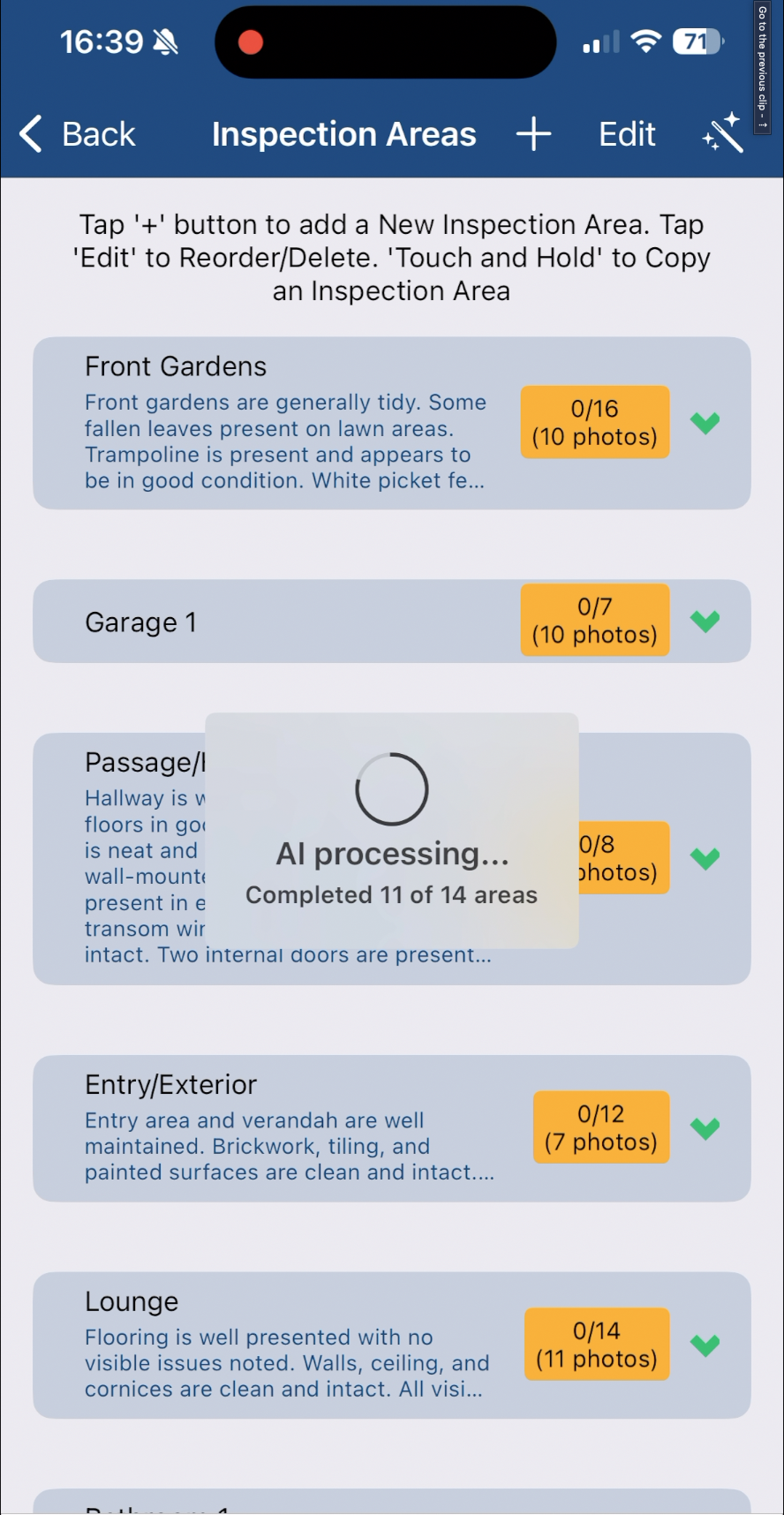
Step 4. Once complete, open any inspection area to review the generated notes. Where relevant, PIM will also populate your callout boxes — such as Maintenance Required, Suggested Improvements, and Our Summary — based on what was found in the photos.
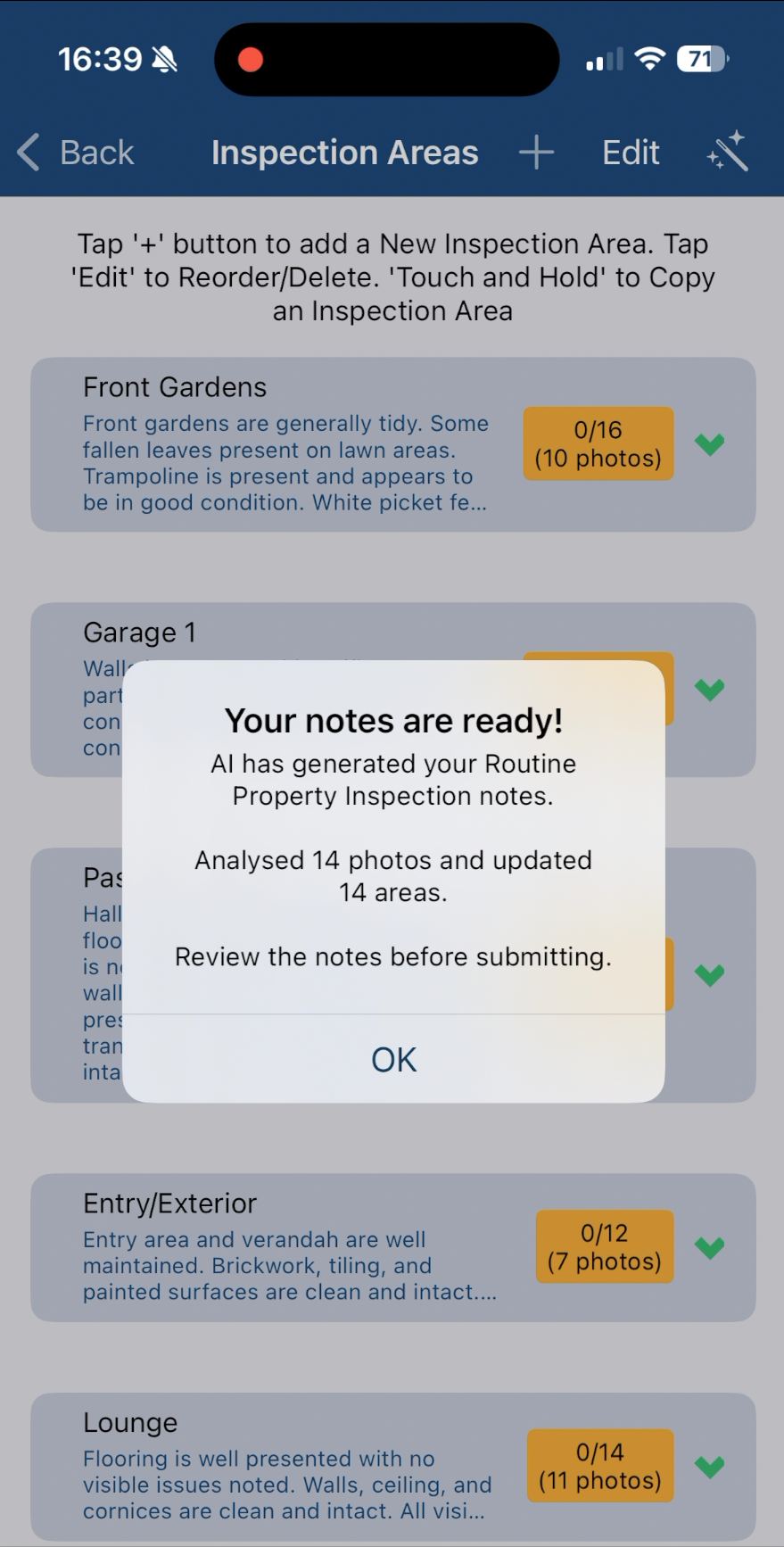
Tip: AI-generated notes are a starting point, not a finished product. Review each area before submitting — your professional judgement is what makes the report yours. |
Tip: This is particularly useful when you've already run Option A across the whole inspection but one area needs fresh notes — perhaps because more photos were added after the initial run, or the generated notes for that area need a complete refresh rather than a refinement. |
Tip: The AI Note Tools menu also includes Clear All Inspection Notes and Labels, which removes all existing notes and label selections from that area in one action. Use this if you want to start fresh on a specific area without affecting the rest of the inspection. |
Option B — Auto-Generate Notes for a Single Inspection Area
Need AI notes for just one specific area rather than the whole inspection? You can trigger auto-populate on any individual inspection area directly from the Inspection Areas list — without running it across the entire inspection.
Step 1. From the Inspection Areas screen, tap and hold the inspection area you want to generate notes for. The Inspection Area Actions menu will appear.
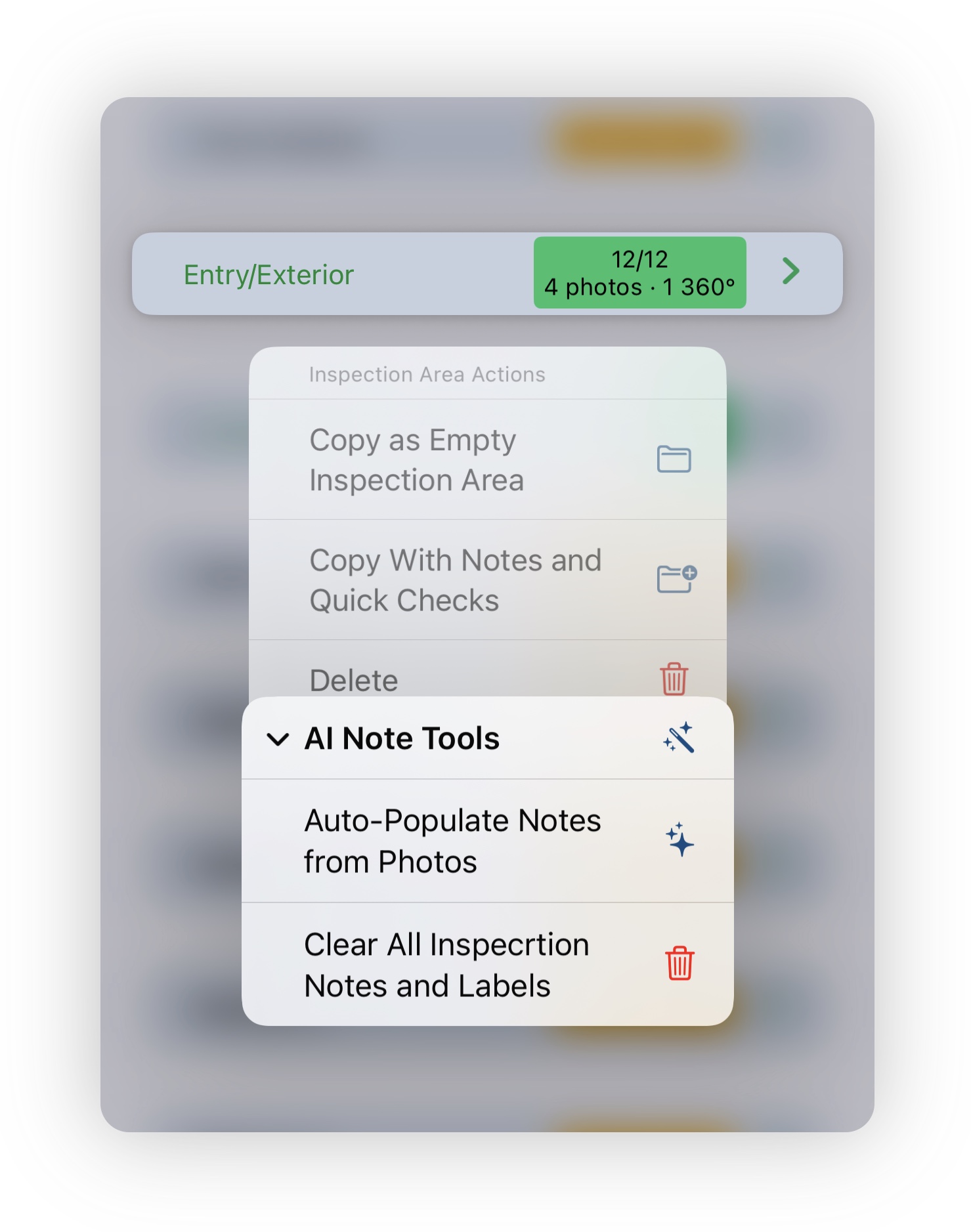
Step 2. Tap AI Note Tools to expand that section, then tap Auto-Populate Notes from Photos. PIM will analyse the photos in that inspection area and generate notes automatically — just for that area.
Tip: The AI Note Tools menu also includes Clear All Inspection Notes and Labels, which removes all existing notes and label selections from that area in one action — useful if you want to start completely fresh on a specific area. |
Tip: This option is particularly handy when you've already run Option A across the whole inspection but one area needs a fresh run — for example, because more photos were added after the initial generation, or the generated notes for that area need to be completely redone. |
Option C — Generate or Refine Notes Within a Specific Area
Already written some notes and want to sharpen the wording? Or need a hand getting started on a particular area? The PIM AI assistant is available right inside any inspection area or sub-inspection area.
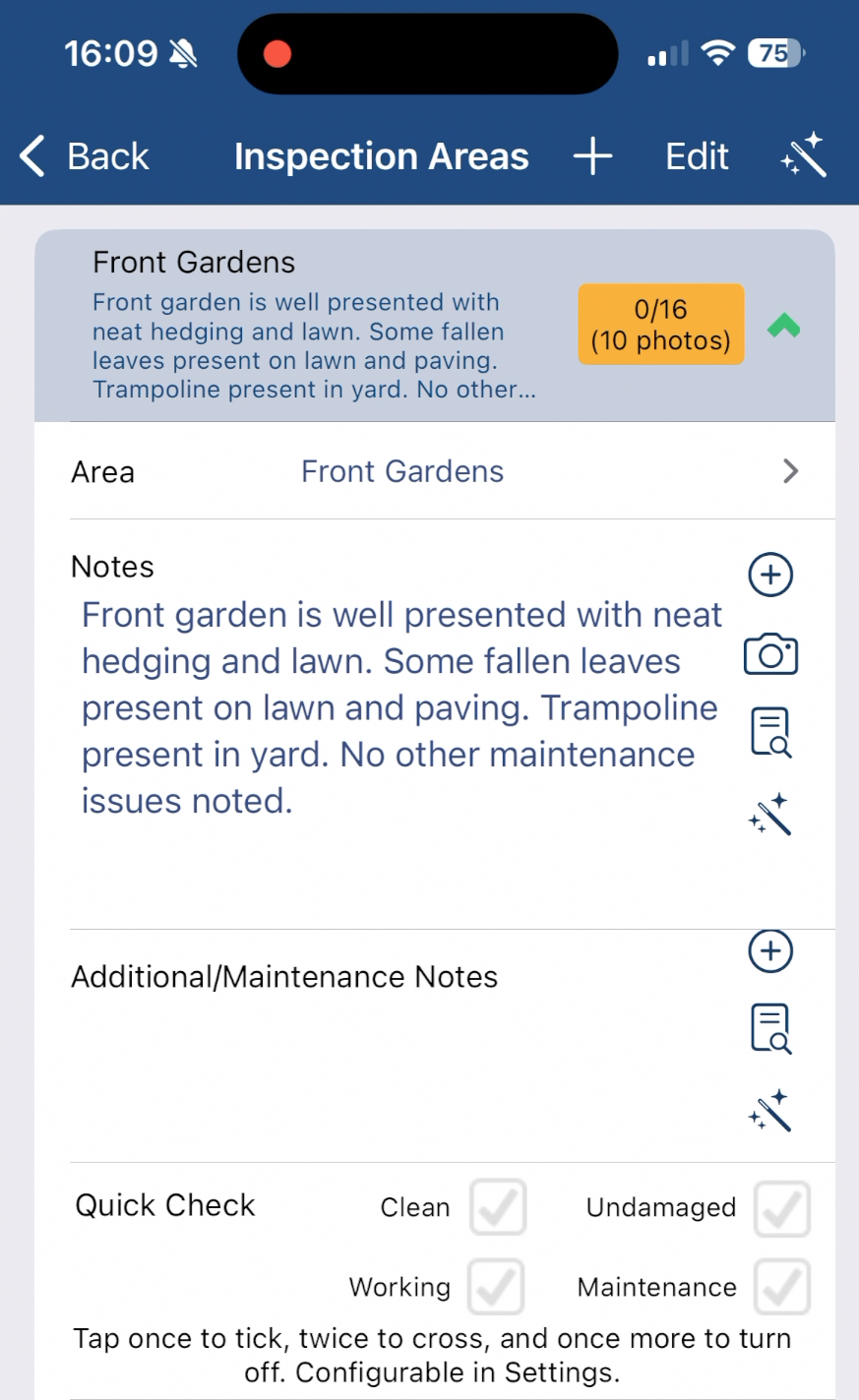
Tap the wizard icon to the right of any Notes or Additional/Maintenance Notes field to open the AI assistant.
The AI panel will appear at the bottom of the screen with suggested variations of your notes. Choose from four modes to adjust the tone:
- Rephrase — Rewords your notes while keeping the same meaning.
- Professional — Applies a formal, report-appropriate tone.
- Proofread — Corrects grammar and phrasing without changing the content.
- Friendly — Softens the language for a more approachable communication style.
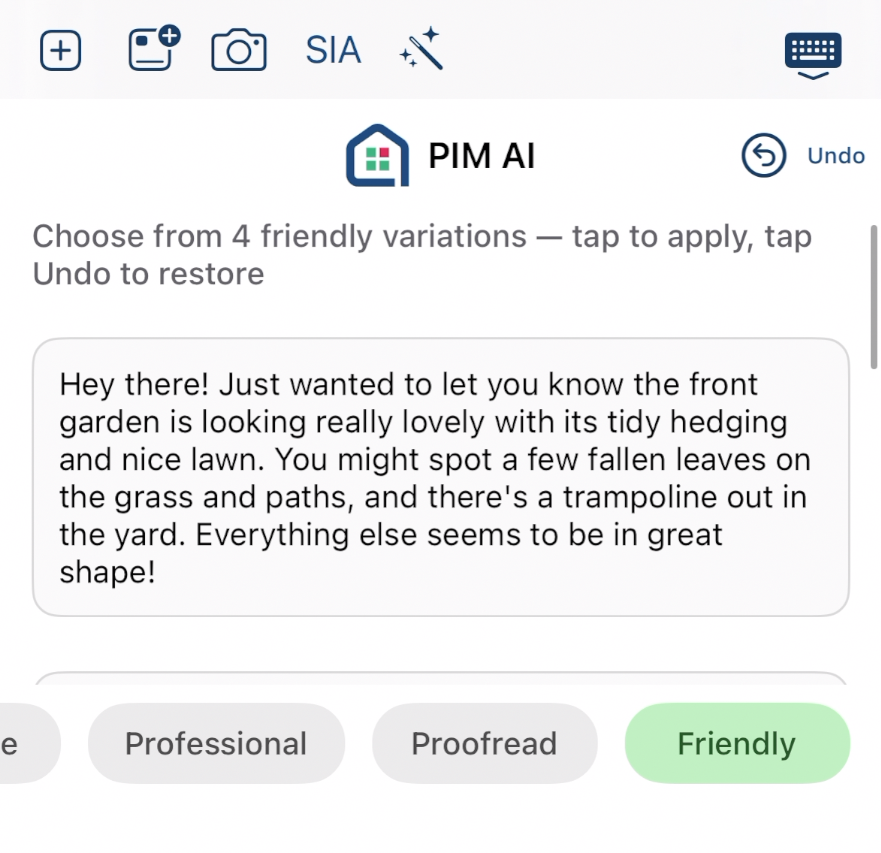
Tap any variation to apply it to your notes. Tap the refresh icon to generate new suggestions, or tap Undo to revert to what you had before. When you're happy, tap the keyboard icon on the toolbar to dismiss the panel.
Tip: The AI assistant works independently on both the Notes field and the Additional/Maintenance Notes field — you can refine each one separately to suit the context of that area. |
Watch How It Works
A Note on AI-Generated Content
AI Assisted Inspections is a productivity tool designed to help you draft notes more efficiently. AI-generated content is a suggested starting point — before including any AI output in a final report, you should always review it to confirm it accurately reflects what you observed. You remain solely responsible for the accuracy and completeness of every report you submit or share.
When taking photos in properties, be mindful that images may capture personal belongings or identifiable information about tenants. Please use this feature in accordance with applicable privacy laws and your obligations to the people whose property you are inspecting.
Note: For full details on how the feature works and your responsibilities as a user, refer to the AI-assisted note generation section of the PIM Terms and Conditions. |
We Would Love to Hear From You
AI Assisted Inspections is an evolving feature and your experience in the field helps shape every update we make. If you have suggestions, run into something unexpected, or have an idea that would make the feature work better for you, please get in touch.
You can reach us via PIM Help Desk in the app, by calling 1300 668 594, or through our help centre.
Was this article helpful?
That’s Great!
Thank you for your feedback
Sorry! We couldn't be helpful
Thank you for your feedback
Feedback sent
We appreciate your effort and will try to fix the article