MRI Property Tree — Maintenance Requests |
MRI Property Tree users can now raise Maintenance Requests on-site directly from PIM and submit them straight into Property Tree — including photos from the inspection. PIM also supports creating a linked Maintenance Job at the same time, with photos attached, so your workflow in Property Tree is ready to action immediately.
Submitting Maintenance Requests is only available for inspections imported from the latest integration with Property Tree and requires an active network connection. If you haven't set up the integration yet, see the Property Tree Integration Guide for step-by-step instructions.
How photos work with Property Tree Maintenance: In Property Tree, images can only be attached to a Maintenance Job — not directly to a Maintenance Request. A Maintenance Job is created automatically once a request progresses to a work stage (for example, when repair work is approved or commenced). PIM's Create job & attach photos toggle handles this in one step — creating the Maintenance Job and attaching your selected photos simultaneously, so your team in Property Tree can act straight away. |
Contents
- Creating Maintenance Requests in PIM
- Completing the Maintenance Request Form
- Viewing Maintenance Requests in Property Tree
Creating Maintenance Requests in PIM
There are two ways to raise a Maintenance Request in PIM — from a photo within an Inspection Area, or directly from the Inspection Overview screen. Both open the same form (see Step 2).
Option A — From a Photo (Inspection Area or Sub-Inspection Area)
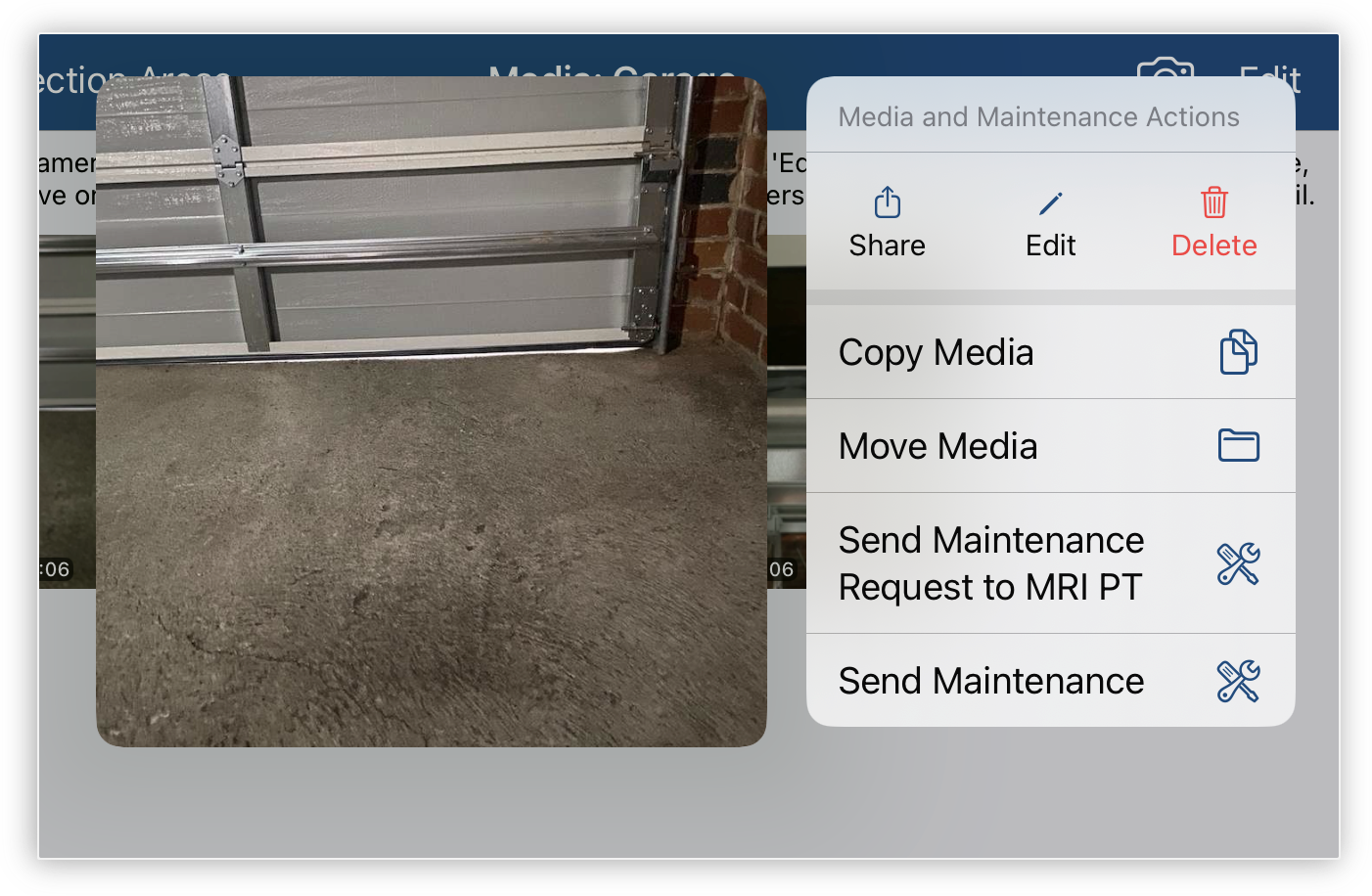
From the photo list in any Inspection Area or Sub-Inspection Area, tap and hold the photo you want to include, then select Send Maintenance Request to Property Tree.
To include multiple photos, tap Edit in the top right corner, select each image you want to include, then tap ... > Send Maintenance Request to Property Tree with Photos. Up to 3 photos can be attached per request this way.
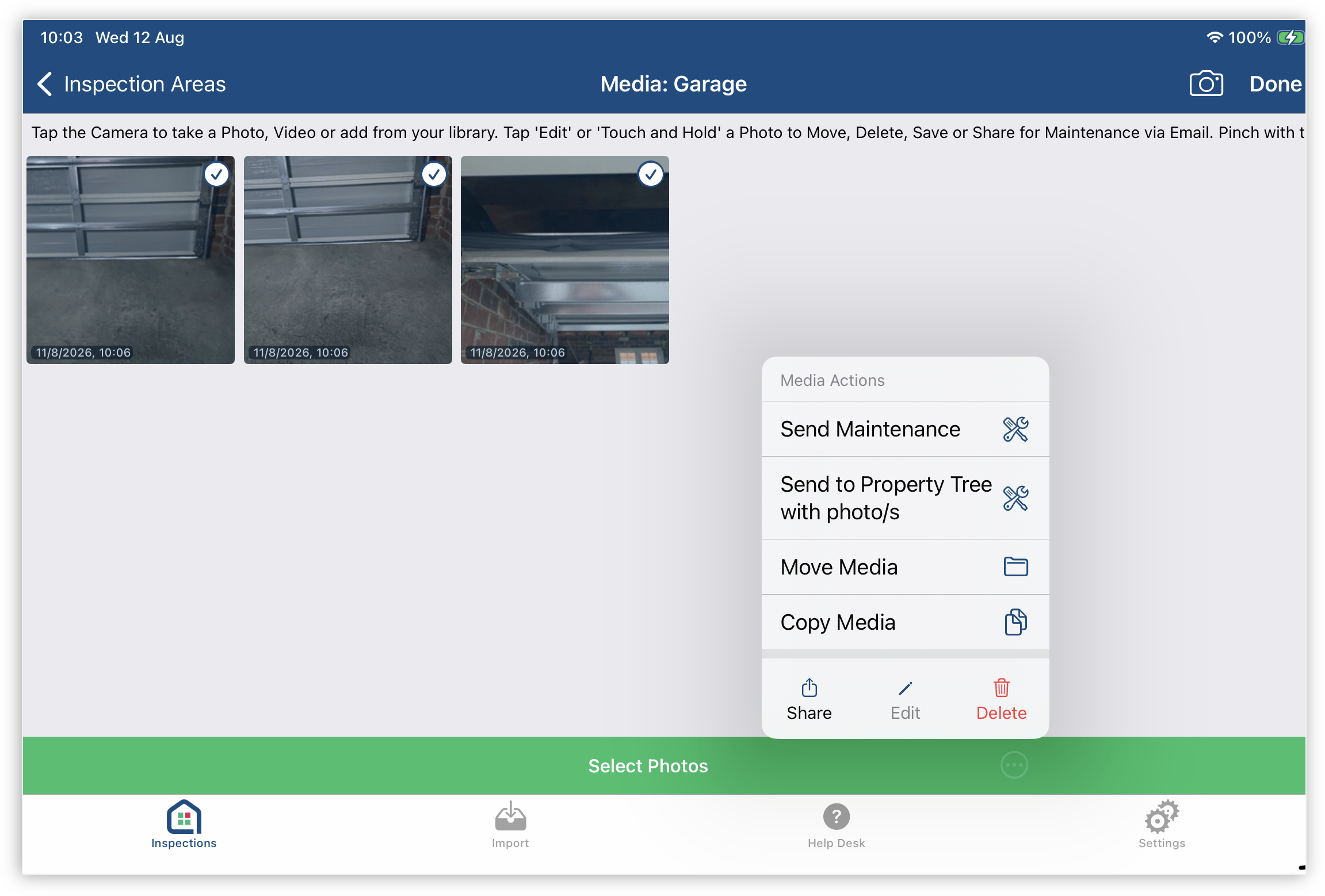
Tip: You can also add additional photos from other inspection areas after the form opens. Use the Create job & attach photos toggle in the form to select them — see Step 2 below for details. |
Option B — From the Inspection Overview Screen
You can raise a Maintenance Request for the property as a whole, without starting from a specific photo. This is handy when the maintenance item relates to the property more generally, or when you want to log a request quickly while reviewing the inspection.
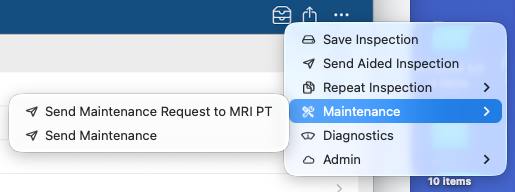
From the Inspection Overview screen, tap the ... (actions) button in the top right corner, then tap Maintenance from the menu. Select Send Maintenance Request to MRI PT to open the form.
Completing the Maintenance Request Form
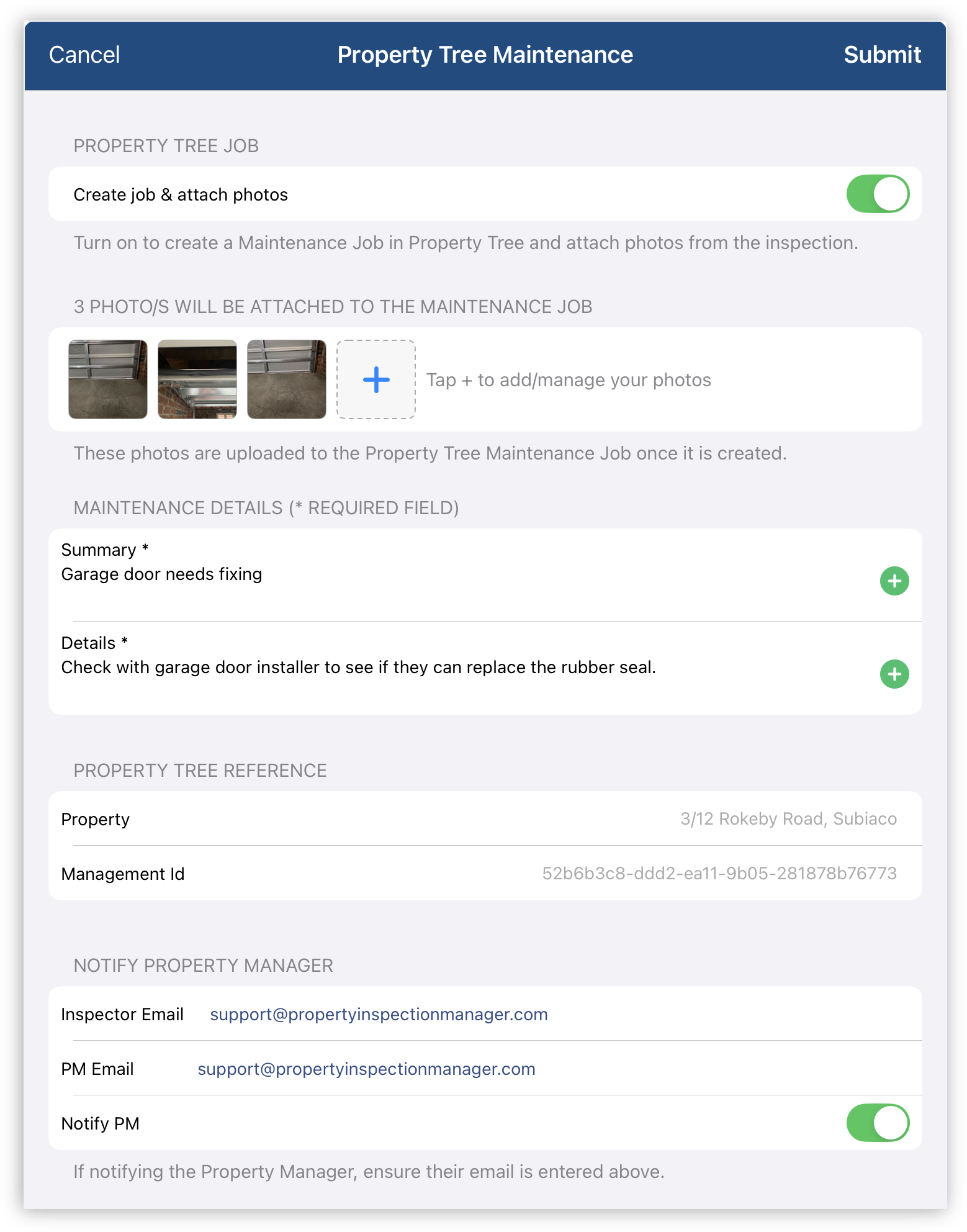
Both options open the Property Tree Maintenance screen. Fill in the details and tap Submit. Fields marked with an asterisk * are required.
Property Tree Job
Create job & attach photos — Toggle this on to create a Maintenance Job in Property Tree and attach photos from the inspection at the same time.
- Toggle On — A photo picker appears showing photos available from the current inspection. Tap to select the images you want to include. The number of selected photos is shown above the picker. Photos are uploaded to the Maintenance Job in Property Tree once it is created.
- Toggle Off — No Maintenance Job or photo attachments are created. The Maintenance Request alone is submitted to Property Tre
Maintenance Details
- Summary * (required) — A brief description of the maintenance issue. Tap the + button to pull in any Maintenance Required notes captured during the inspection, or type directly into the field.
- Details * (required) — Additional context about the maintenance item. Tap + to populate from your inspection notes, or enter your own description.
Property Tree Reference
- Property — Auto-populated from the property address on the imported inspection.
- Management Id — Auto-populated from the Property Tree management record, linking the request to the correct property.
Notify Property Manager
- Inspector Email — Defaults to the inspector's email address configured under Settings > PIM Admin > Inspectors.
- PM Email — The property manager's email, pulled from Property Tree. Confirm this is correct before enabling Notify PM.
- Notify PM — Toggle on to send the property manager an email notification when the request is submitted. Ensure their email is entered in the field above before enabling this.
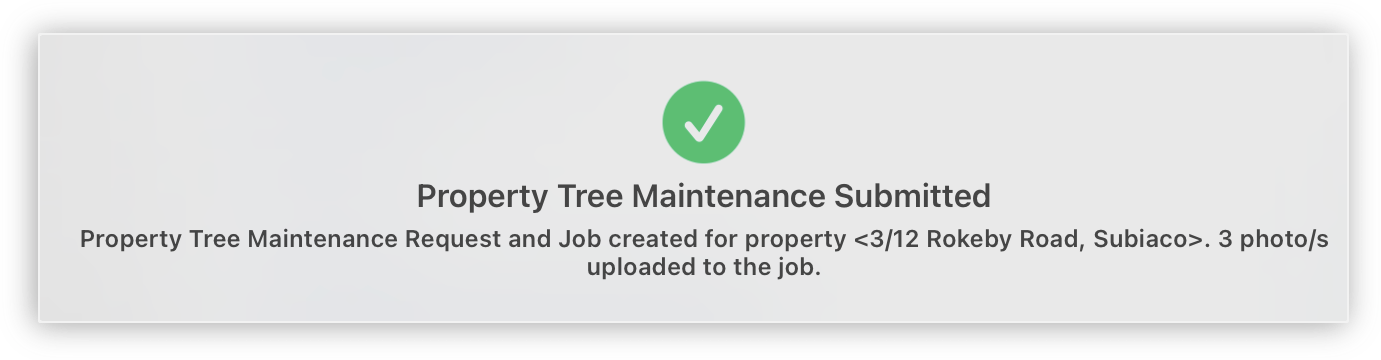
Once you tap Submit, the Maintenance Request will be sent to Property Tree. If Create job & attach photos was enabled, the Maintenance Job and photos will be created simultaneously. A confirmation message will appear — tap OK to return to your inspection.
Viewing Maintenance Requests in Property Tree
Once submitted from PIM, the request is immediately visible in Property Tree. Log into your Property Tree account, navigate to the relevant property, and click the Maintenance tab. Your newly created request will appear in the Maintenance Requests list with a status of Open.
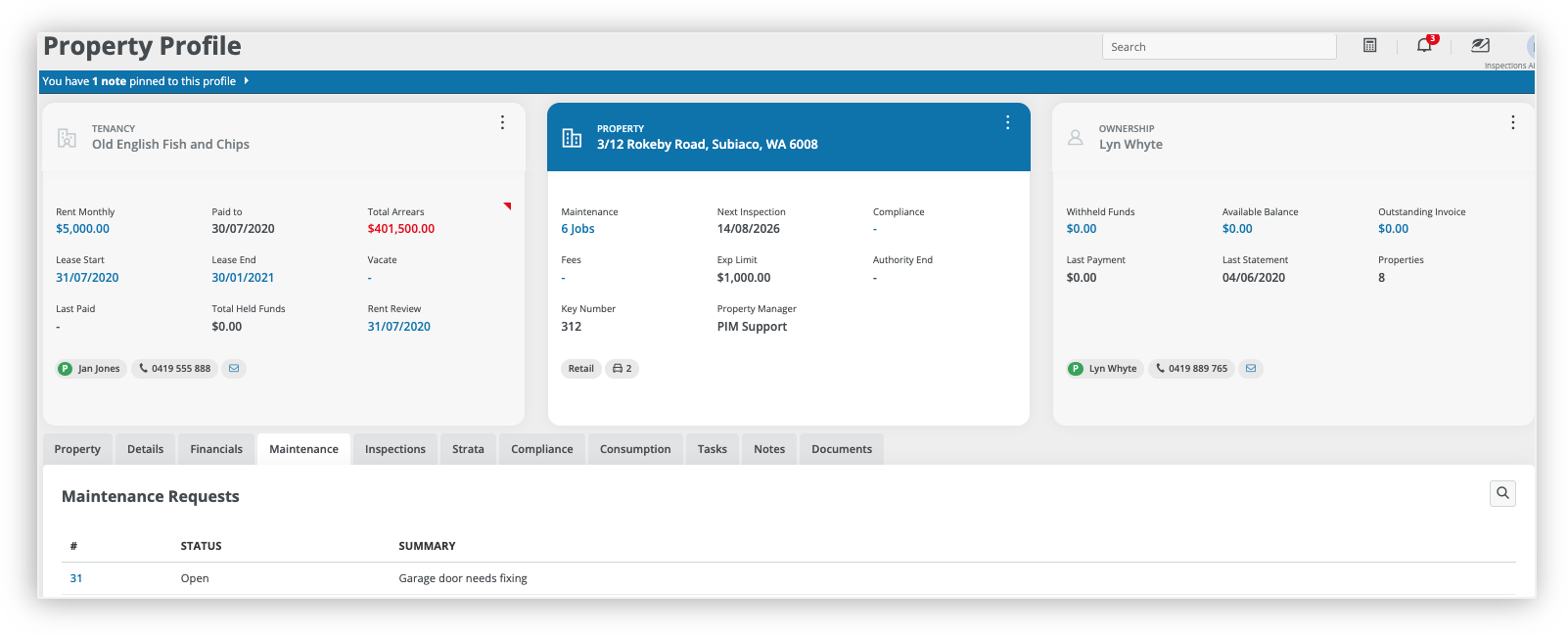
Click the request number to open the full Maintenance Request detail view. Here you can see:
- Maintenance Request Details — Property, status, expenditure limit, requested by, summary, entered date, and the creating partner (Property Inspection Manager).
- Maintenance Jobs — If you enabled Create job & attach photos in PIM, a linked Maintenance Job will already be present here in Open status, with the job description from your PIM Details field and the photos attached and ready to view via Add/View/Edit Pictures.
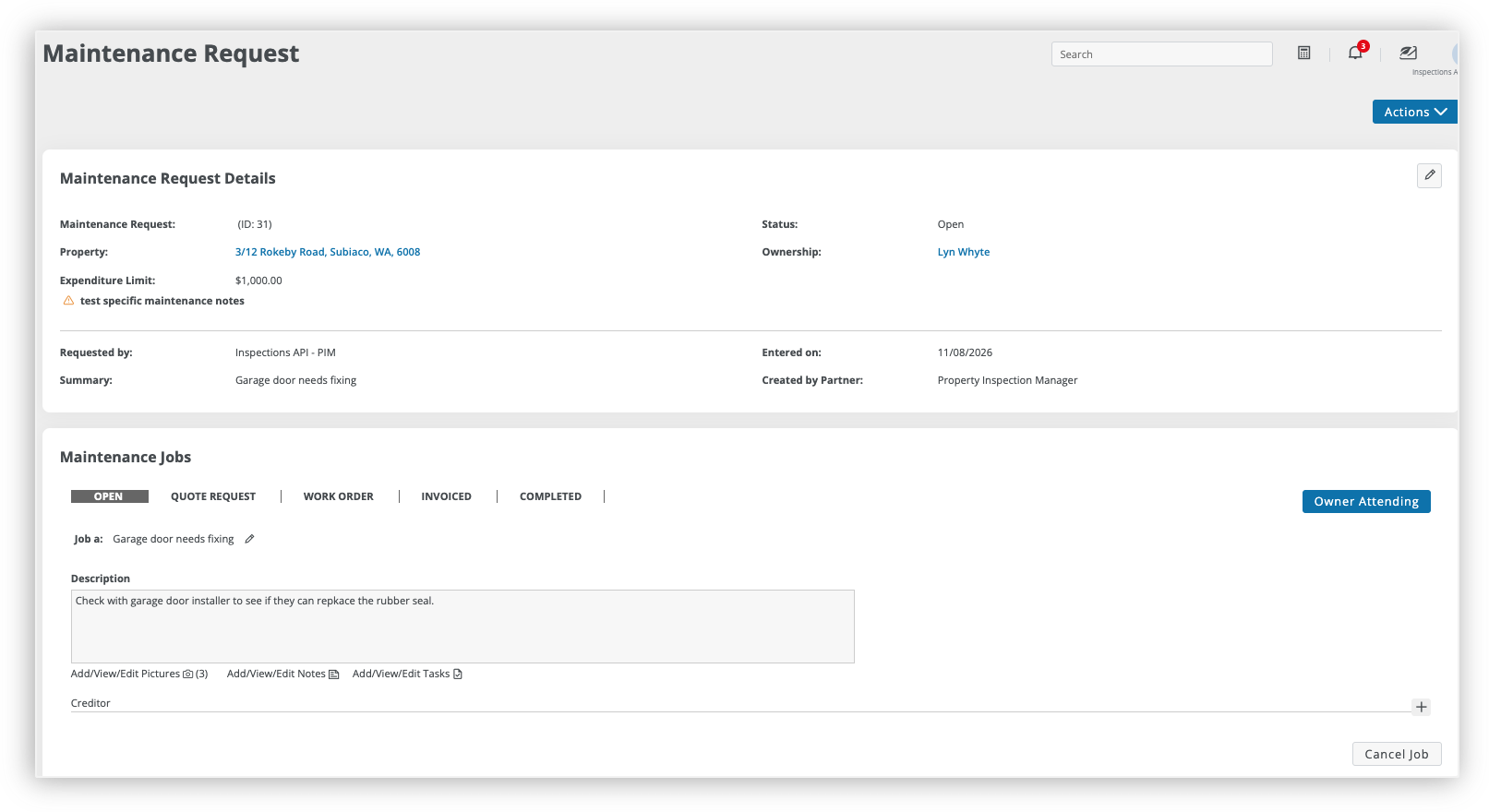
Tip: From the Maintenance Job in Property Tree, you can click Add/View/Edit Pictures to confirm all photos have arrived, add a Creditor, or progress the job through to Quote Request, Work Order, Invoiced, or Completed stages as the work is actioned. |
For questions about the Property Tree workflow — including managing Maintenance Jobs and progressing requests — please contact Property Tree Support.
For PIM-related questions, please contact PIM Support.
Was this article helpful?
That’s Great!
Thank you for your feedback
Sorry! We couldn't be helpful
Thank you for your feedback
Feedback sent
We appreciate your effort and will try to fix the article