 | Using PIM With PropertyMe |  |
Although PIM is not currently fully integrated with PropertyMe, you can still bring your scheduled inspections across with just a couple of extra steps. Simply export your inspection data from PropertyMe, then upload it to your PIM Cloud Dashboard, and your inspections will be ready to import into PIM.
Once you've completed your inspections in PIM, the finished reports will be emailed directly to you. From there, you can attach them to the corresponding property in PropertyMe, making it easy to continue with any follow-up tasks.
Contents
- Exporting Inspections from Property Me to an Excel Sheet
- Upload your Data File to your PIM Dashboard
- Import Your Inspections Into PIM
- Manually Attach your Inspection Report to Property Me
Exporting Inspections from PropertyMe
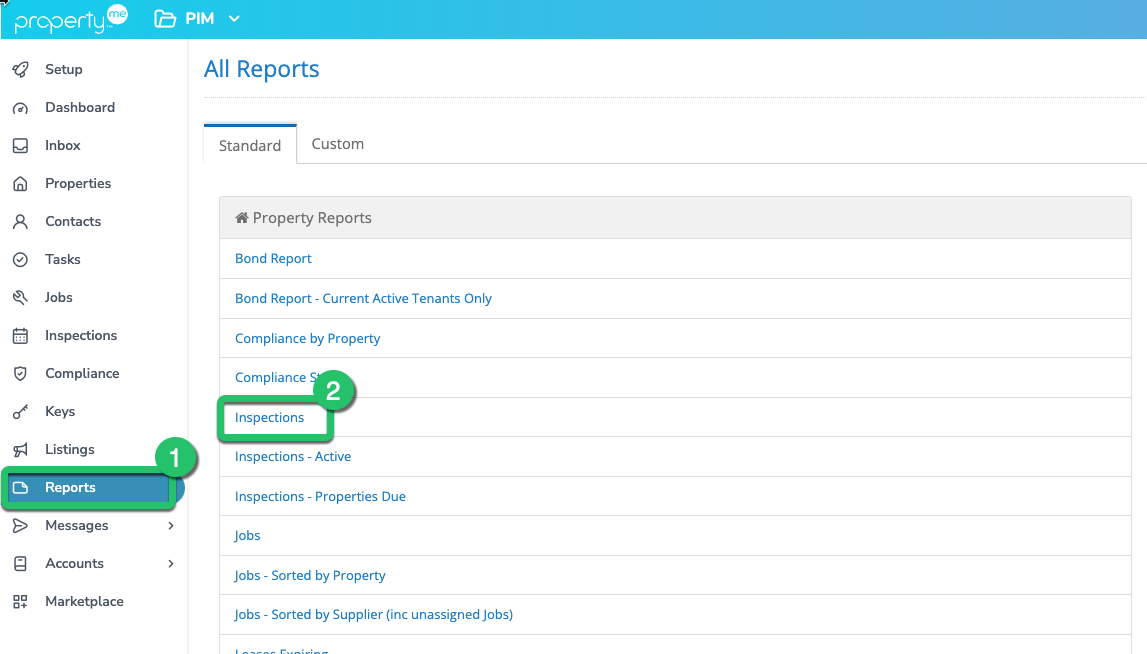
Once logged in to your PropertyMe portfolio you can export your inspection data. From the menu on the left-hand side tap Reports (1), then tap Inspections (2)
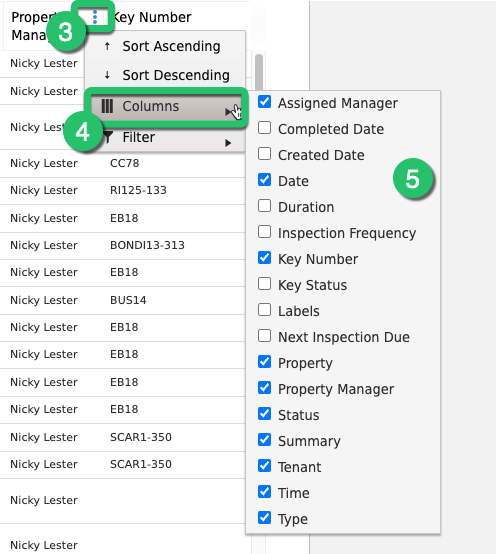
You need to define your column data which determines what information is included in the exported Excel file. To do this tap on the "3 dots" (3) at the top of any column and then tap "Columns" (4) and then from the list check off the information PIM requires as shown (5)
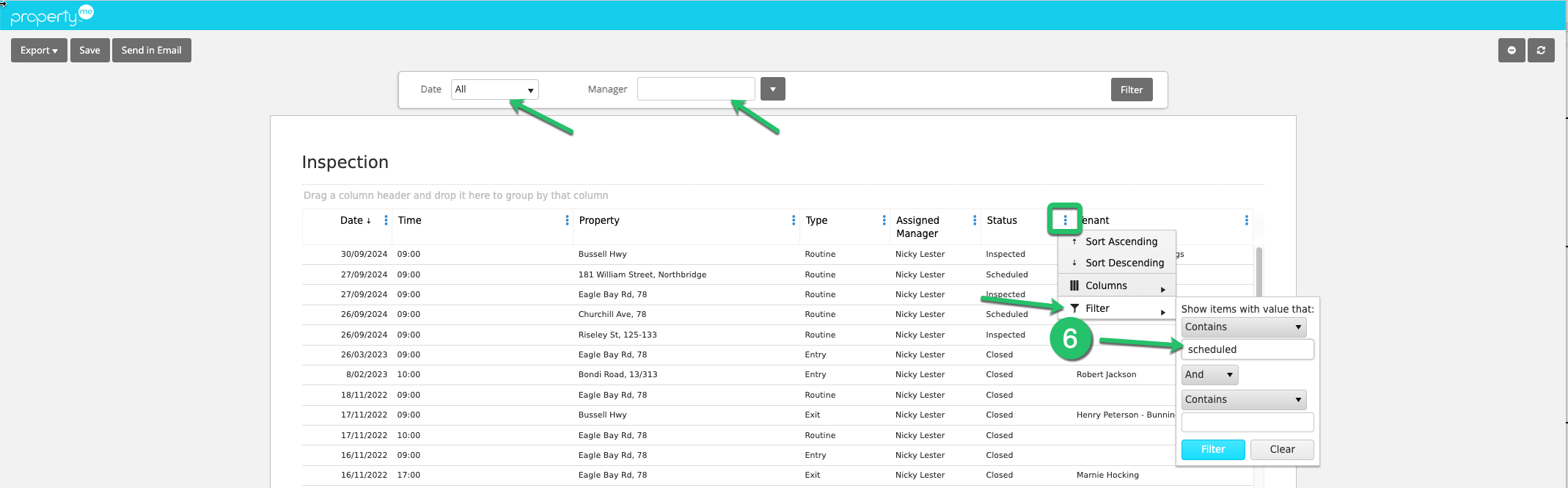
The Select the Filters (6) you need to reduce the number of unwanted inspections. ie. Select the Manager, or All Managers, and only Scheduled Inspections.
The tap Export (7) and then select Export Excel (8)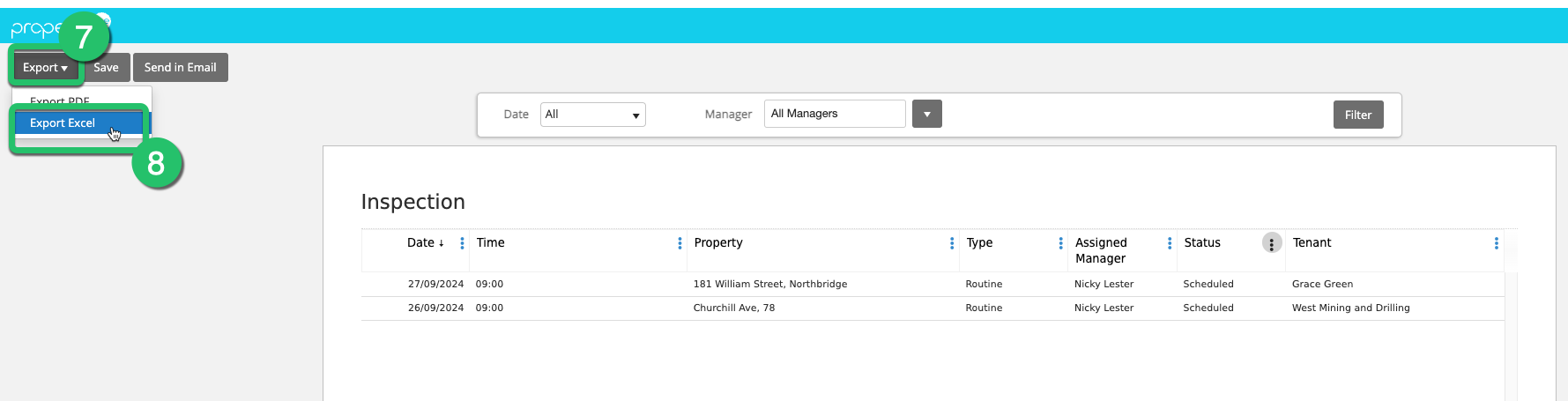
You can also refer to the guide from PropertyMe FAQ (Print Open Inspection Schedule).
Upload your PropertyMe file to your PIM Online Account
You will need to upload the exported PropertyMe file to your online account before it can be used within the PIM app on your IOS device.
1. Login to your PIM Online Account
From your internet browser go to www.propertyinspectionmanager.com/login and login with your PIM Premium Account credentials.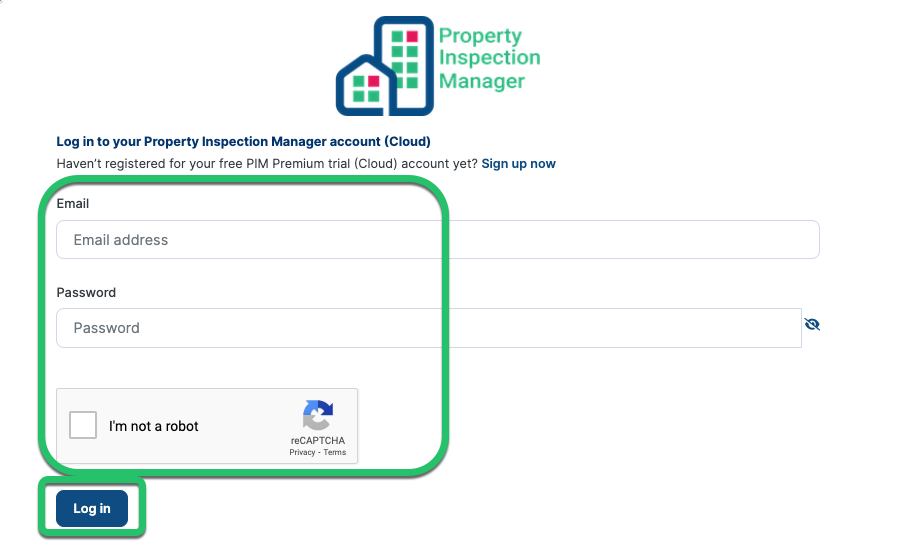
2. Go to the Import Files menu
Once logged in, go to the Import Files menu.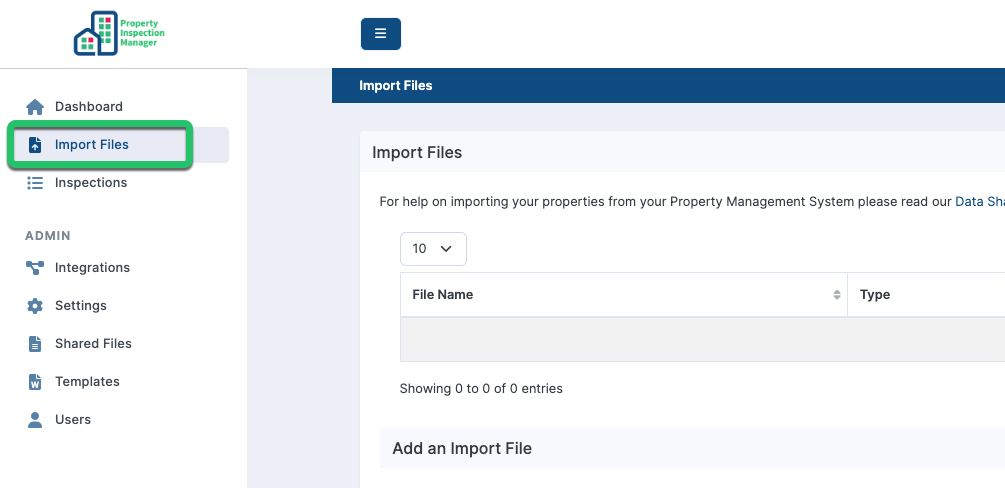
3. Select PropertyMe Format under Property Management Type.
Under the Add an Import File section, select PropertyMe from the drop-down list and then click Upload.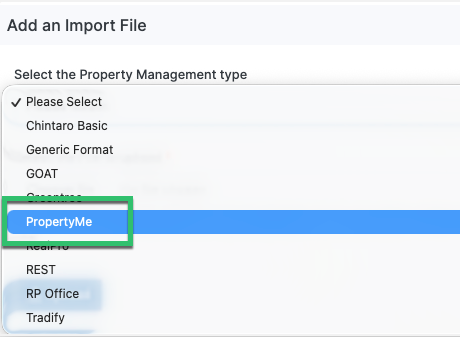
5. Confirm Success
A green File Upload Success message will appear near the top tabs if it's all ok.
Import Inspections Into PIM
PIM imports property data from the Dashboard using the import process below.
1. Navigate to the Import tab.
This is at the bottom of the app.

2. Import the latest files from your online account.
Pulling down on the screen will refresh the data files. Once the PropertyMe appears, click to open.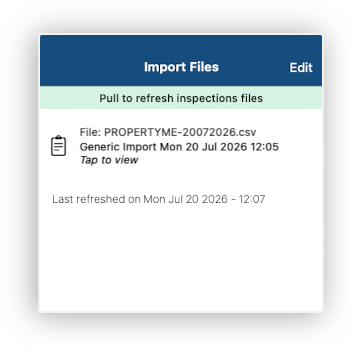
3. View imported inspections.
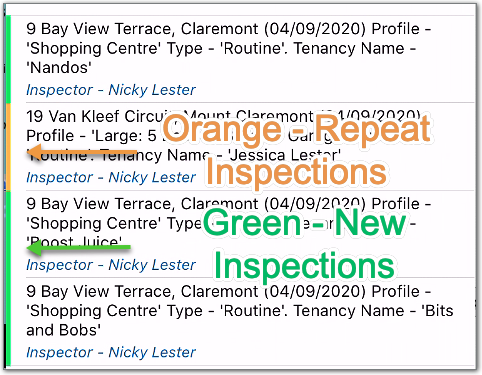
Your properties will be listed with a colour code on the left.
Green indicates a property PIM has not seen before, so it will be treated as a new inspection.
Orange represents an existing property so a Repeat Inspection will be created.
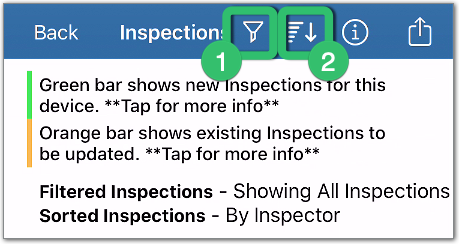
4. Filter and Sort if required.
5. Import the inspections.
When you are ready to complete the import, select the Action button (1) then choose one of the Import options (2).
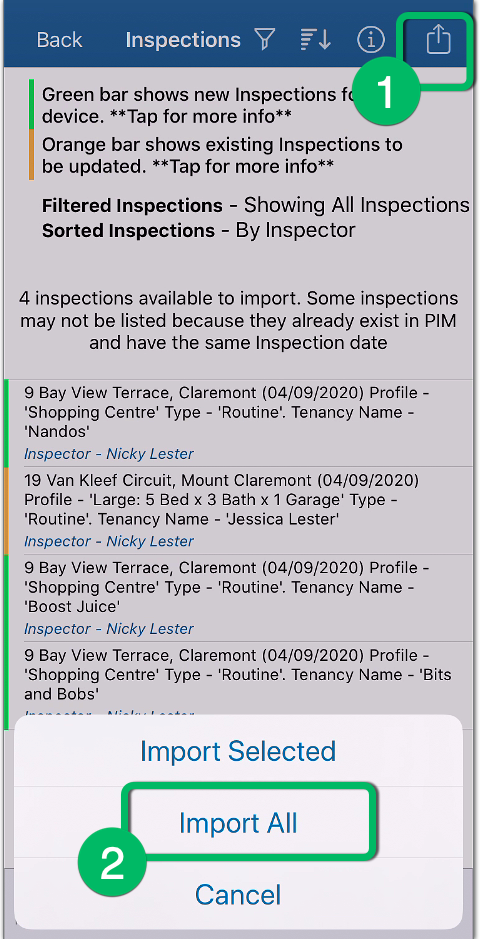
Note: if you only want to import some, press cancel then tap against the properties you want. This will place a check on the right. You can then choose the Import Selected option instead of Import All.
6. Confirm the import type.
The import will create inspections based on your default Property Profile and Inspection Types displayed in the message. If you are happy with this, tap Continue.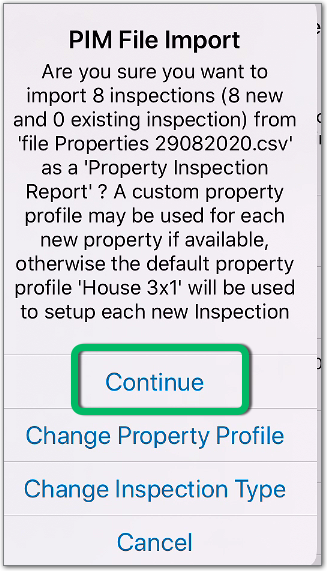
7. Close the PIM File Import message.
Take note of the confirmation message then tap OK to close.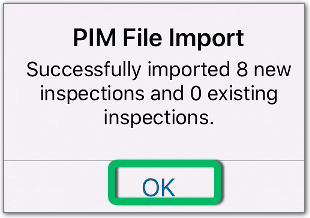
Manually Attach your Inspection Report to PropertyMe
After importing, your scheduled inspections will be available under the Inspections Tab.
Go ahead and complete the inspection in the usual way by adding notes and photos then Submit Inspection when done. Submitting the inspection will email you "as the inspector" a copy of the inspection in PDF format. You can upload the PDF against the property in your PropertyMe
You can upload your Inspection Report by navigating in your PropertyMe to the Property Address > and then tap the "paperclip' symbol against either the Tenant field or the Owner field.
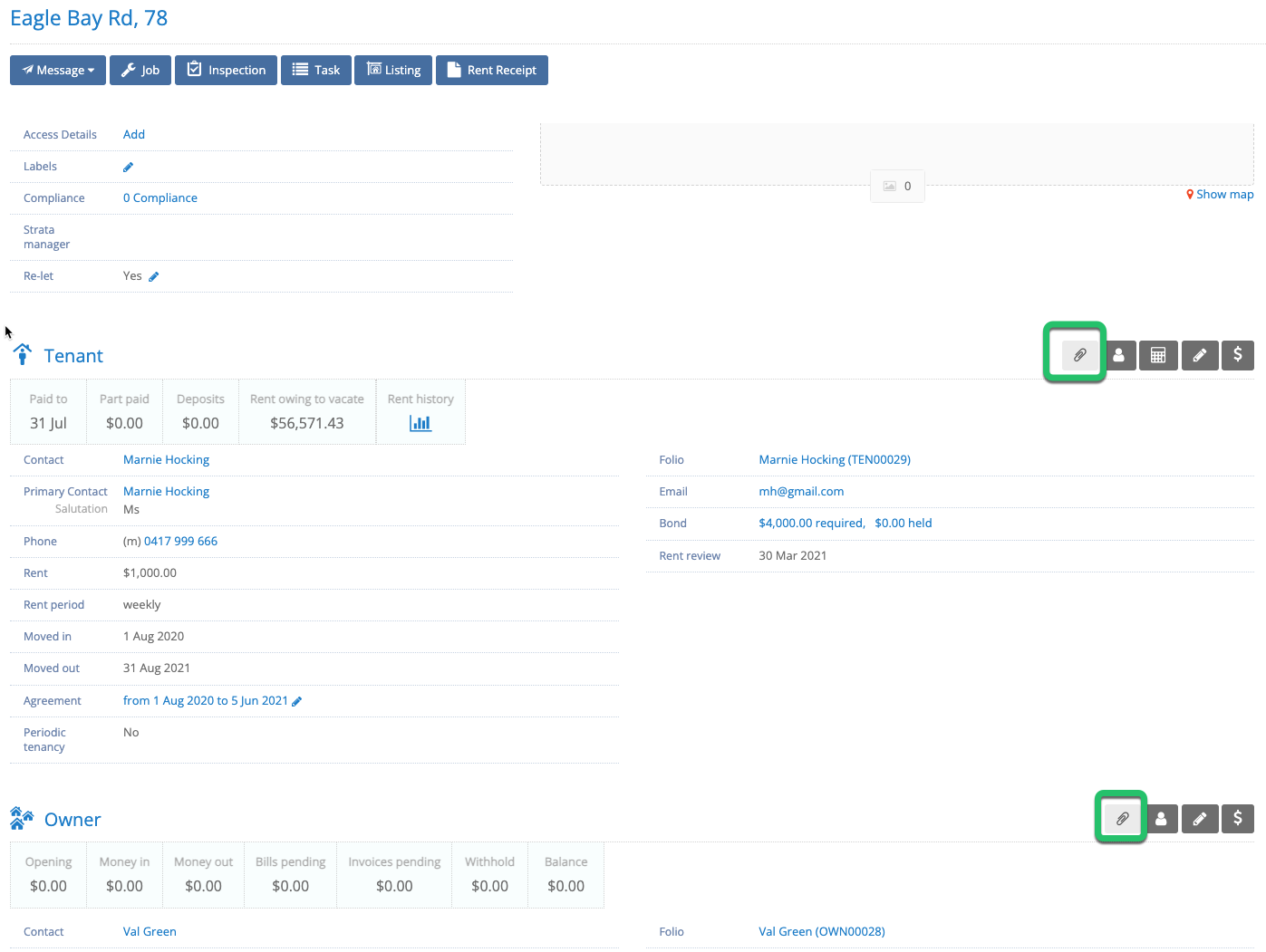
See the Uploading Reports Into PropertyMe for manual upload instructions.
Troubleshooting
For general troubleshooting on PropertyMe workflows, exporting data, contact PropertyMe Support. (Note: you must be logged in to your PropertyMe account to access these links.)
For PIM related questions, please contact PIM Support.
Was this article helpful?
That’s Great!
Thank you for your feedback
Sorry! We couldn't be helpful
Thank you for your feedback
Feedback sent
We appreciate your effort and will try to fix the article