You can then set up as many Inspectors as you wish and link your templates to each Inspector. Just follow our easy how-to guide below:
Adding Inspectors:
Step 1:
Once logged into PIM navigate to Settings > PIM Admin > Inspectors > then tap the "+"

Step 2:
Type in the Inspectors name, email address, phone and or role if needed. Your reports can be customised to show any or all of these. Generated Reports can also be sent to multiple email addresses separated by a comma, e.g, "phil@gmail.com, harry@gmail.com"

Step 3:
Link your Inspector to your customised report templates:
in the PIM app navigate to Settings > PIM Admin > Inspectors > "Your Name" > PIR Template and select your office's Routine Inspection Report template, i.e. Inspection Template-ABC Realty.docx
and then
tap PCR Template and select your state's office Entry/Default/Ingoing template, i.e. WA-PCR-Default-Entry.docx
and then
tap Tenant Inspection Template and select your office's Tenant template, i.e. Tenant Inspection Template-Default.docx
and then hit Done!
Deleting Inspectors:
Step 1:
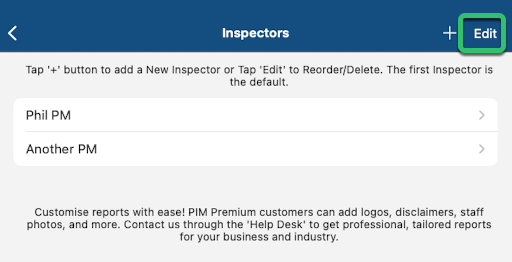
Log in to the PIM app, then navigate to Settings > PIM Admin > Inspectors. Once there, tap Edit in the top-right corner of the screen.
Step 2:
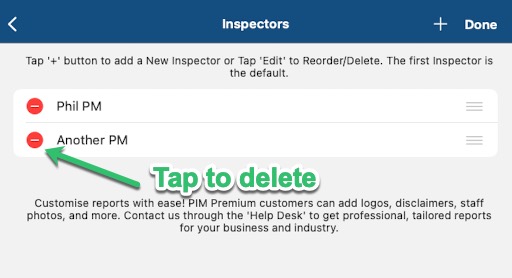
To remove an inspector, tap the small red minus icon next to their name, then confirm the deletion and then tap Done!
Please note that removing an inspector may affect any existing inspections on the device. If an inspection is impacted, a valid inspector will need to be reselected before the report can be submitted again.
Setting a Default Inspector:
When importing inspections from your property management system, or when creating an inspection manually, the order of inspectors is important. The first inspector in the list will be used as the default, so it’s worth making sure your list is set up correctly.
To change the order, tap Edit, then use the three-line drag handle next to each inspector to reorder the list as needed. Once you’re happy with the order, tap Done to save your changes.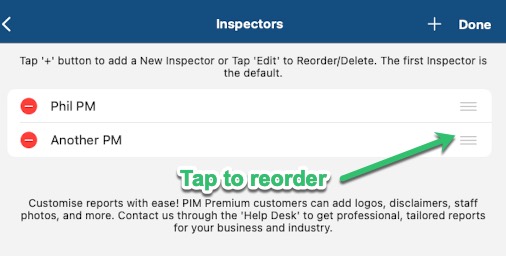
Adding a New Inspector by Copying an Existing One:
If you already have an inspector set up on your device, you can quickly create a new one by copying their settings.
Go to Settings > PIM Admin > Inspectors, then tap and hold on the existing inspector you’d like to duplicate. When the menu appears, select Copy Inspector and then tap Copy to confirm.
If you’d like help fine-tuning the templates for your new inspector, feel free to contact our support team via email and we’ll be happy to assist. Contact Us
Step 1: Select the Inspector to Copy
Go to Settings > PIM Admin > Inspectors, then tap and hold the inspector you want to duplicate. A menu will appear with options to copy the inspector.

Step 2: Copy the Existing Inspector
After tapping and holding the inspector, a menu will appear. Select Copy Inspector, then tap Copy to create a new inspector with the same settings.


Then tap New Inspector to update the name and email for the new inspector. Once you’ve made your changes, tap Done to save.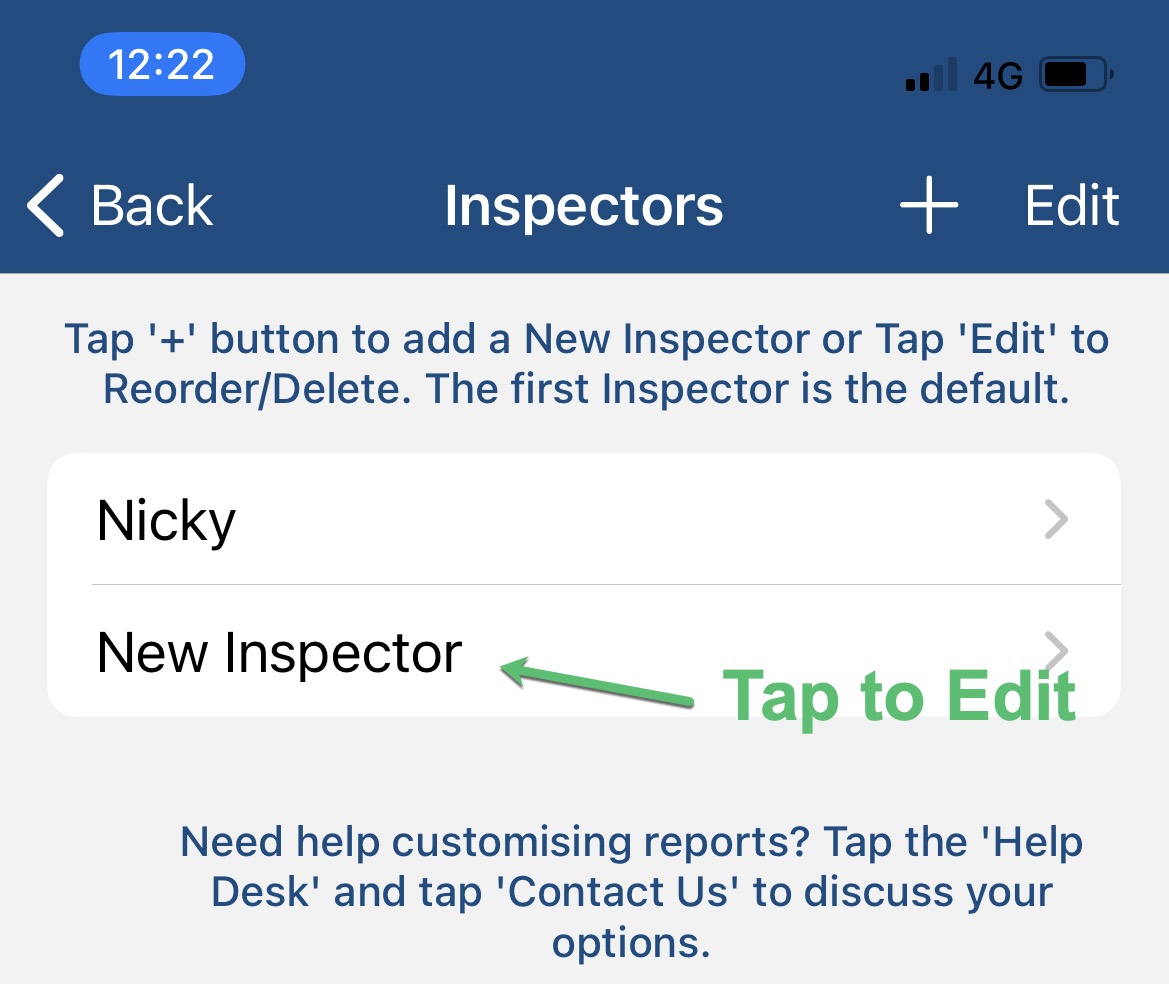
Was this article helpful?
That’s Great!
Thank you for your feedback
Sorry! We couldn't be helpful
Thank you for your feedback
Feedback sent
We appreciate your effort and will try to fix the article