If an inspection was created manually in PIM — rather than imported from Property Tree — the completed report will not upload to Property Tree automatically. You can still attach it manually by following the steps below. This also applies if you need to re-upload a report for any reason.
Step 1. Make sure you have your report file ready. After tapping Submit Inspection in PIM, a copy of the report is emailed to you as a PDF (or Word document if that's your default format). If you haven't received it, see our Sharing Reports and Photos guide for how to retrieve it.
Step 2. Log into Property Tree and navigate to the property where you want to upload the report.
Step 3. Tap the Inspections tab (1), then tap the eye icon (2) next to the relevant inspection.

Step 4. Scroll down to the Documents section. Click Browse to Files to locate your report, or drag and drop the PDF or Word file directly from your desktop.
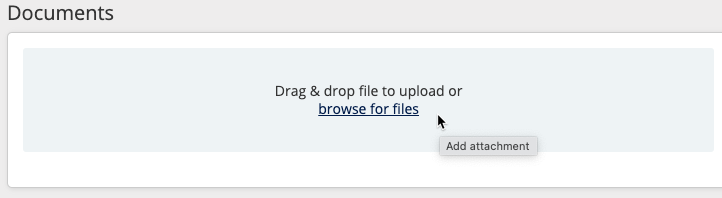
Step 5. Once uploaded, your report will appear in the Documents section and can also be viewed from the Documents tab against the property address.


Was this article helpful?
That’s Great!
Thank you for your feedback
Sorry! We couldn't be helpful
Thank you for your feedback
Feedback sent
We appreciate your effort and will try to fix the article