Syncing your data and reports between Property Tree and Property Inspection Manager is simple. Property Tree users can directly import their properties from Property Tree using a single click in PIM, then automatically push their Routine, Ingoing/Outgoing, Cleaning-Maintenance, or Tenant Inspection reports back into Property Tree. Only inspections scheduled as 'Confirmed' in Property Tree will be imported into PIM, as only these inspections have a confirmed date, set by the Agent and Tenant.
Contents
Setting Up PIM and Property Tree
Step 1. Check you are running the latest version of PIM. In the app, go to Settings and you will see the version number in the top left corner.
Step 2. If you have already been sent your Property Tree API Key from Property Tree Support, skip ahead to Step 4. Otherwise, follow these steps to generate one:
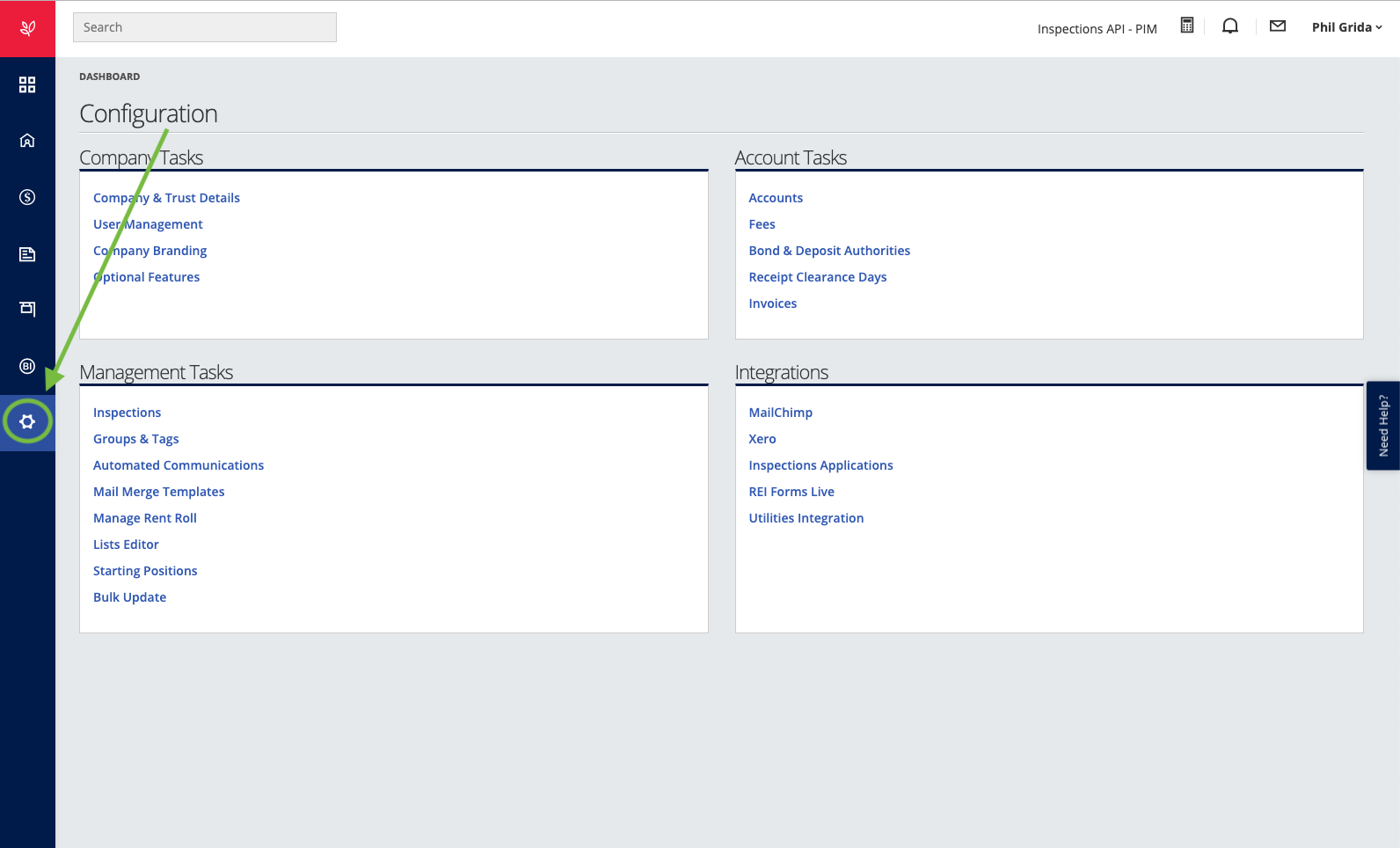
- In your web browser, log into your Property Tree account and click Configuration on the left-hand side.
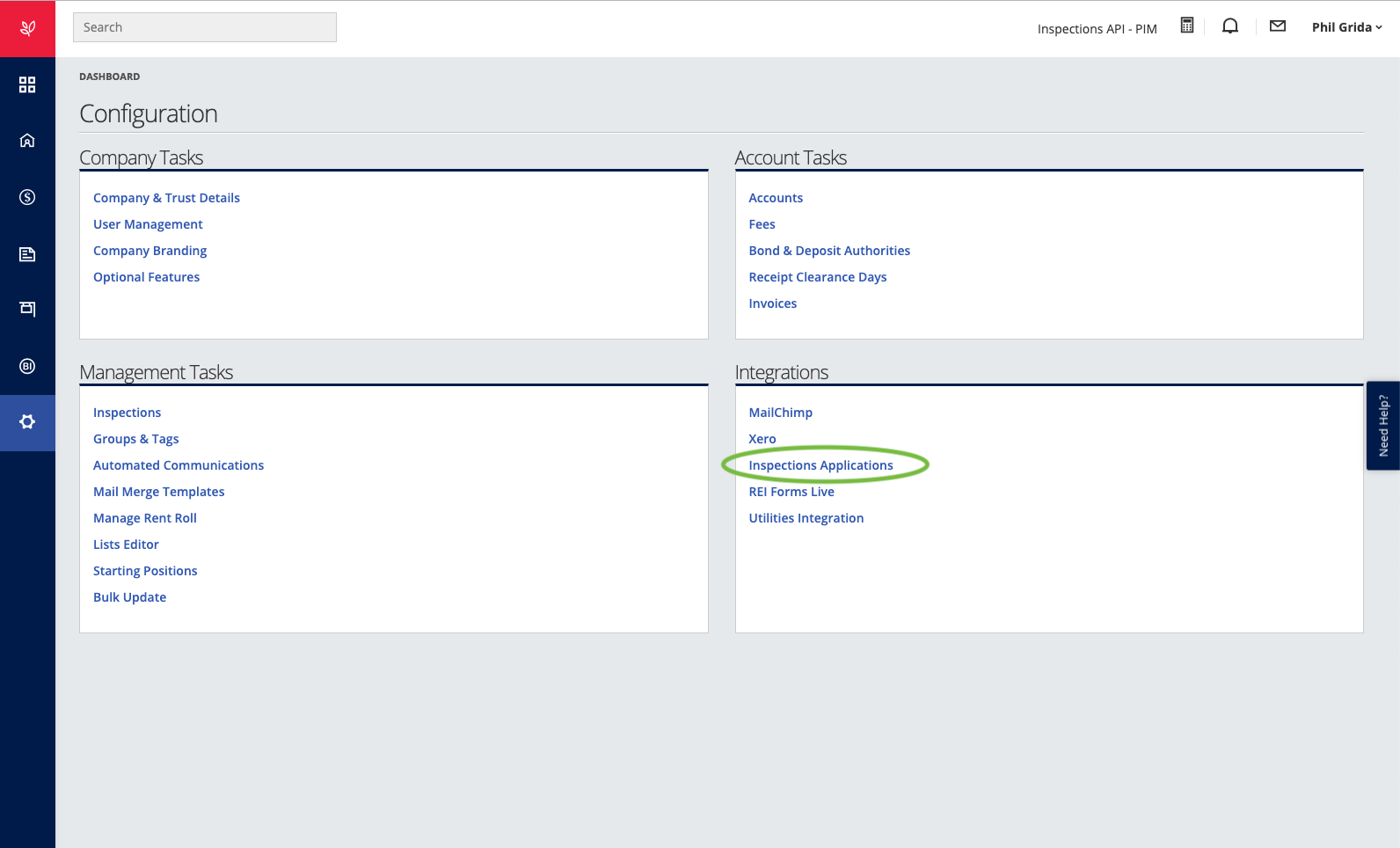
- Under Integrations, select Inspection Applications. You may need administrator access to see this option — if it isn't visible, ask a colleague with administrator privileges in your office.
- A screen showing your API Key for Property Inspection Manager should now appear. Tap Generate API Key if no key exists yet, then proceed to Step 3.
Step 3. Copy the API key generated in the previous step. You can either send this to us at PIM Support and we'll assist with finalising your PIM and Property Tree integration, or upload it directly yourself by logging into the PIM Cloud Dashboard, selecting Integrations, choosing Property Tree as the Integration Provider, and pasting your API key.
Step 4. Enable Property Tree Integration. Once we've confirmed that the API key has been uploaded — or you've uploaded it yourself — you'll need to enable the Property Tree integration on your device. In the PIM app, navigate to Settings > Advanced, Integrations & About the App, then tap Enable Property Tree. Once PIM validates the API key, your portfolio name will be displayed above.
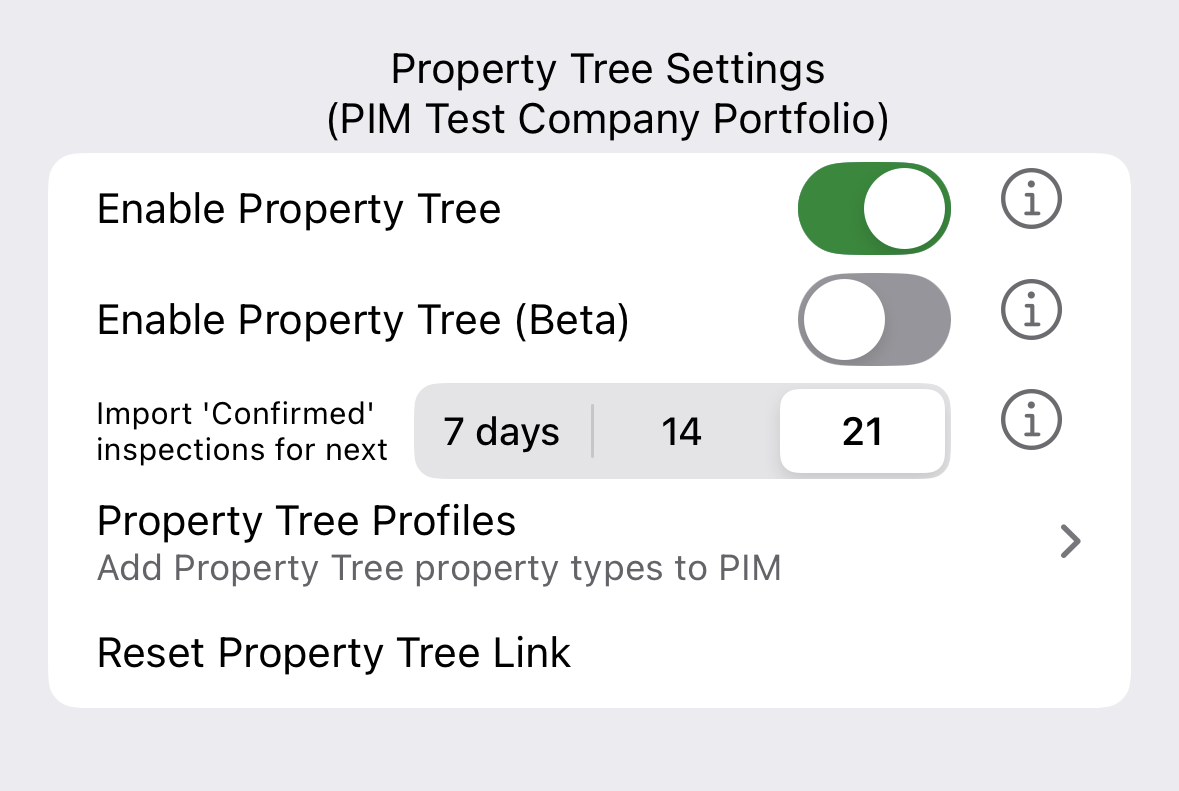
Step 5. You can choose to import the next 7, 14, or 21 days of Confirmed inspections. Simply tap the setting that suits you, and this will be used whenever importing your inspections from Property Tree.
Step 6. PIM now automatically configures your Property Tree profiles based on whether your device is set up for residential or commercial property management. Within the same Property Tree integration section, tap Property Tree Profiles, and you'll be shown a list of profiles relevant to your device's mode. These are preselected by default, so simply untick any that aren't relevant to you, then tap Add. Your inspections will now always load with the correct layout straight away, with no manual setup required.
Residential Property Profiles 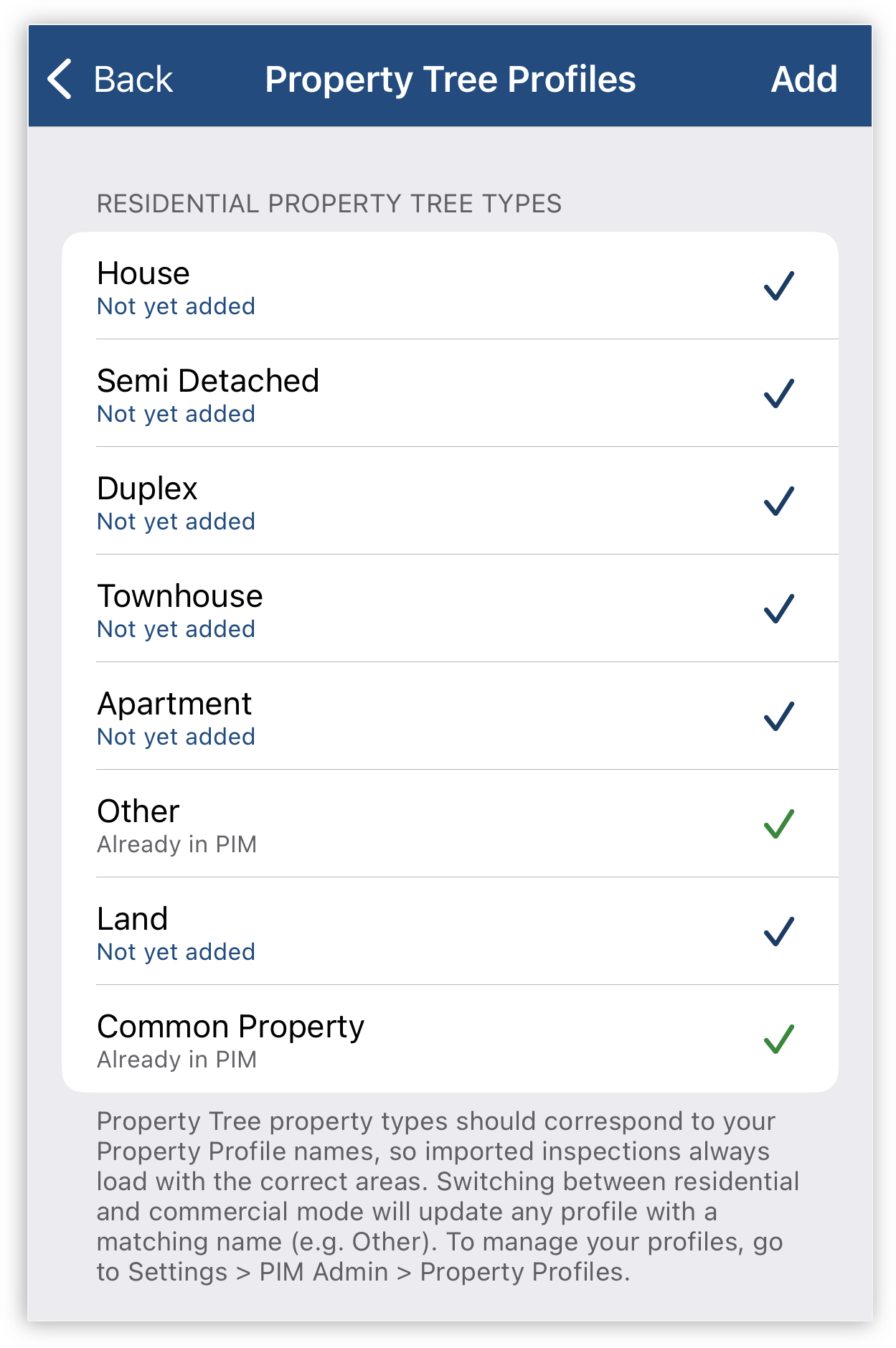 | Commercial Property Profiles 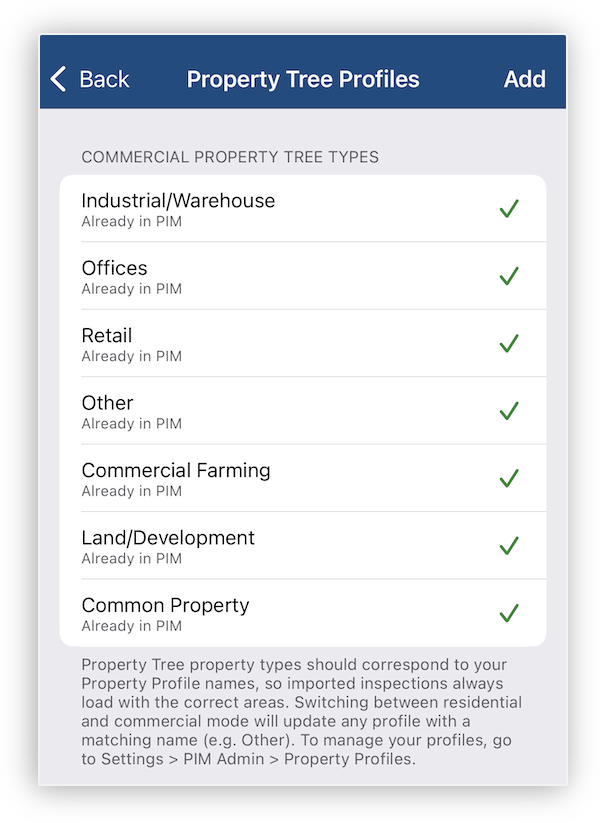 |
Ready to import your inspections from Property Tree and sync your reports back? Head over to our Property Tree guide for more information.
Was this article helpful?
That’s Great!
Thank you for your feedback
Sorry! We couldn't be helpful
Thank you for your feedback
Feedback sent
We appreciate your effort and will try to fix the article