Onsite Maintenance Requests — Sending by Email |
Noticed something that needs attention during an inspection? You can raise a Maintenance Request on-site directly from PIM — no property management integration required. PIM builds a fully formatted maintenance request, complete with photos, priority, maintenance type and target date, and emails it to the inspector and to any additional email address you choose.
This guide covers the general (email-based) Maintenance Request. If your office uses an integrated system, maintenance is sent straight into that platform instead — see the guide for your system:
Where does the request go? The request is emailed to the Created By/Inspector Email address, and optionally to an Additional Email. Many offices set the Additional Email to a shared maintenance inbox (for example, maintenance@youroffice.com.au) so every request lands in one place, ready to be actioned or forwarded to tradespeople and maintenance crew. |
Contents
- Who This Is For
- Quick Summary of Steps
- Creating a Maintenance Request in PIM
- Completing the Maintenance Request Form
- Auto-Filling the Description with Notes Collation
- Where the Request Goes and Actioning It
Who This Is For
- Offices without an integrated property management system — raise maintenance on-site without re-keying details back at the office.
- Offices with a shared maintenance inbox — send every request to one generic address so your maintenance coordinator can triage and assign the work.
- Property managers and inspectors — log the issue while you are standing in front of it, with photos attached, and keep a copy in your own inbox.
- Tradespeople and maintenance crew — receive a clear request with the address, description, priority, maintenance type, target date and photos, so they know what the job is before they arrive.
Quick Summary of Steps
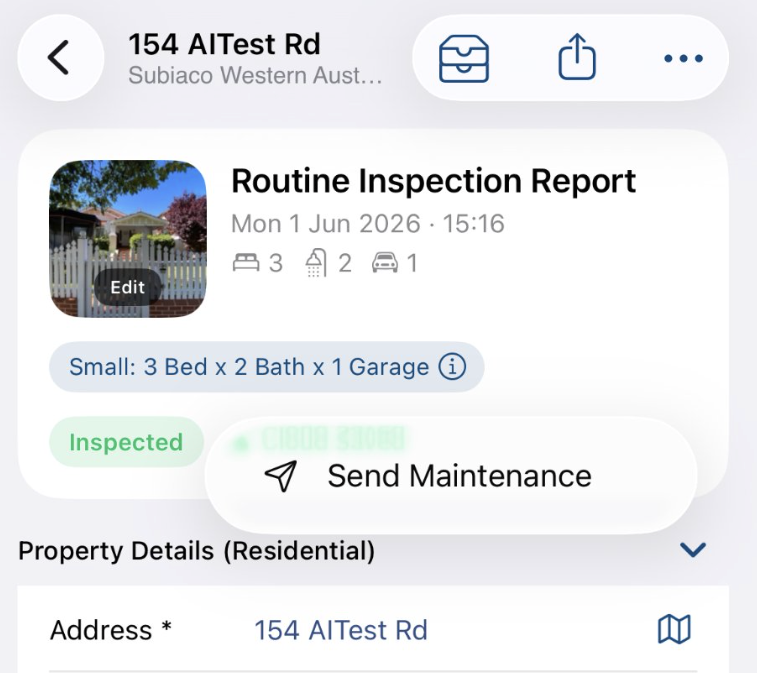
- Tap and hold a photo in an Inspection Area, or tap the ... (actions) button on the Inspection Overview, then select Send Maintenance.
- Tap + to add photos from the inspection.
- Check the Title and enter a Description — tap + to auto-fill it from your collated maintenance notes.
- Set the Priority, Maintenance Type and Target Date.
- Confirm the Created By/Inspector Email and add an Additional Email if required.
- Tap Submit. The request is emailed and ready to action.
Creating a Maintenance Request in PIM
There are two ways to raise a Maintenance Request in PIM — from a photo within an Inspection Area, or directly from the Inspection Overview screen. Both open the same form (see Completing the Maintenance Request Form).
Option A — From a Photo (Inspection Area or Sub-Inspection Area)
From the photo list in any Inspection Area or Sub-Inspection Area, tap and hold the photo that shows the issue, then select Send Maintenance. The form opens with that photo already included.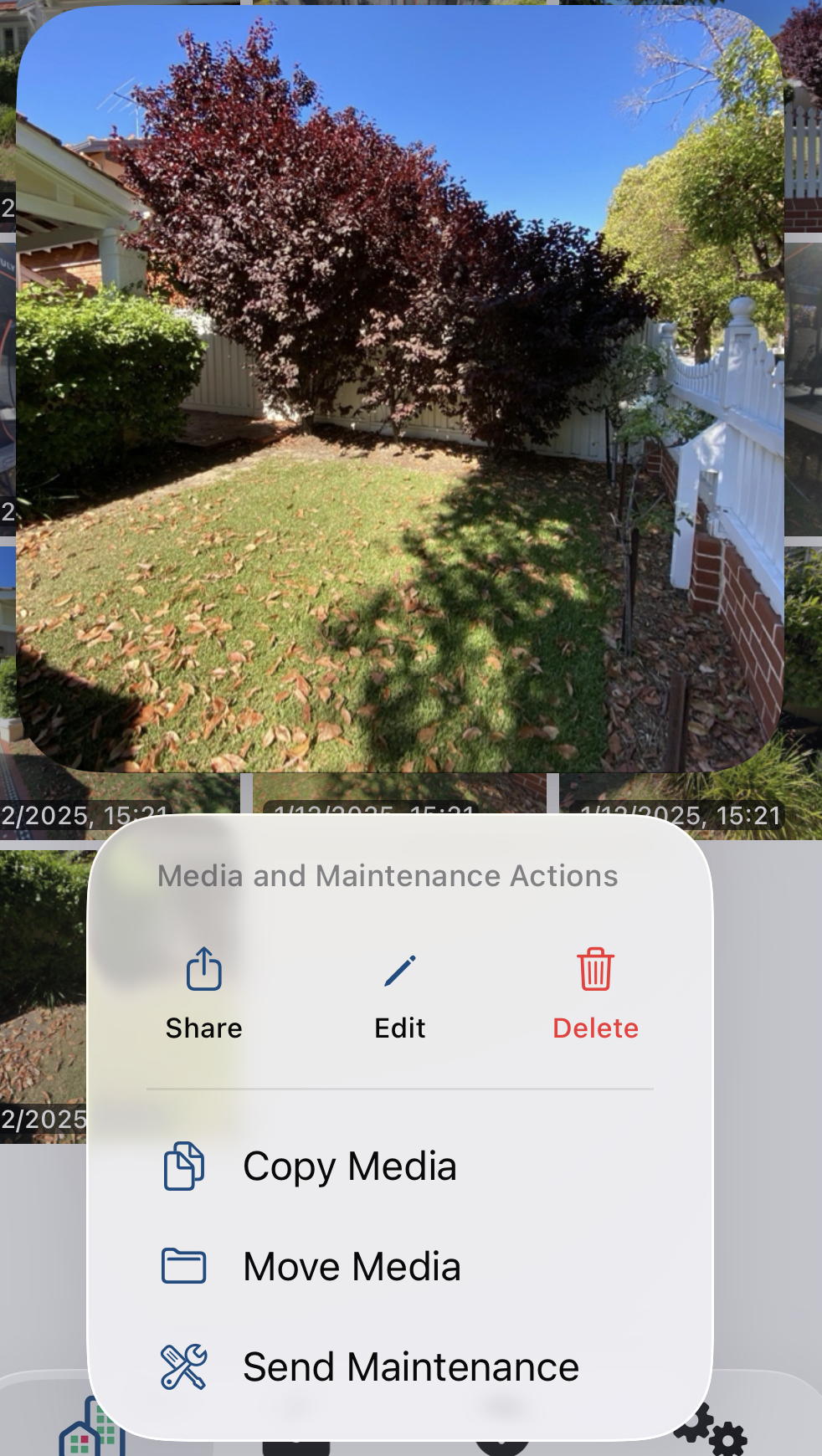
Option B — From the Inspection Overview Screen
You can also raise a request for the property as a whole, without starting from a specific photo. From the Inspection Overview screen, tap the ... (actions) button in the top right corner, then tap Send Maintenance to open the Maintenance Request form.
Completing the Maintenance Request Form
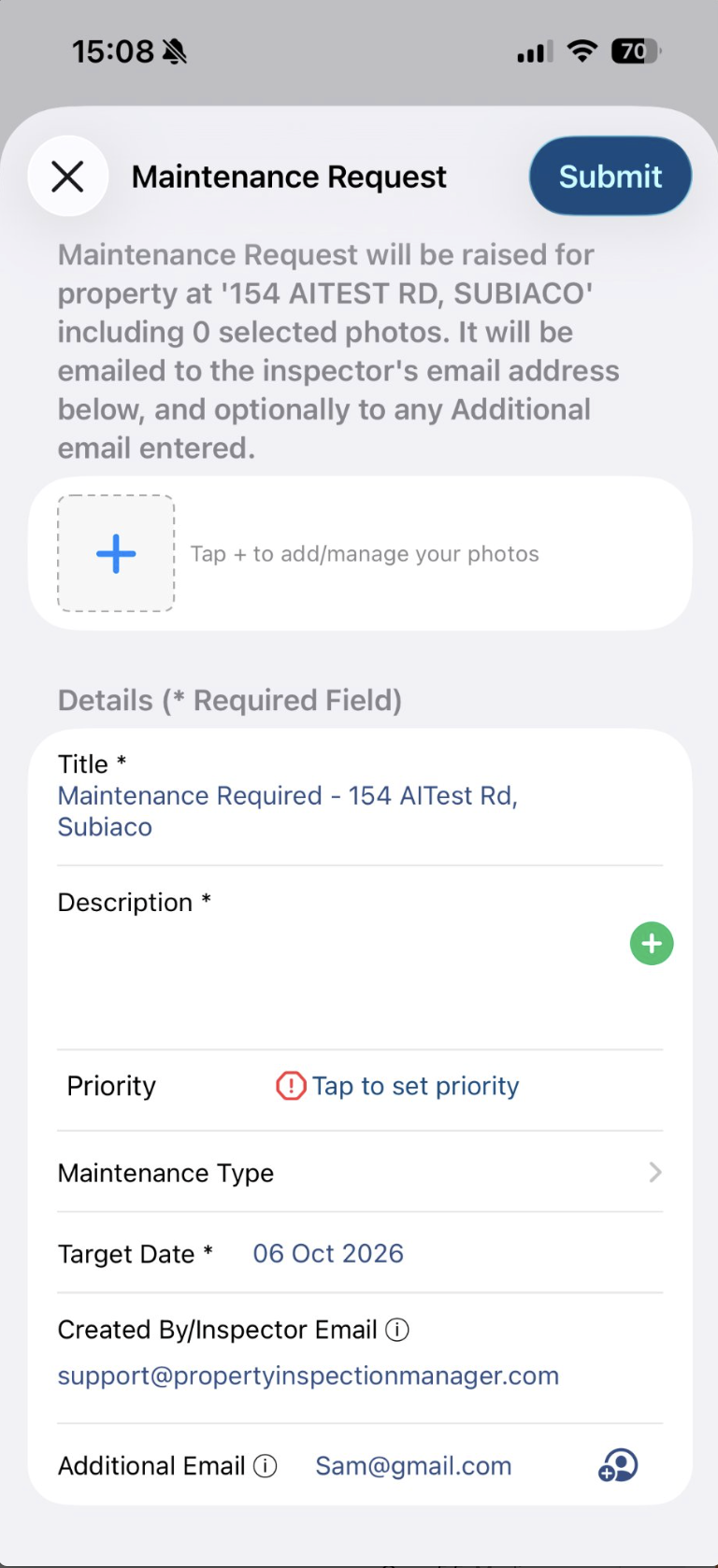
The Maintenance Request screen confirms the property the request is being raised for and how many photos are selected. Fill in the details and tap Submit. Fields marked with an asterisk * are required.
Photos
Tap the + tile to add and manage the photos included with the request. You can pull in supporting images from other areas of the inspection before you send it. The number of selected photos is shown in the message at the top of the form.
Details
- Title * (required) — Pre-filled as Maintenance Required - [property address]. Edit it if you would like something more specific, such as Leaking tap - Main Bathroom.
- Description * (required) — Describe the issue and where it is. Tap the green + button to pull in the Maintenance Required notes captured during the inspection, or type directly into the field. Use Notes Collation to have these notes gathered for you.
- Priority — Tap to choose Low, Medium, High or Critical.
- Maintenance Type — Select the trade or category the work relates to, such as Air Conditioning, Builder, Carpet, Cleaning, Electrical, Fencing, Gardening, Glazing, Locksmith, Painting, Plumbing or Roofing. Tap the tick to confirm.
- Target Date * (required) — The date you would like the work completed by.
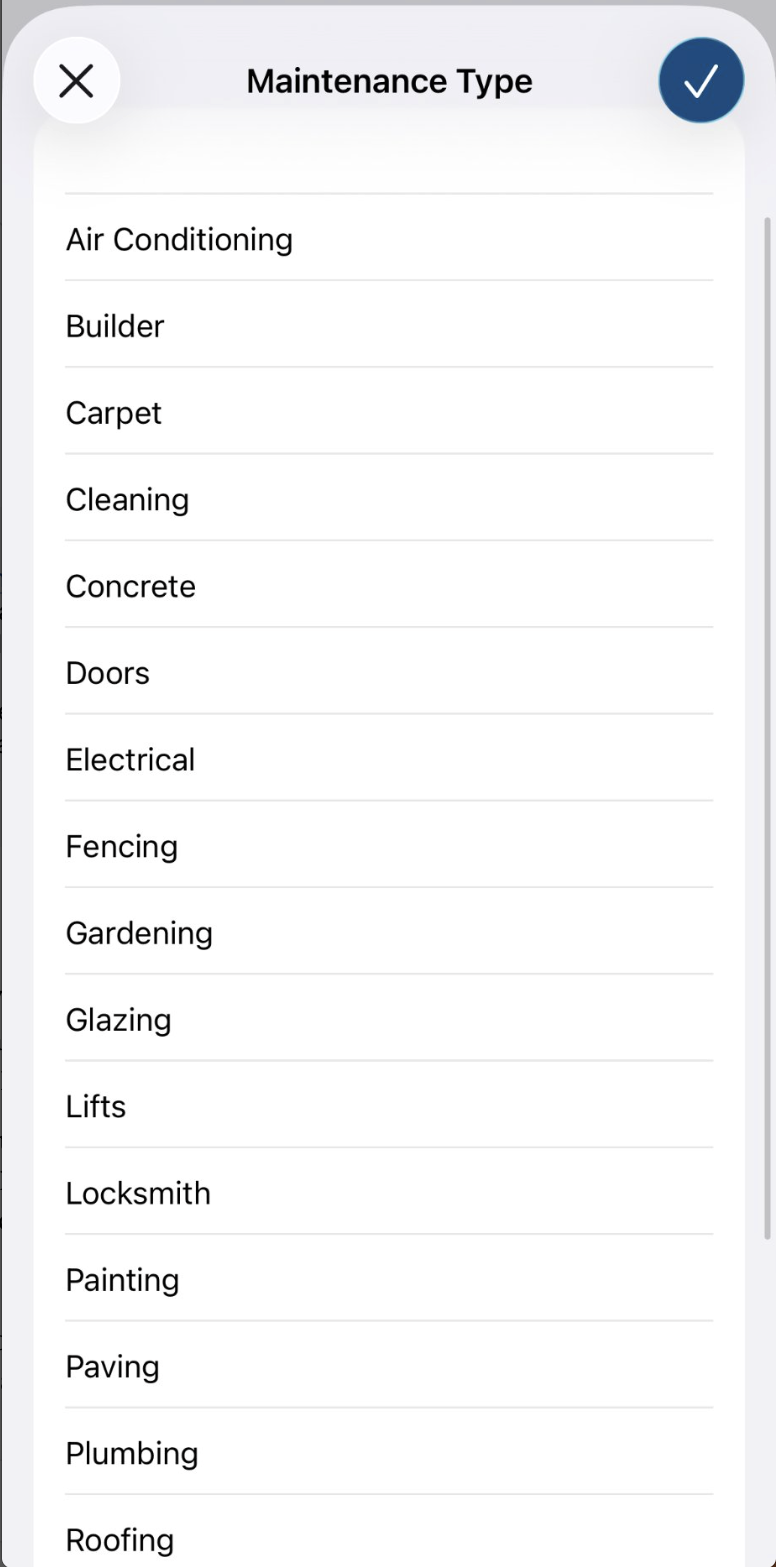
Tip: Setting the Maintenance Type makes it much easier for whoever receives the email to route the job to the right tradesperson — a plumbing request can be forwarded straight to your plumber without anyone having to read through the detail first. |
Email Recipients
- Created By/Inspector Email — Defaults to the inspector's email address configured under Settings > PIM Admin > Inspectors. The request is always emailed to this address.
- Additional Email (optional) — Enter another address to receive the request, or tap the contact icon beside the field to pick someone straight from your iPhone Contacts. Any tradesperson, owner or colleague already saved on your device can be selected without typing their address. This is also where you would enter your office's generic maintenance address, or send directly to a tradesperson.
Once everything is entered, tap Submit in the top right corner to send the request.
Auto-Filling the Description with Notes Collation
PIM's Notes Collation feature works hand in hand with Maintenance Requests. It gathers the maintenance notes from every Inspection Area marked Maintenance Required and consolidates them, with area labels, into the inspection's central Maintenance Required section. When you then tap the green + button beside Description on the Maintenance Request form, those collated notes are pulled straight in — no retyping on-site.
- Automatic collation — Switch it on under Settings > PIM Admin and choose whether to collate from the main Notes field or from Additional/Maintenance Notes. Notes are then gathered automatically whenever Maintenance Required is marked on an Inspection Area.
- Manual collation — From the Inspection Areas screen, tap the icon beside the Maintenance Required section and choose to copy the inspection notes, copy the additional/maintenance notes, or use the AI-assisted option to combine both into a clean summary.
Good to know: Collating replaces whatever is already in the Maintenance Required section, so copy any manual entries first. AI-assisted summaries are a starting point — review them before sending. For full setup steps, see the Smarter Maintenance - Notes Collation guide. |
Where the Request Goes and Actioning It
Once submitted, the Maintenance Request arrives by email at the Inspector Email and any Additional Email entered. The email contains the property address, title, description, priority, maintenance type, target date and the photos you selected. From there, it can be actioned in whichever way suits your office:
- Action it by email — Forward the request to your tradesperson or maintenance crew, or to the owner for approval. Everything they need is already in the email.
- Send to a generic maintenance inbox — Use a shared address as the Additional Email so all on-site requests arrive in one place for your maintenance coordinator to triage and assign.
- Enter it into your own system — Use the emailed details and photos to create the job in your property management or job management software.
- Keep it for your records — The inspector's copy gives you a dated record of what was reported and when.
Tip: If the same person coordinates all of your maintenance, agree on one Additional Email address for the whole team. Requests raised by any inspector will then follow the same path, and nothing sits unnoticed in an individual's inbox. |
Any questions, please contact PIM Support.
Was this article helpful?
That’s Great!
Thank you for your feedback
Sorry! We couldn't be helpful
Thank you for your feedback
Feedback sent
We appreciate your effort and will try to fix the article