
PIM & CirrusFM Work Request Guide
Cirrus8/CirrusFM users can create Work Requests on site directly from PIM, including attaching a photo from the inspection, and upload it straight into CirrusFM.
For any property or tenancy requiring a Work Request, simply select a photo, add the relevant details, and raise the Work Request. You can also choose to notify the property manager by email so they receive a copy of the request.
Please note, submitting Work Requests is only available for inspections imported from Cirrus8 and requires an active network connection.
If you haven’t set up the integration between PIM and Cirrus8 yet, you can follow our Cirrus8 Integration Guide for step-by-step instructions.
Contents
Creating Work Requests in PIM
There are now two ways to raise a Work Request in PIM:
- From a specific photo within an Inspection Area or Sub-Inspection Area, or
- At the property level, directly from the Inspection Overview screen.
Both methods open the same Work Request screen (see Step 2 below), where you add the details and submit through to CirrusFM.
Step 1 (Option A) Create and Send a Work Request from a Photo (Inspection Area or Sub-Inspection Area)
From the list of available photos for an Inspection Area or Sub-Inspection Area, tap and hold the photo you wish to include as part of the Work Request, then select Send Work Request to Cirrus8.

If you have multiple images to include, tap Edit (in the top right-hand corner), select the images, then tap the "..." > Send Work Request to Cirrus8 with Photo/s. There is a maximum of 3 images allowed per Work Request.

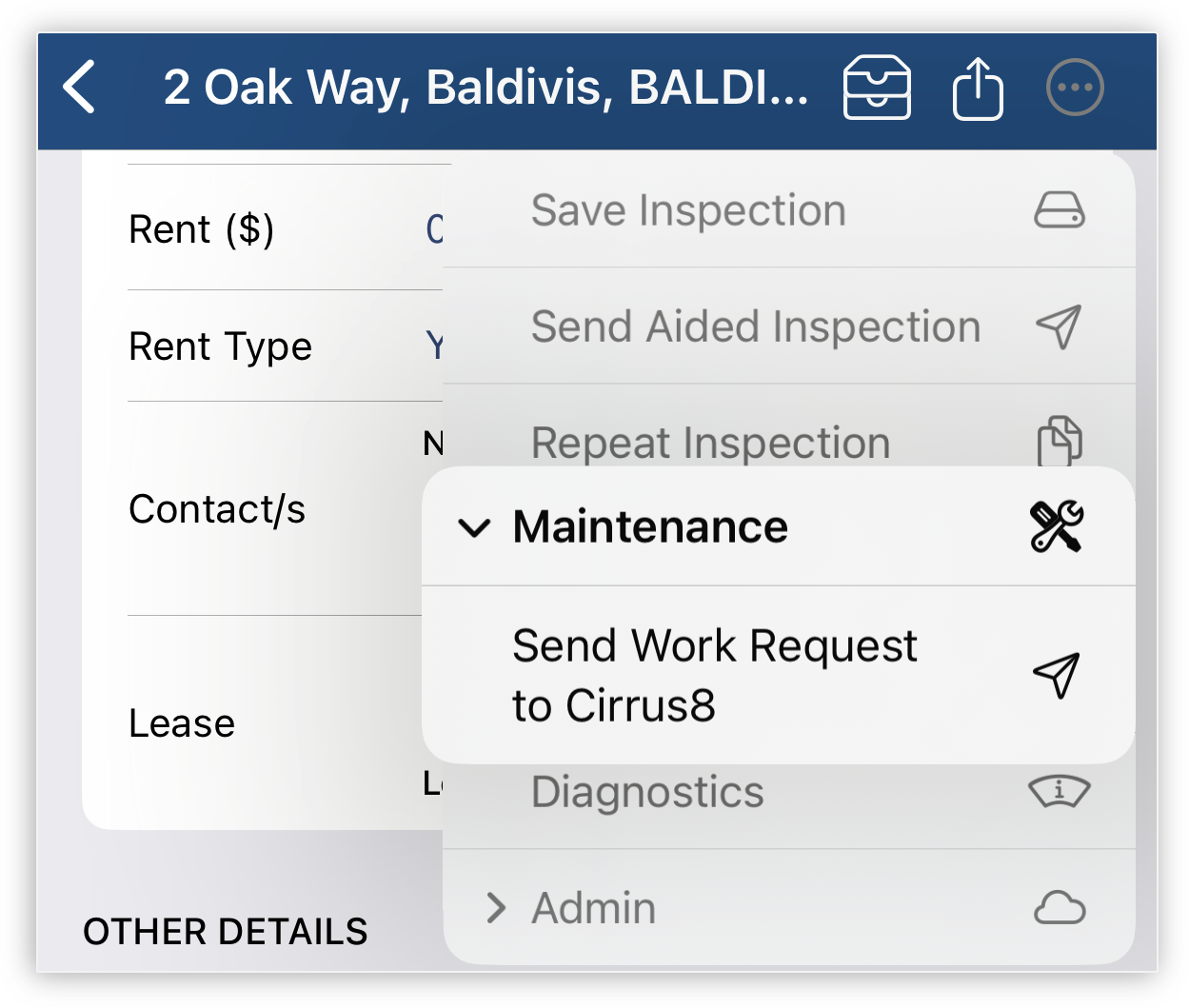
Step 1 (Option B) At the property level (Inspection Overview screen)
You can now raise a Work Request for the property as a whole, without needing to start from a specific photo or inspection area. This is handy when the maintenance item relates to the property more generally, or when you simply want to log a request quickly while reviewing the inspection.
From the Inspection Overview screen, tap and select Send Work Request to Cirrus8 and then then continue to fill in the details as described in Step 2 below.
Step 2: Completing Work Request in PIM
This presents the Work Request screen where you can fill in more details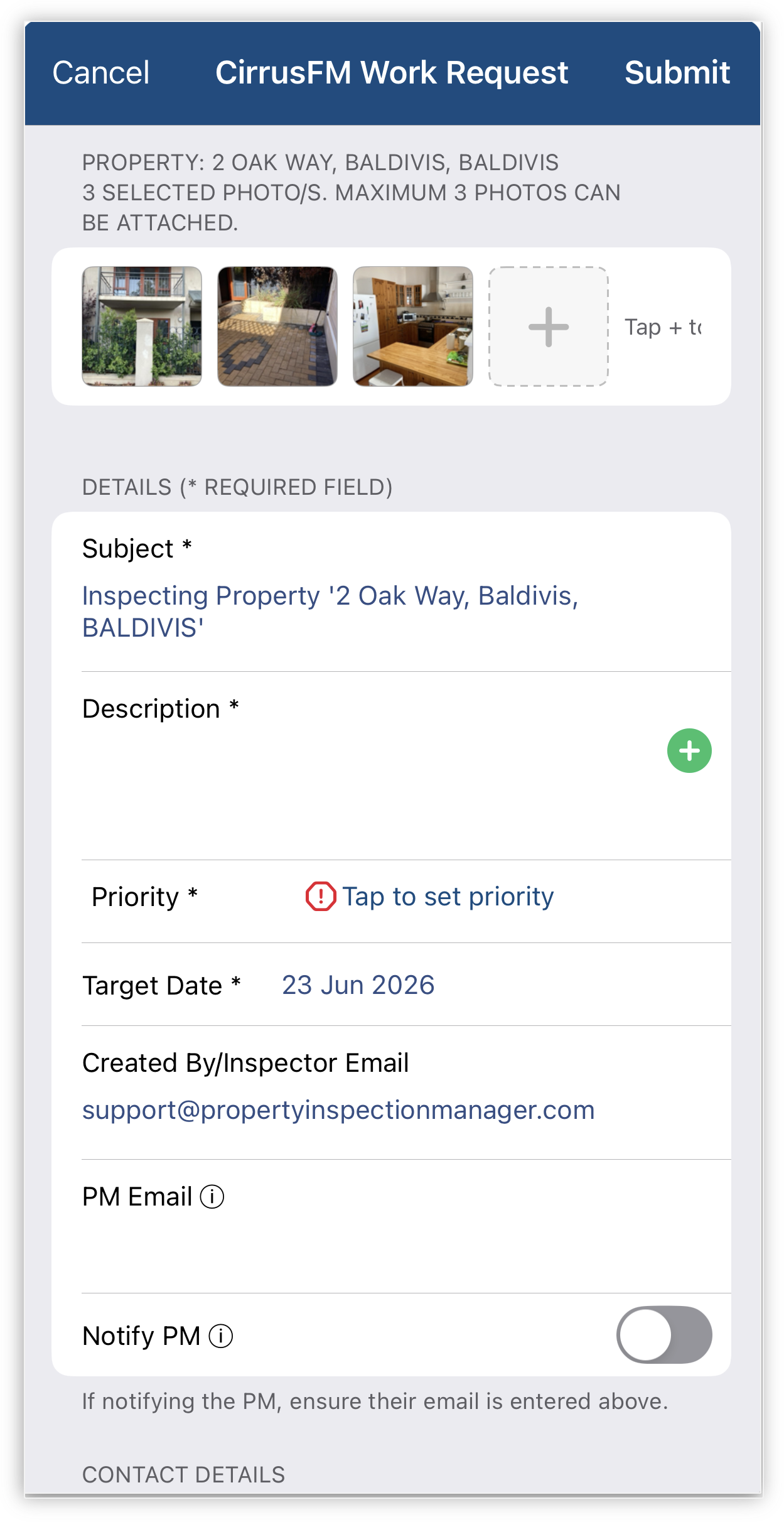
Subject - Defaults to the Inspection Area where the image was taken. Edit as required.
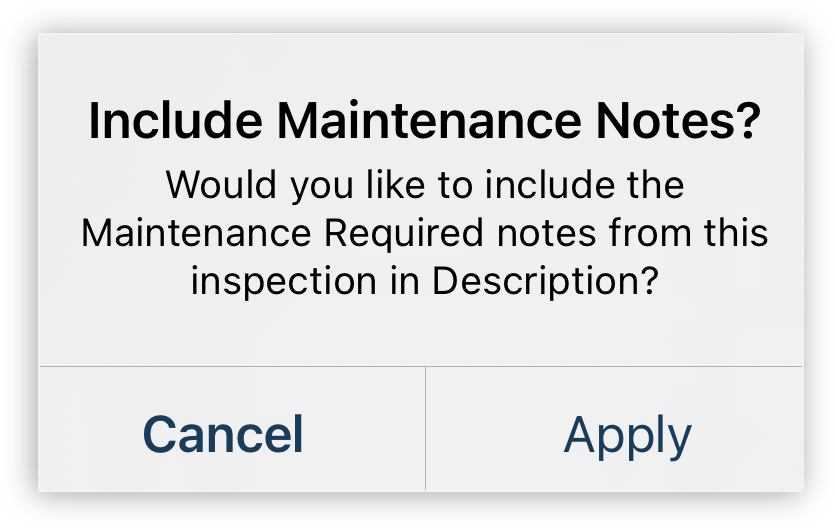
Description - Enter notes detailing the maintenance required. Tap the
 button to automatically include any Maintenance Required notes captured during this inspection, or type your own description directly into the field.
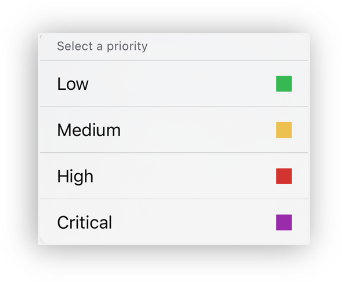
 Priority - Select the priority (required) as indicated in the image below: Low, Medium, High or Critical!
 Target Date - Defaults to tomorrow's date, however, change as needed.
Created By Email: Defaults to the Inspectors email address.
Property Manager Email: PIM automatically pulls the designated Property Manager from Cirrus8. If the Notify PIM toggle is enabled when submitting a Work Request, the request will be sent directly to Cirrus8, and the Property Manager will also receive an email notification.
Contact Details: Derived from the Tenant details for the Property as stated in Cirrus8. If these fields are blank the inspector's details will be used instead. Any follow-up notifications for the Work Request will use these contact details. If the contact telephone field is blank, the mobile number will default to the Inspectors mobile if configured in PIM Settings > PIM Admin > Inspectors.Once a Work Request is submitted to CirrusFM, any further notifications will be sent through to the Contact by CirrusFM.
Once you tap Done, a confirmation message will appear letting you know that your Work Request has been successfully sent to CirrusFM. If you chose to notify the Property Manager, they will also receive an email. Simply tap OK to close the confirmation and return to your inspection.

Viewing Work Requests in Cirrus8
After you have sent the Work Request from PIM, log into your Cirrus 8 account then tap on CirrusFM (1)

Then tap Work Requests (2) and tap on your newly created Work Request (3) to view further information.

Once opened you can see your Subject, Description, and Attachment (Image) together with other details sent from PIM.
Any further workflow questions regarding Work Requests and Work Orders please contact Cirrus8 Support.
If you are having issues submitting your Work Requests in PIM please contact PIM Support.
Was this article helpful?
That’s Great!
Thank you for your feedback
Sorry! We couldn't be helpful
Thank you for your feedback
Feedback sent
We appreciate your effort and will try to fix the article