The Monthly Inspection Schedule lets you automatically send a designated manager a CSV summary of all inspections completed during the previous calendar month. When enabled, the export is emailed on the 1st of each month with the spreadsheet attached. You can also send a preview at any time to verify the report before the scheduled send.
Note: The Monthly Schedule setting is managed per user from the User Details page in the PIM Cloud Dashboard. A Manager account role is required to access and update user settings. To update company-wide settings, see Managing Company Details. |
Contents
Accessing User Details
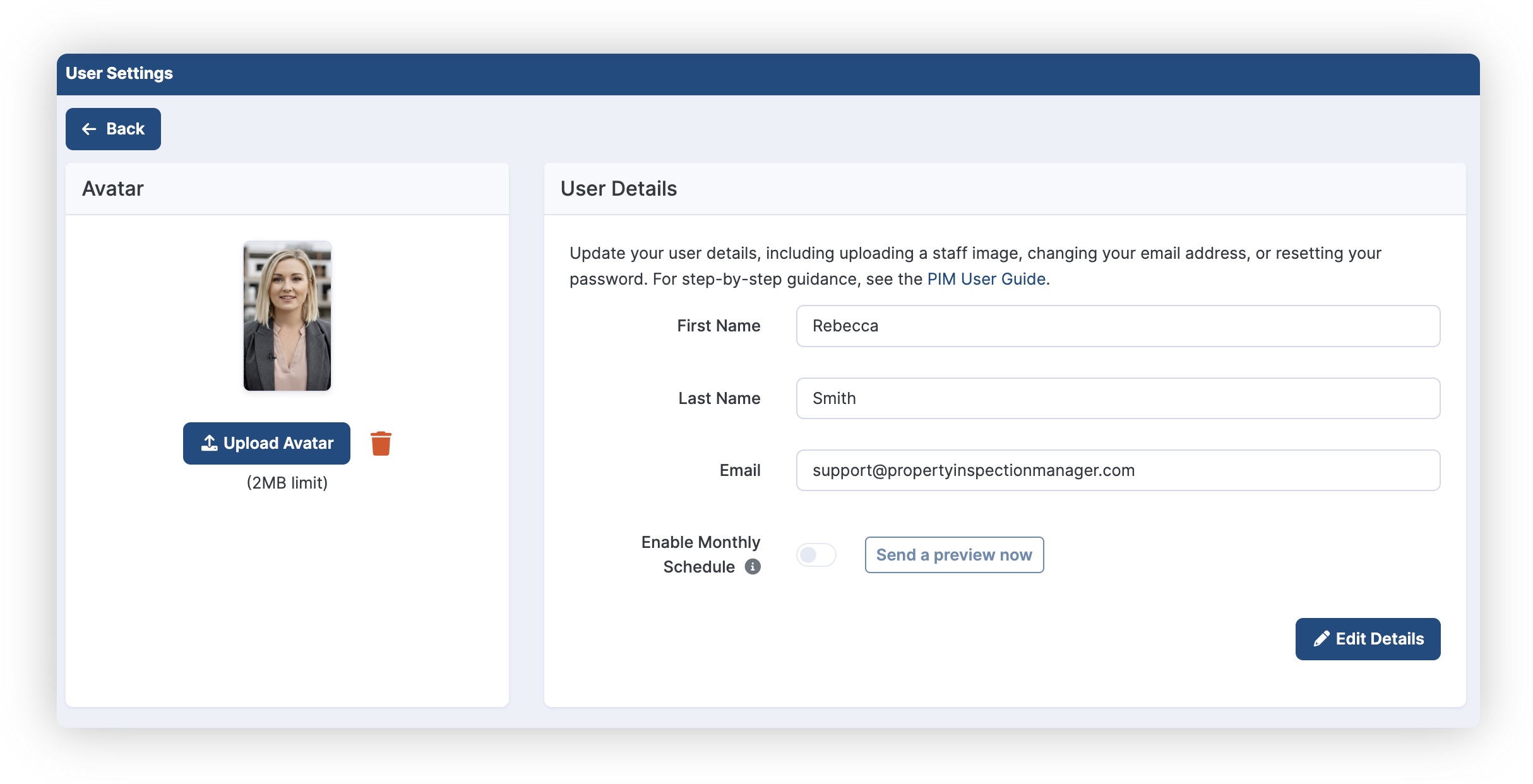
Log in to the PIM Cloud Dashboard, tap your avatar in the top-right corner, and select Update User Details. The User Details page shows your name, email address, avatar, and the Monthly Schedule setting.
Enabling the Monthly Schedule
On the User Details page, locate the Enable Monthly Schedule toggle. Tap Edit Details to unlock the form, then toggle it on and tap Save Details to confirm. Hover over the ⓘ icon beside the toggle at any time for a reminder of what the schedule does and when it sends — a CSV summary of all organisation inspections completed that month, emailed to this manager on the 1st of each month.
What the Monthly Email Contains
The monthly email is sent to the manager whose User Details page has the schedule enabled. It includes:
- A CSV spreadsheet summarising all organisation inspections completed during the previous calendar month
- Inspection details across all inspectors and properties within the organisation
Note: The report covers all organisation inspections for the previous calendar month — not just inspections for the logged-in manager. |
Sending a Preview
To verify what the monthly email looks like before it sends on the 1st, tap Send a preview now on the User Details page. A confirmation prompt will appear:
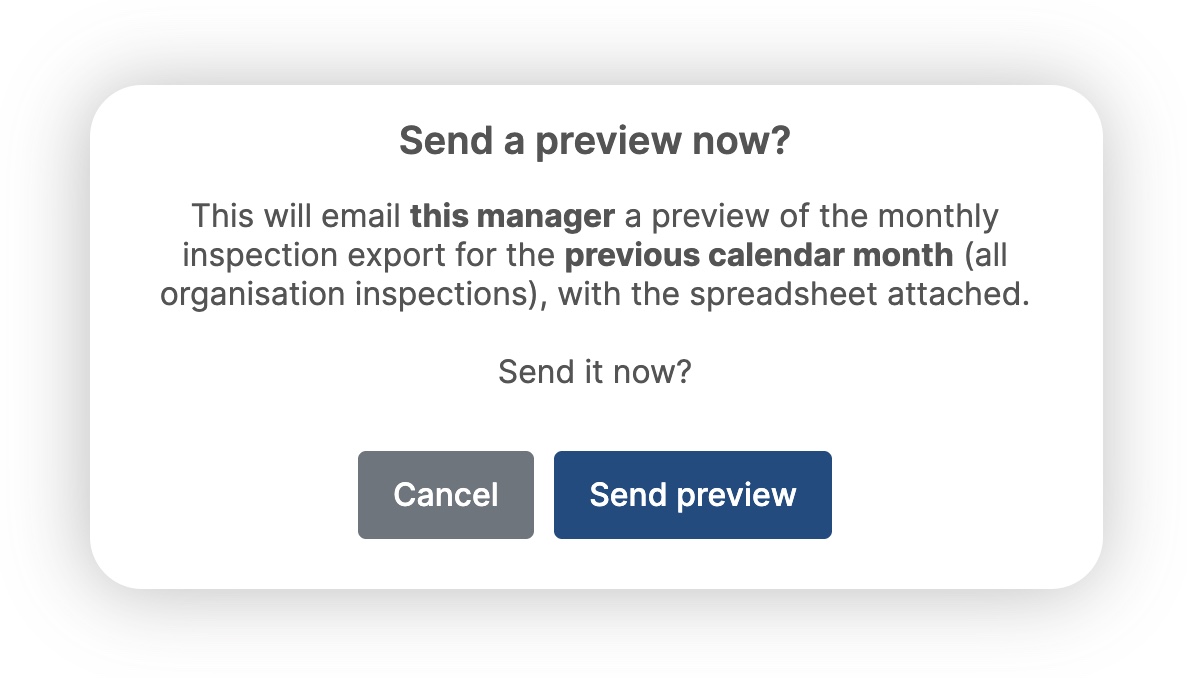
Tap Send preview to send the preview immediately. The email arrives with a CSV file attached containing the monthly inspection export for the previous calendar month across all organisation inspections. Tap Cancel to dismiss without sending.
Tip: Use Send a preview now to confirm the report is reaching the right inbox and that the data looks correct, before relying on the automated monthly send. |
If you need any help, please contact PIM Support and we’ll be glad to assist.
Was this article helpful?
That’s Great!
Thank you for your feedback
Sorry! We couldn't be helpful
Thank you for your feedback
Feedback sent
We appreciate your effort and will try to fix the article