Repeating Inspections
Repeat Inspection (also called Clone) creates a new inspection from a previous one saved on your device, ready for your next visit. You can repeat with or without photos — so each repeat starts with exactly what you need.
If the previous inspection was saved to the PIM Cloud but isn't on this device, sync it first from the PIM Cloud Dashboard — see Syncing New and Updated Inspections.
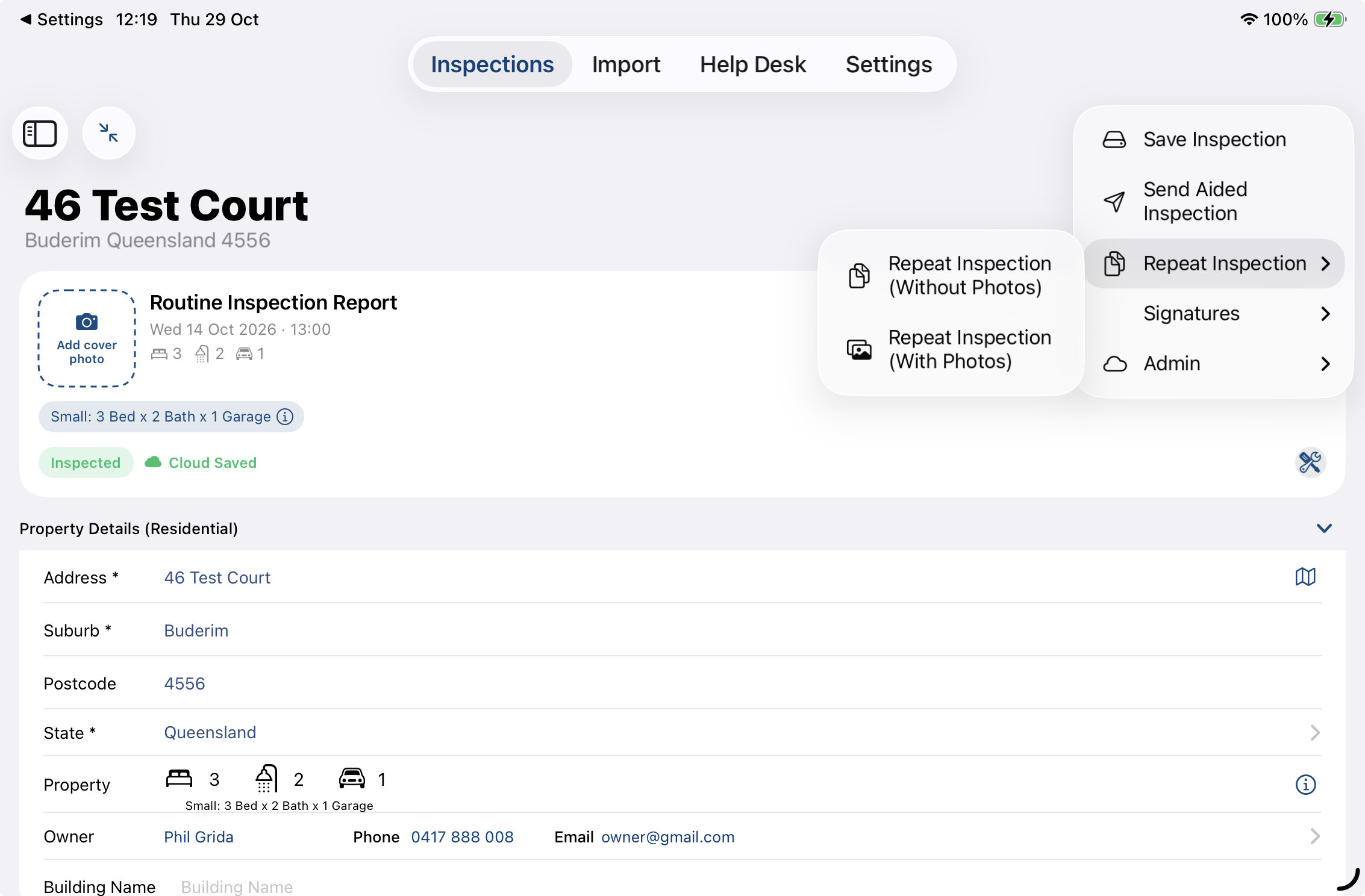
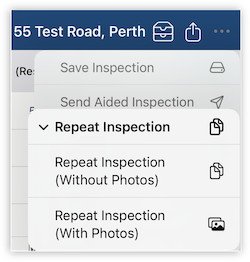
| 1 | Find the inspection and start the repeat. Open the most recent inspection for the property, tap the three-dot icon in the top-right corner, and select Repeat Inspection. |
For a Routine Inspection, choose the last Routine. For a Property Condition Report, choose the most recent report of that type.
| 2 | Choose with or without photos. Select the option that suits your next visit: |
- Repeat Inspection (Without Photos) — creates a fresh copy without photos. Your previous notes and Property Layout carry over (when Reuse Inspection Area Text is enabled), ready for you to update.
- Repeat Inspection (With Photos) — also carries over your photos, videos and 360° media. Handy for copying an entry inspection's media to an exit, or setting up several identical units.
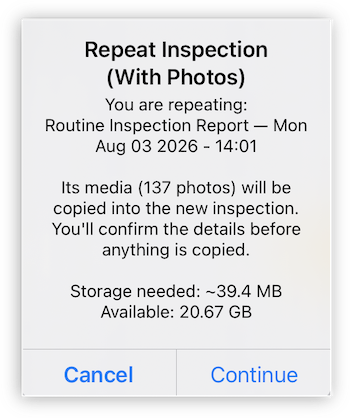
When you choose With Photos, you'll see a confirmation before anything is copied, and a storage check makes sure your device has enough space. You can keep the original photo dates or use the new inspection date.
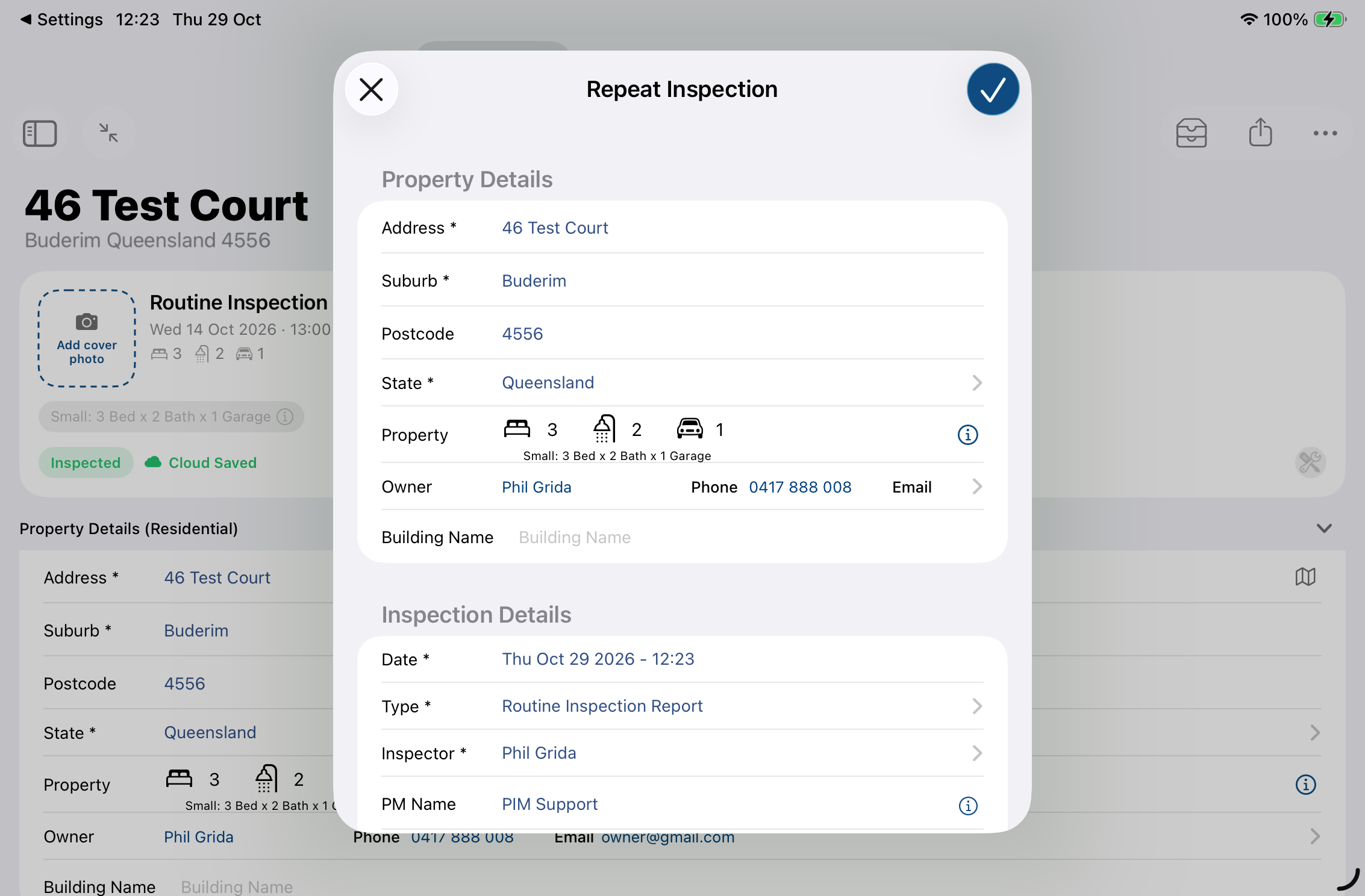
| 3 | Confirm the details. On the Repeat Inspection screen, check or update the Property Details and Inspection Details, then tap the blue tick in the top-right corner to create the new inspection. |
| 4 | Complete the inspection. Work through each Inspection Area — update your Notes, set the Quick Check marks, and add any new photos or media — then preview and submit as usual. |
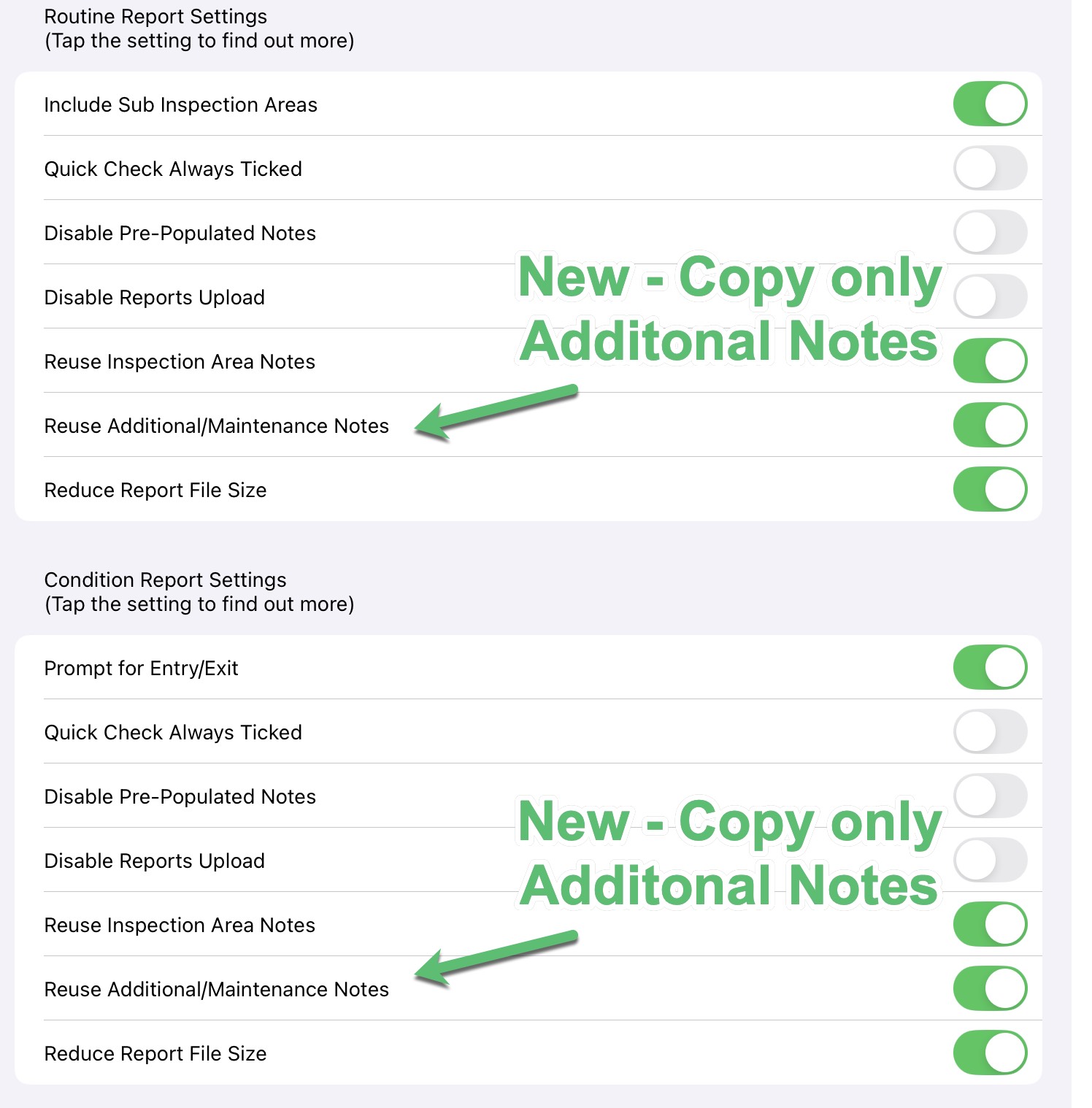
You control what text carries over under Settings > PIM Admin > Routine and Condition Report Settings, using two separate toggles: Reuse Inspection Area Text carries over your main report notes, while Reuse Additional/Maintenance Notes carries over your additional and maintenance notes independently — so you can bring maintenance notes across without the main notes, or the other way round.
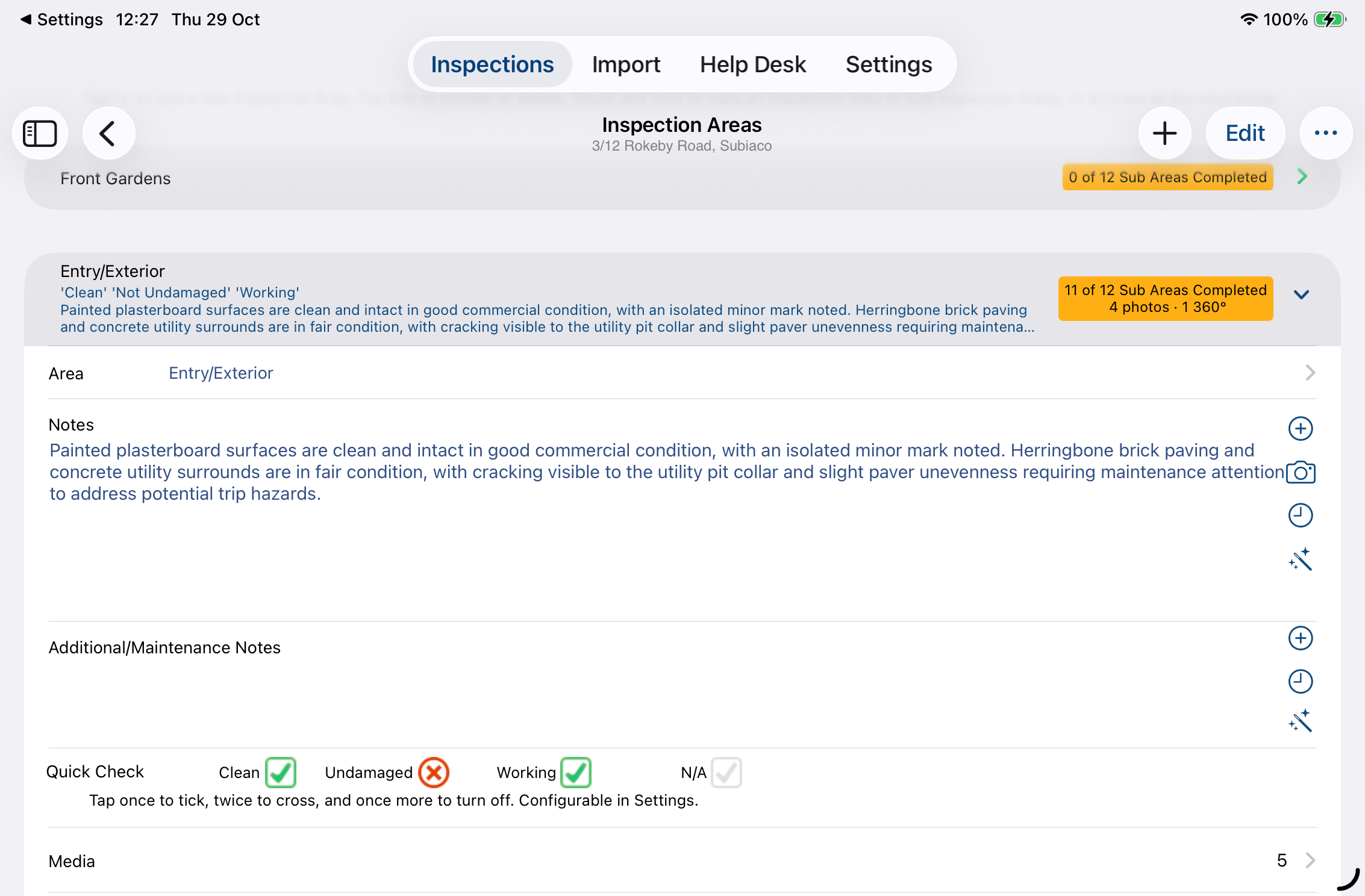
You can also tap the History icon (the clock) on an Inspection Area's Notes screen to view and reuse notes and photos from past inspections — see comparing an inspection's history.
Was this article helpful?
That’s Great!
Thank you for your feedback
Sorry! We couldn't be helpful
Thank you for your feedback
Feedback sent
We appreciate your effort and will try to fix the article