Make every report email sound like your agency. Set your own subject lines and email wording once for each inspection type, add tags that fill in the property details automatically, and preview how the email will look in an inbox before you save. You can even include a summary of the report, such as Maintenance Required or Our Summary, directly in the email.
The best part: the wording you set in the app is also used in the PIM Cloud Dashboard, so owners, tenants and your team get the same consistent message wherever you send from.
Why customise your emails?
- Look professional. Use your own agency’s wording and terminology instead of PIM’s defaults.
- Find reports faster. Put the property address in the subject line so every report is easy to spot in an inbox.
- Say the right thing to the right person. The inspector, owner-landlord and tenant each get their own wording.
- Put the key findings in front of people. Include report summaries such as Maintenance Required or Our Summary right in the email, so recipients see what matters without opening the PDF.
- Save time. Tags fill in the address, dates and names for you, so there is nothing to retype.
- Set it once. Your wording is used in the app and in the PIM Cloud Dashboard.
How it works
You set up three things for each inspection type — Routine, Condition Report, Bond Report, Cleaning/Maintenance or Tenant Inspection. Work through them in this order:
- Subject: one shared subject line used for the Inspector, Owner-Landlord and Tenant emails.
- Tags: placeholders such as Address, Inspection Type and Date that PIM replaces with real inspection details, and report summaries, when the email is sent.
- Email body by recipient: a separate body for the Inspector, Owner-Landlord and Tenant.
Contents
- Open Customise Emails
- Set the Subject Line
- Insert Tags
- Include Report Summaries in Your Emails
- Use the Inbox Preview
- Customise Each Recipient Email
- Reset to PIM’s Defaults
- Where Your Emails Are Used
- Add Your Office Signature (iPhone / iPad Mail)
- Tag Reference
Open Customise Emails
Each inspection type has its own subject and three email bodies, so you can word Routine emails differently from Bond or Tenant Inspection emails.
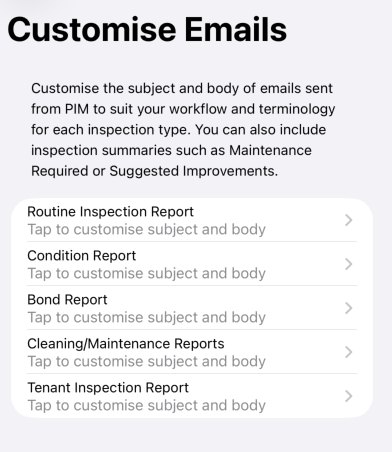
You will see PIM’s default wording. You can keep it, tweak it, or replace it with your own.
Set the Subject Line
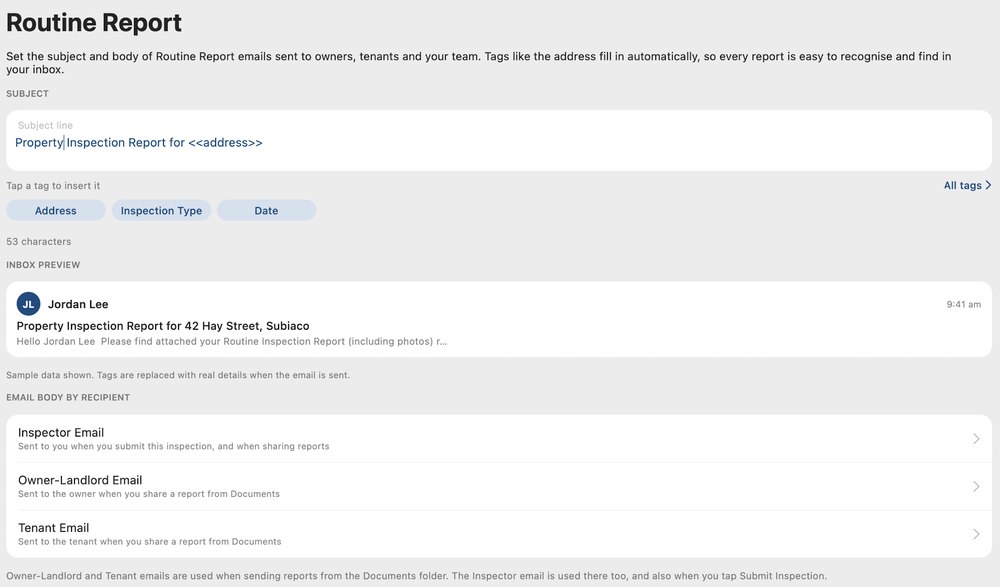
There is one subject line per inspection type. It is shared across the Inspector, Owner-Landlord and Tenant emails, so the same report is easy to find no matter who it was sent to.
Insert Tags
Tags are placeholders that PIM replaces with real inspection details when the email is sent. If a detail is not on the inspection — for example there is no owner name — that tag is left blank, so an email might simply begin “Hello” rather than “Hello Sam Taylor”.
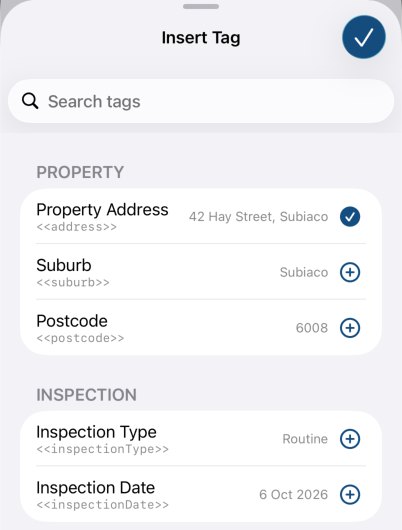
Inspection summary tags, such as Maintenance Required, Our Summary and Suggested Improvements, insert the notes from those areas on the inspection. Only summary areas you actually use on this device are offered.
<<address>> in the template. Do not edit the angle brackets — PIM needs the tag exactly as inserted. The inbox preview and the real email show the filled-in value, not the tag.Include Report Summaries in Your Emails
NEW New Inspection Summaries tags let you pull the call-out sections from your report straight into the email. Tags such as Maintenance Required, Our Summary and Suggested Improvements insert the notes you wrote in those areas of the inspection into the email sent to the recipient.
Why include summaries?
- Key findings up front. Owners, landlords and tenants see the important points in the email itself, without opening the PDF first.
- Faster action. Maintenance Required notes in the email make it easy for an owner to approve repairs or a tenant to follow up on items quickly.
- Fewer follow-up calls. When the summary is already in the email, there is less need to explain the report afterwards.
- The right focus for each person. Include the summaries that matter to each recipient. For example, Maintenance Required for the owner and For Your Attention for the tenant.
- Nothing extra to type. The notes come straight from the inspection, so your email always matches the report.
How to add a summary to an email
<<ownerName>>, please find attached your Routine Inspection Report. Maintenance required: <<maintenanceRequired>>. Kind Regards.Use the Inbox Preview
The Inbox Preview card shows how your subject and the start of the email will look in a typical inbox. It uses sample data, not a live inspection.
As you edit the subject, the preview updates immediately. Tags are replaced with the real property, people and dates only when the email is actually sent.
Customise Each Recipient Email
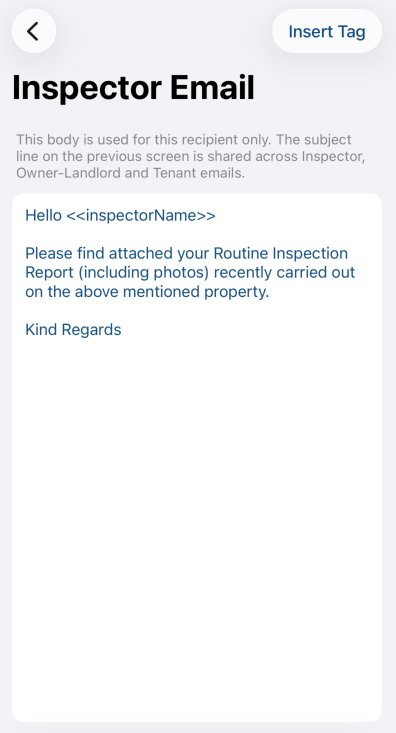
The subject is shared, but the email body is not. The inspector, owner-landlord and tenant each have their own wording, because each needs a different message.
- Inspector Email: sent to you when you submit this inspection, and when sharing reports.
- Owner-Landlord Email: sent to the owner when you share a report from Documents.
- Tenant Email: sent to the tenant when you share a report from Documents.
Reset to PIM’s Defaults
Need to start again for one inspection type? You can restore PIM’s standard subject and all three emails without affecting your other inspection types.
Where Your Emails Are Used
Once saved, your wording is used automatically. You do not need to pick it each time you send.
In the PIM app
- Submitting an inspection uses the Inspector email.
- Sharing a report from Documents uses the matching Inspector, Owner-Landlord or Tenant email, and the shared subject, for that inspection type. See Sharing Reports and Photos for more.
In the PIM Cloud Dashboard
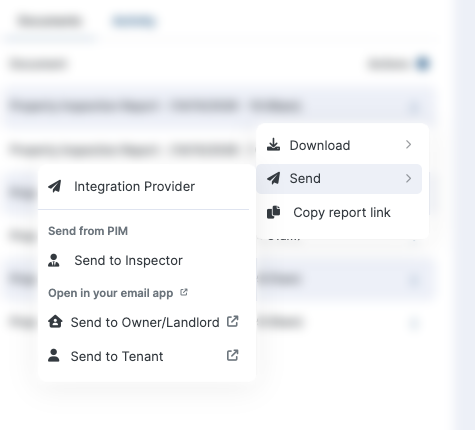
After the inspection is synced, the same wording is used when you email a generated report from the Documents tab of the PIM Cloud Dashboard. Open the ⋮ menu on a report:
- Send from PIM > Send to Inspector emails the existing PDF as an attachment, using your Inspector wording.
- Open in your email app > Send to Owner/Landlord or Send to Tenant opens a draft in your own mail app, using that recipient’s wording plus a PDF Report Link. The message comes from your email address, not a PIM address.
Add Your Office Signature (iPhone / iPad Mail)
If you use your iPad or iPhone for work email, add your office branding to your signature. It then appears on emails you send to owners, tenants and yourself from the Reports / Documents screen in PIM.
Tag Reference
These tags can be inserted into the subject or any recipient email. Empty inspection fields are sent as blank.
Property
| Tag | What it inserts | Tag text |
|---|---|---|
| Property Address | The property address | <<address>> |
| Suburb | The suburb | <<suburb>> |
| Postcode | The postcode | <<postcode>> |
Inspection
| Tag | What it inserts | Tag text |
|---|---|---|
| Inspection Type | The full report name, for example Routine Inspection Report | <<inspectionType>> |
| Inspection Date | The inspection date | <<inspectionDate>> |
People
| Tag | What it inserts | Tag text |
|---|---|---|
| Inspector Name | The inspector’s name | <<inspectorName>> |
| Inspector Email | The inspector’s email address | <<inspectorEmail>> |
| Inspector Role | The inspector’s role | <<inspectorRole>> |
| Tenant Name | The tenant’s name | <<tenantName>> |
| Tenant Email | The tenant’s email address | <<tenantEmail>> |
| Owner Name | The owner’s name | <<ownerName>> |
| Owner Email | The owner’s email address | <<ownerEmail>> |
Inspection Summaries
Only shown if that area is active on this device.
| Tag | What it inserts | Tag text |
|---|---|---|
| Maintenance Required | Notes from the Maintenance Required area | <<maintenanceRequired>> |
| Our Summary | Notes from the Our Summary area | <<ourSummary>> |
| Suggested Improvements | Notes from the Suggested Improvements area | <<suggestedImprovements>> |
| Tenant Summary | Notes from the Tenant Summary area | <<tenantSummary>> |
| For Your Attention | Notes from the For Your Attention area | <<forYourAttention>> |
| Specific Actions For This Inspection | Notes from the Specific Actions area | <<specificActions>> |
Was this article helpful?
That’s Great!
Thank you for your feedback
Sorry! We couldn't be helpful
Thank you for your feedback
Feedback sent
We appreciate your effort and will try to fix the article