At the end of every inspection, pulling together all your maintenance notes from across the property and getting them into the right place is a tedious but important step. PIM's Notes Collation feature does this for you — automatically gathering maintenance items from every inspection area and consolidating them into the Maintenance Required section in one action.
Contents
- 1. Setting Up Auto-Collation
- 2. Triggering Collation Manually
- How It Works Behind the Scenes
- A Note on Existing Content
- A Note on AI-Generated Content
- We Would Love to Hear From You
1. Setting Up Auto-Collation
Auto-collation runs quietly in the background once configured — every time you tick Maintenance Required on an inspection area, PIM will automatically gather the relevant notes. You only need to set this up once.
Step 1. From the main screen, tap Settings in the bottom toolbar, then tap PIM Admin.
Step 2. Scroll down to the setting labelled Auto Collate Maintenance Notes when Maintenance Ticked.
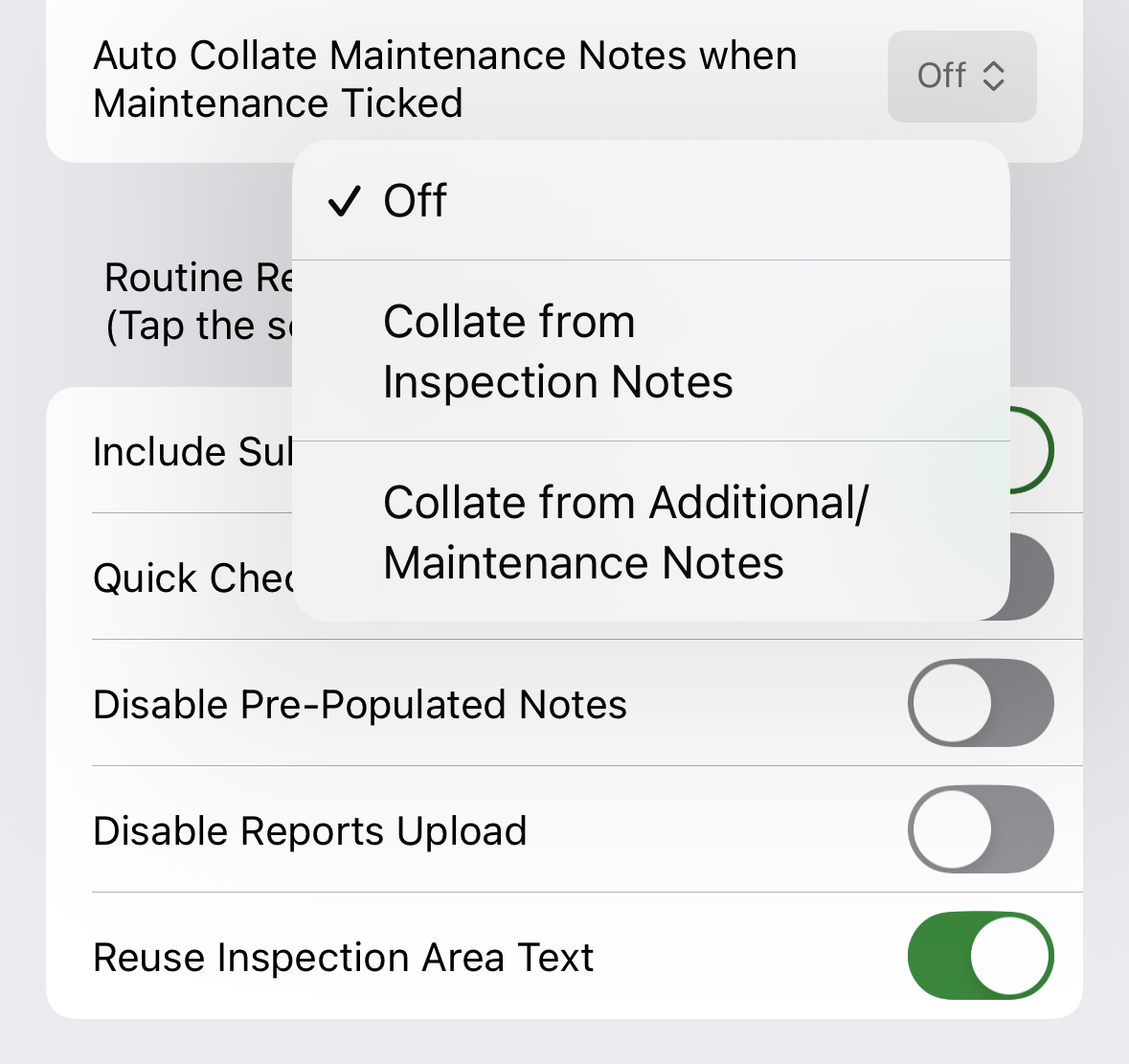
Step 3. Tap the dropdown and choose one of the following options:
- Off — Auto-collation is disabled. You can still trigger it manually at any time (see section 2).
- Collate from Inspection Notes — PIM copies the main Notes field from each area where Maintenance Required is ticked.
- Collate from Additional/Maintenance Notes — PIM copies the Additional/Maintenance Notes field from each relevant area.
Step 4. No save button is needed. From this point on, ticking Maintenance Required on any inspection area will automatically add the chosen field's content to the Maintenance Required section at the bottom of your Inspection Areas list.
Tip: Most inspectors prefer Collate from Additional/Maintenance Notes — it keeps the main Notes field focused on the overall condition of the area, while the Additional field captures the specific issue. If your notes are spread across both fields, use the manual AI-assisted option to bring them together cleanly. |
2. Triggering Collation Manually
If Auto-Collation is turned off, or you want to re-collate after making changes during the inspection, you can do it manually from the Inspection Areas screen at any time.
Step 1. Open the inspection and navigate to the Inspection Areas screen.
Step 2. Scroll down to the Maintenance Required area at the bottom of the list. Tap the collate wizard icon to the right of the area.
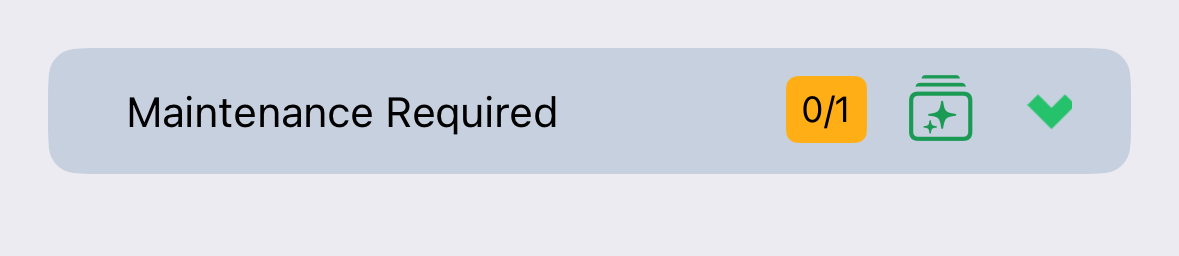
Step 3. PIM will ask which notes field you'd like to pull from.
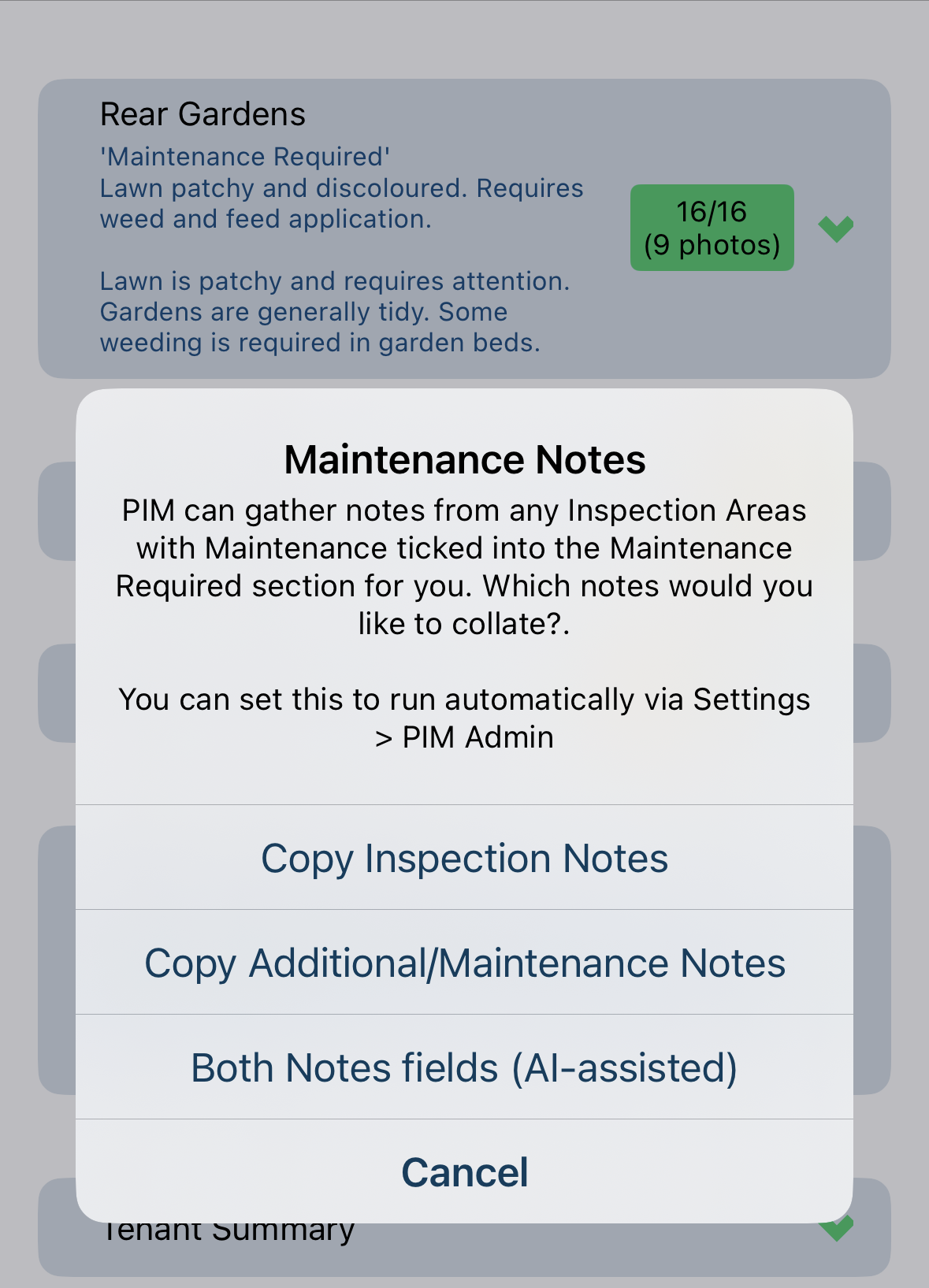
Step 4. Select from the available options:
- Copy Inspection Notes — Copies the main Notes field from every area with Maintenance Required ticked.
- Copy Additional/Maintenance Notes — Copies the Additional/Maintenance Notes field from every relevant area.
- Both Notes Fields (AI-assisted) — PIM draws from both fields and uses its built-in AI to produce a clean, consolidated summary per area.
PIM will gather the content from your chosen option across every applicable area and bring it all together in the Maintenance Required section.
Tip: Manual collation is especially useful when you're reviewing a completed inspection and want to try the AI-assisted option to see how it reads before setting it as your default. |
How It Works Behind the Scenes
Each time collation runs — automatically or manually — PIM scans every inspection area, identifies those with Maintenance Required ticked, and pulls the content of your chosen field into the Maintenance Required area. When using the AI-assisted option, the notes from both fields are sent to the built-in AI to generate a single, clear summary per area. Each collated note is labelled by area name so you can see at a glance where each item came from.
If you update a note or untick Maintenance Required in an area, the Maintenance Required section will update the next time collation runs. Nothing is permanently changed — you can always re-collate to refresh the list.
A Note on Existing Content
Important: If the Maintenance Required area already contains manually entered notes when you run collation, those notes will be replaced with the freshly collated list. Before running collation on an inspection that already has content in Maintenance Required, copy anything you want to keep into another field first. |
A Note on AI-Generated Content
The AI-assisted collation option is designed as a productivity tool. AI-generated summaries are a suggested starting point — always review the collated notes before including them in a final report to confirm they accurately reflect what you observed. You remain solely responsible for the accuracy and completeness of every report you submit or share.
Note: For full details on your responsibilities as a user, refer to the AI-assisted note generation section of the PIM Terms and Conditions. |
We Would Love to Hear From You
Smarter Maintenance Notes Collation is an evolving feature and your experience in the field shapes every update we make. If you have suggestions, run into something unexpected, or have an idea that would make it work better for you, please get in touch via PIM Help Desk in the app, through our help centre, or by contacting PIM Support directly.
Was this article helpful?
That’s Great!
Thank you for your feedback
Sorry! We couldn't be helpful
Thank you for your feedback
Feedback sent
We appreciate your effort and will try to fix the article