 | Cirrus8 — Unscheduled Inspections |  |
Cirrus8 users can create inspections in PIM whether or not they were scheduled in Cirrus8 first. This guide covers the unscheduled path — for times when you need to complete an inspection on the spot, without it having been pre-arranged in Cirrus8.
Unscheduled inspections are ideal for situations such as:
- Owner or tenant meetings
- Maintenance or incident checks
- Drive-by or follow-up attendances
- Any visit that wasn't planned ahead of time
When creating an unscheduled inspection, you can select any Property Profile from your PIM setup — the same profiles you use for scheduled inspections. If you need to run a full Routine or Condition Report for a property that wasn't in your schedule, simply select the appropriate profile and proceed as normal.
PIM also includes a purpose-built Ad-Hoc Profile — four areas covering Reason for Visit, Matters Arising, Actions, and Meeting Notes — designed for brief, unstructured visits where a full room-by-room report isn't needed. This is the right choice for meetings, welfare checks, or quick site attendances. You can customise the inspection areas within it to suit your needs, but the profile name must remain Ad-Hoc Profile for the report to upload correctly to Cirrus8. A sample report is attached below for reference.
Note: The Ad-Hoc Profile needs to be added to your PIM account by the PIM team. If it doesn't yet appear in your profile list, contact PIM Support and we'll set it up for you. If you already have the Ad-Hoc Profile and would prefer to schedule it in Cirrus8 before your visit, see our Scheduled Ad-Hoc Inspections guide. If you haven't yet set up the Cirrus8 integration at all, start with the Cirrus8 Integration Guide. |
Contents
Video Instructions
Prefer to learn by watching? See the video below or visit our YouTube Channel.
Creating an Unscheduled Inspection in PIM
Make sure the Cirrus8 integration is enabled in PIM before you begin. If it isn't, go to Settings > Advanced, Integrations & About the App and toggle Enable Cirrus8 on.
Tip: No internet connection on-site? PIM caches your Cirrus8 properties and tenancies from your last sync, so you can still create an unscheduled inspection offline. If no cached data is available, hotspot from your phone briefly to connect, then proceed. You can return online to submit when ready. |
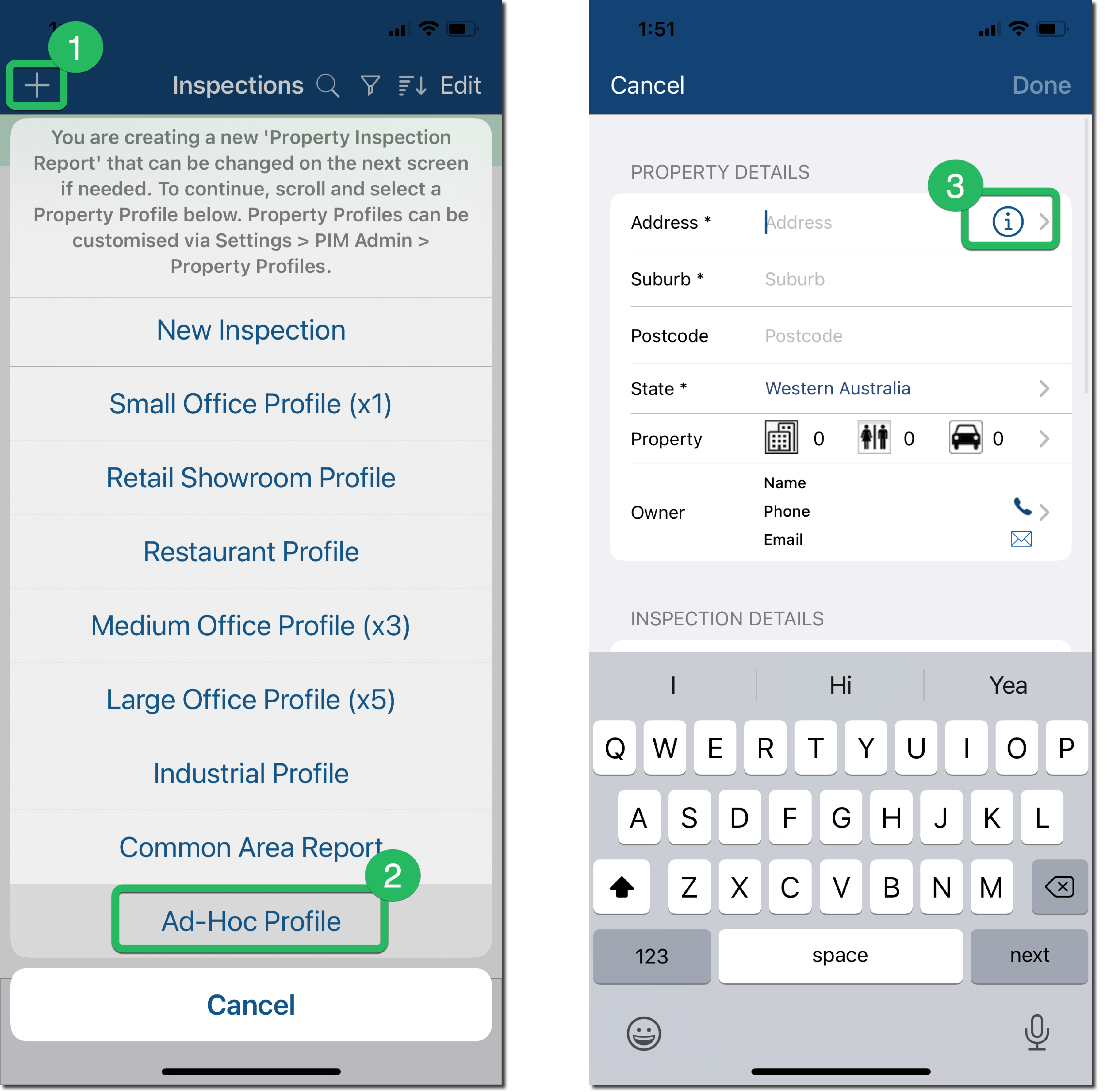
Step 1. From your Inspections list, tap the + (1) in the top left corner. Your full list of Property Profiles will appear — select whichever profile suits the inspection you need to carry out (2).
- For a brief unplanned visit — select Ad-Hoc Profile for a streamlined four-area report covering Reason for Visit, Matters Arising, Actions, and Meeting Notes.
- For a full inspection — select your usual Routine or Condition Report profile for that property type. The unscheduled workflow is the same regardless of which profile you choose.
Once you've selected a profile, tap the ⓘ icon (3) to choose the property or tenancy from Cirrus8.
Step 2. This screen lists all properties synced from Cirrus8. Scroll to find the property or tenancy you need, or use the following tools to narrow things down:
- Toggle at the top — switch between Properties only (with a count of available tenancies) and With Tenancies (properties and tenancies listed together).
- Search icon — look up a property by name or code.
- Sort icon — reorder the list to suit you.
- Pull down — refresh the list to pull in the latest data from Cirrus8 at any time. A timestamp shows how fresh the current data is.
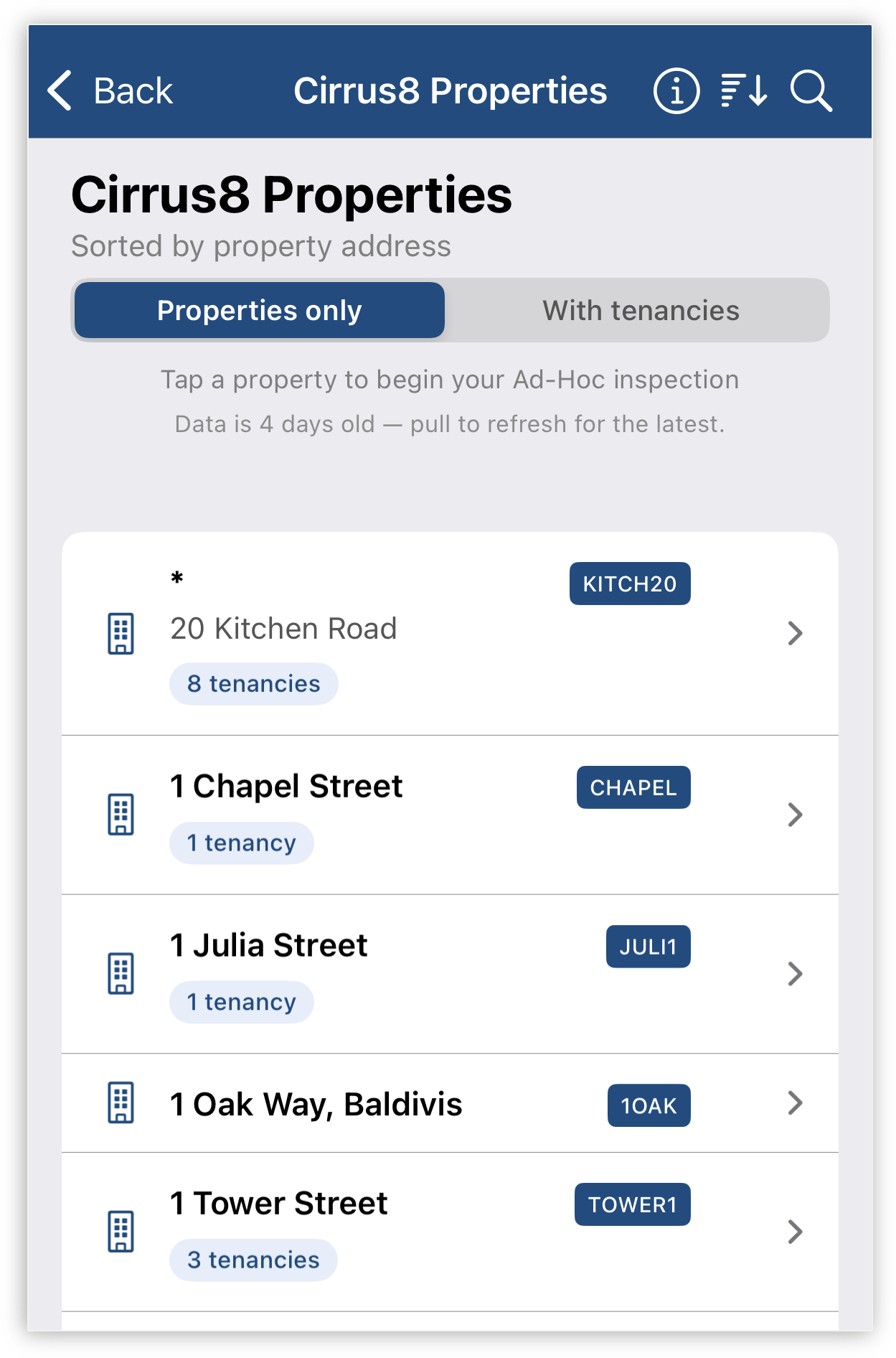
Step 3. Tap the Property or Tenancy (5) you'd like to inspect, then tap Done (6) to create the inspection.

Complete the Inspection
The inspection will now appear under your Inspections tab. Complete it in the usual way — add your notes, photos, and any other relevant details — then tap Submit Inspection when done.
Your completed report will be automatically uploaded as a PDF to Cirrus8 and the inspection status updated to Completed. A sample Ad-Hoc Inspection report is attached below for reference.
If you also need to raise a Work Request that flows through to CirrusFM, see our Work Request guide. For full property inspection instructions, see our Inspection Guides.
Was this article helpful?
That’s Great!
Thank you for your feedback
Sorry! We couldn't be helpful
Thank you for your feedback
Feedback sent
We appreciate your effort and will try to fix the article