Data sharing between GOAT and Property Inspection Manager (PIM) is simple for PIM Premium users. With a single tap, users can import upcoming scheduled inspections straight into PIM, directly from GOAT's Jobs List.
After completing your inspections in PIM, the reports will be emailed directly to you. You can then attach them to the corresponding property or job in GOAT, making it easy to continue with any follow-up tasks.
? Tip: Ensure each inspection in GOAT has a scheduled date set before exporting. If the date field is blank, PIM will use the date of import as the inspection date
Contents
Exporting Inspections from GOAT
Once logged in to your GOAT account, navigate to the Jobs List. From here you can generate your inspection data file with a single click.
1Open the Jobs List In GOAT, go to the To Do menu and select Jobs List. Use the filters at the top to narrow down inspections by branch, manager, or job type as needed. 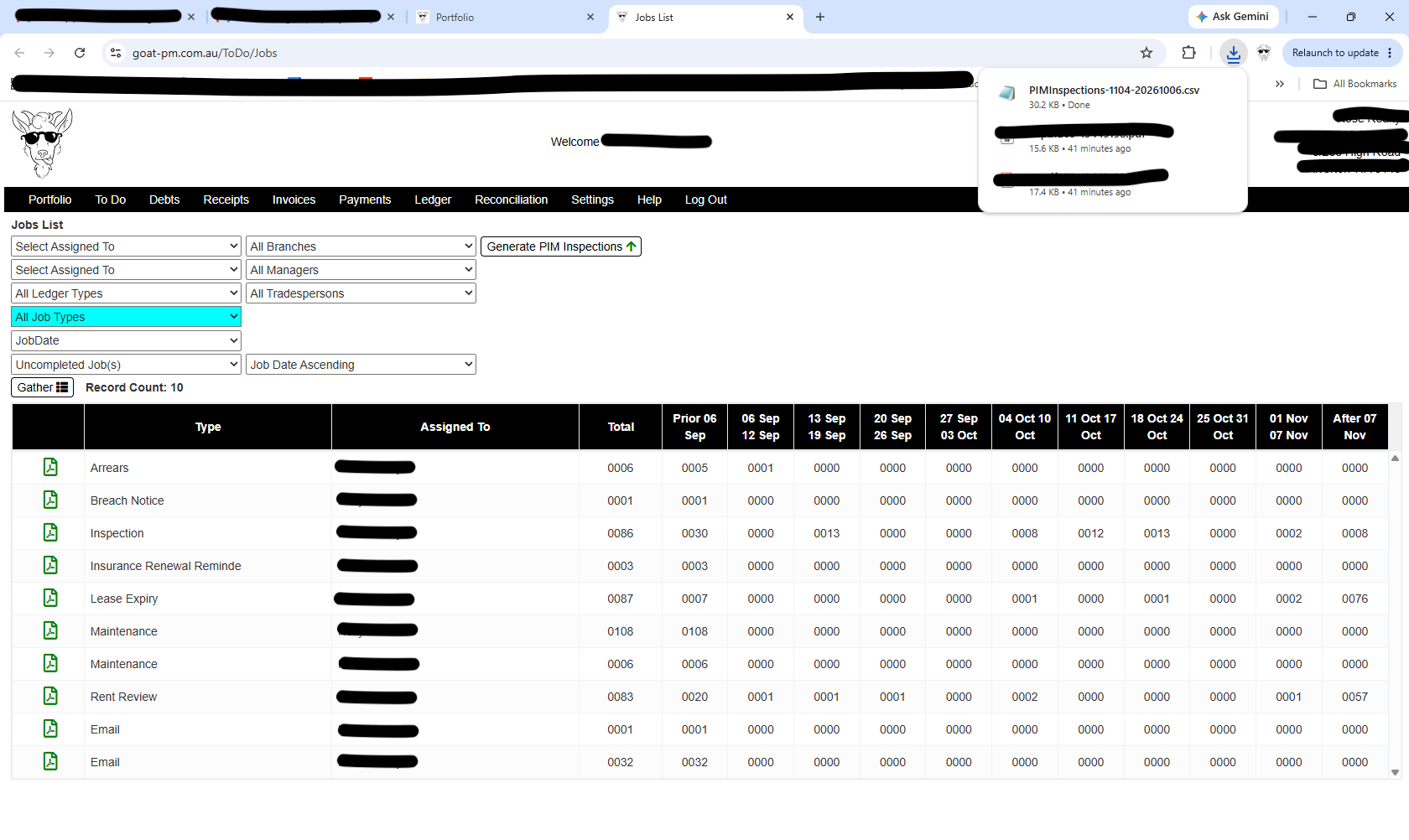 |
2Generate PIM Inspections Click the Generate PIM Inspections button at the top of the Jobs List. GOAT will generate and automatically download a CSV file named PIMInspections-MMDD-YYYYMMDD.csv (e.g. PIMInspections-1104-20261006.csv). The file will appear in your browser's download bar. |
Upload Your GOAT Data File to the PIM Cloud Dashboard
You will need to upload the file to your PIM Cloud Dashboard before it can be imported into the PIM app on your iOS device.
1Log in to your PIM Cloud Dashboard From your browser, navigate to the PIM Cloud Dashboard and sign in using your PIM Premium account credentials. 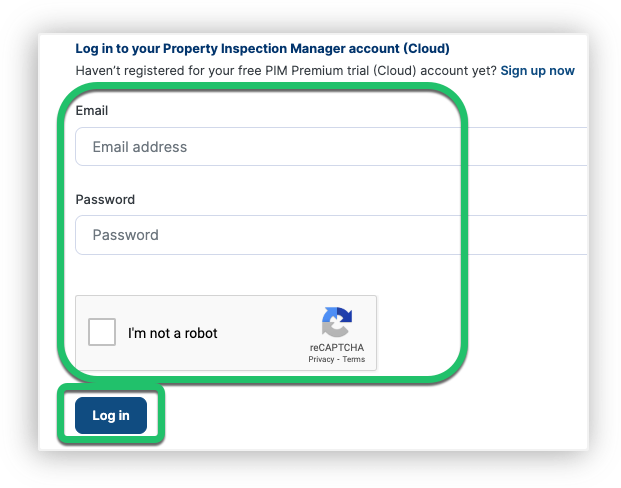 |
2Go to the Import Files menu Once logged in, select Import Files from the left-hand navigation. 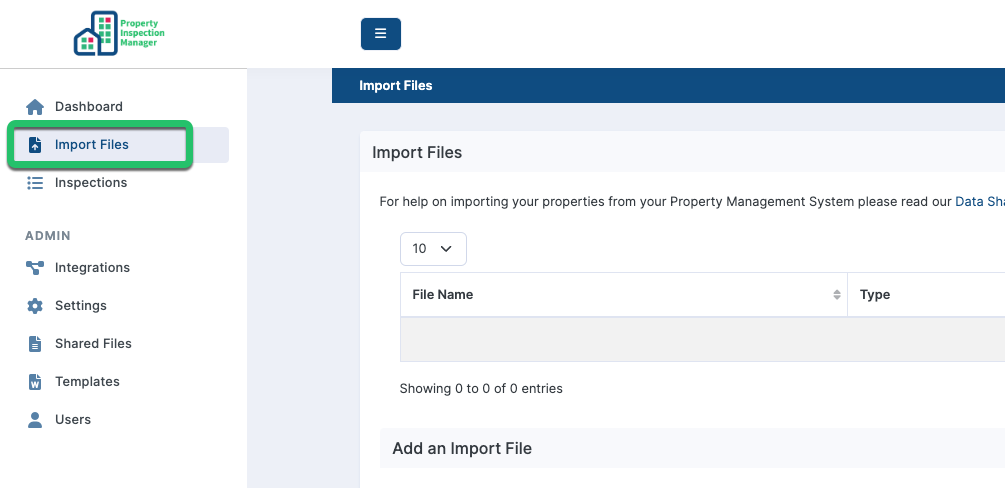 |
3Select GOAT as the Property Management type Under the Add an Import File section, open the Select the Property Management type dropdown and choose GOAT. 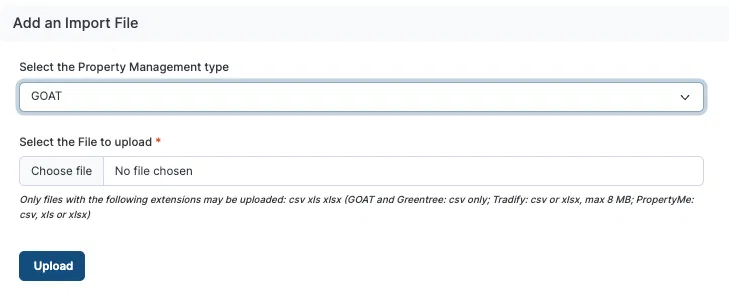 |
4Choose and upload your file Click Choose File to locate the PIMInspections-…csv file you downloaded from GOAT, then click Upload to proceed. Only CSV files are accepted for GOAT imports. |
5Confirm success A green File Upload Success message will appear near the top tabs when the upload completes successfully.  |
First Time Set Up
The GOAT import feature relies on a setting in PIM that you only need to configure once.
1Enable GOAT Integration In the PIM app, go to Settings > Advanced, Integrations & About the App, then tap Enable GOAT. Once confirmed, GOAT will be listed as your active integration. 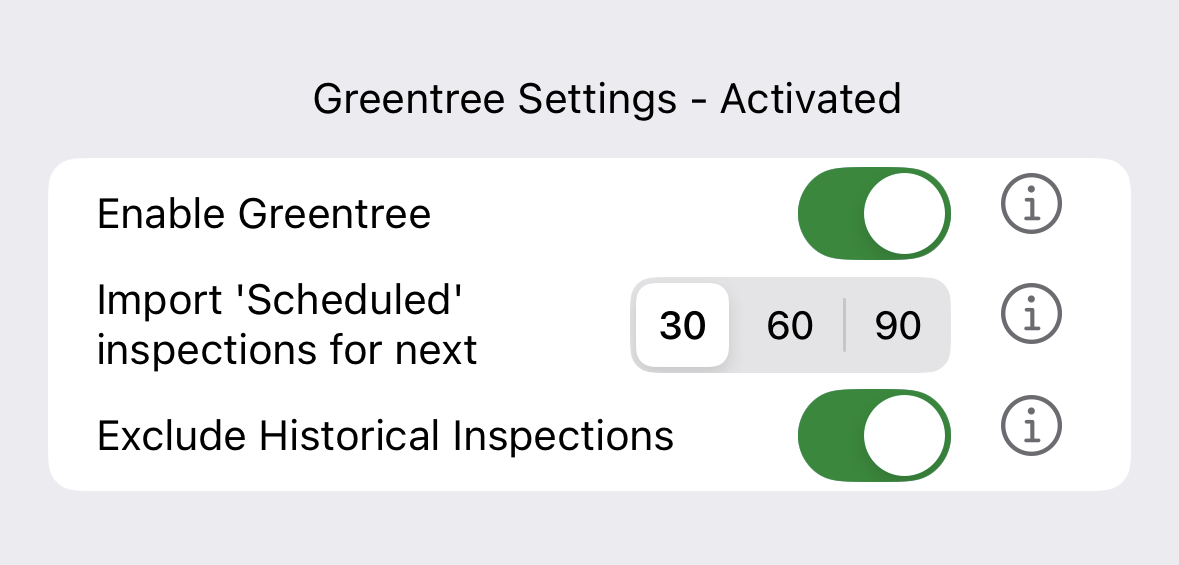 |
2Configure import date range Ensure Exclude Historical Inspections is toggled ON so only upcoming inspections are shown. Adjust the import date range to display inspections for the next 30, 60, or 90 days as required. |
3Confirm Inspectors PIM will assign imported inspections to the Default Inspector — the inspector at the top of the list in Settings > PIM Admin > Inspectors. See the Inspectors Guide for more information. 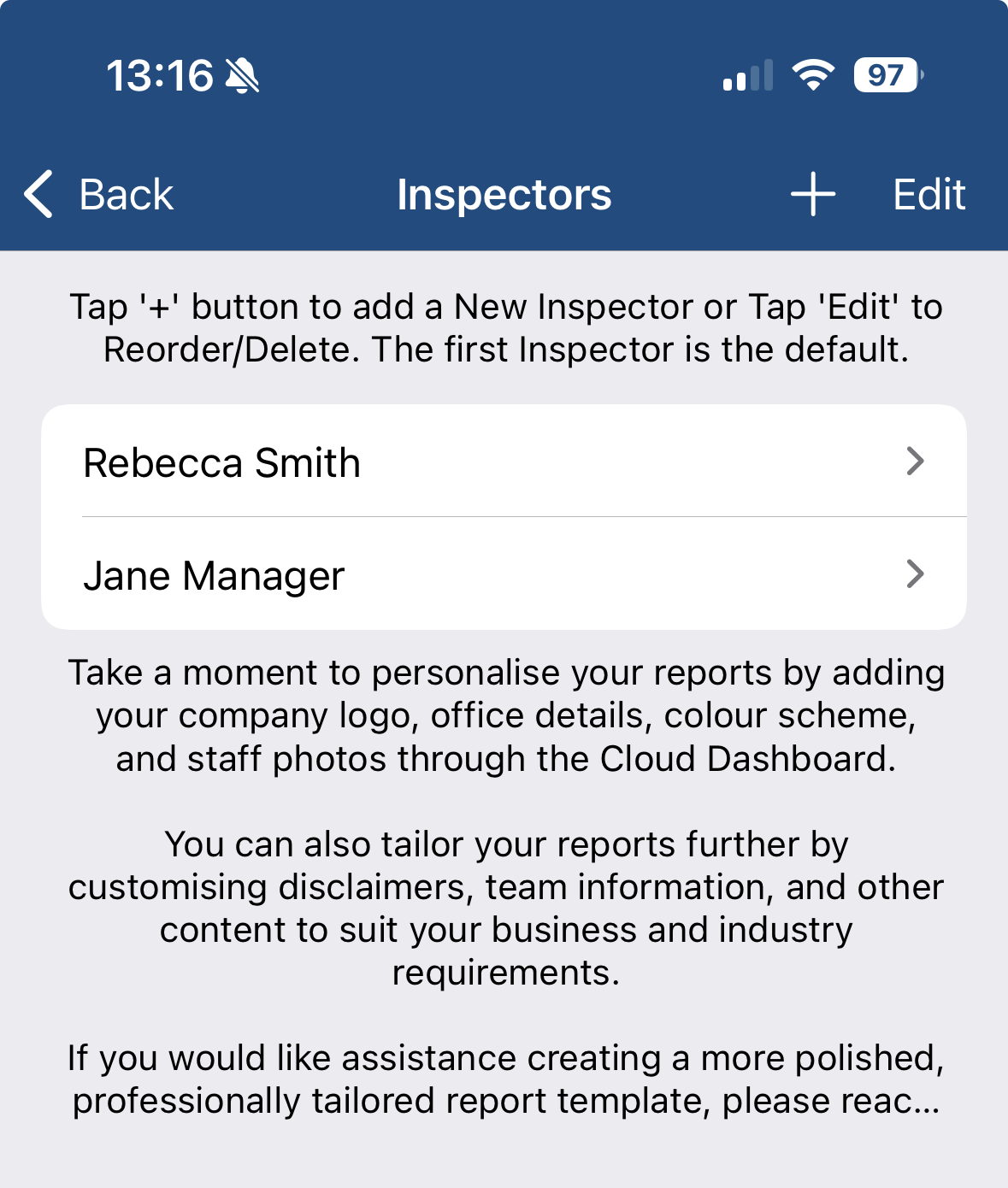 |
4Smart Property Profiles (optional) Since the GOAT data file does not include Property Profile information, PIM will use the default property profile on import. You can customise this in Settings > PIM Admin > Smart Property Profiles. See the Smart Property Profiles Guide for more information. 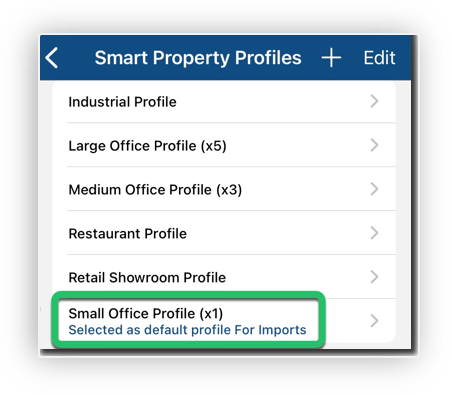 |
5Quick Check Labels (optional) To have quick check labels ticked by default, go to Settings > PIM Admin, select your inspection type, and toggle Quick Check Always Ticked to On. See the Customised Settings Guide for more information. |
Import Inspections Into PIM
PIM imports your GOAT property data from the Dashboard using the process below.
1Navigate to the Import tab Open PIM and tap the Import tab at the bottom of the app.  |
2Refresh and open your data file Pull down on the screen to refresh the file list. Once your GOAT file appears, tap it to open. 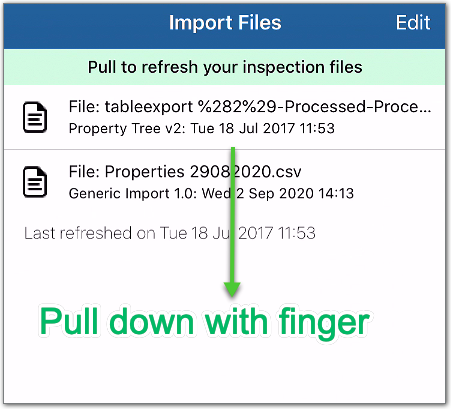 |
3Review colour-coded properties Your properties will be listed with a colour code on the left. Green indicates a new property (new inspection will be created). Orange indicates an existing property (a Repeat Inspection will be created). 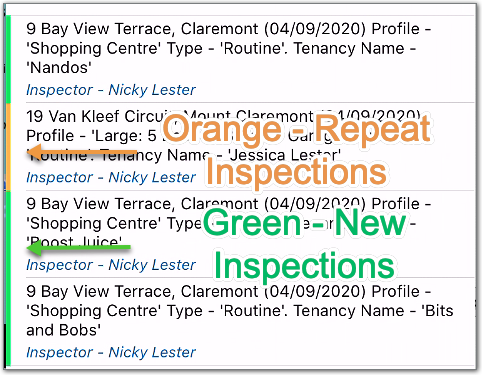 |
4Filter and sort if required For large property lists, use the Filter (1) or Sort (2) options to make the list easier to review. 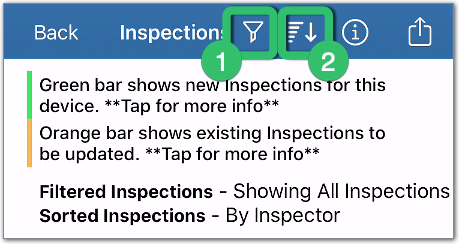 |
5Import the inspections When ready, tap the Action button (1) then choose an Import option (2). To import only selected properties, tap Cancel first, select the individual properties you want (a tick will appear on the right), then choose Import Selected instead of Import All. 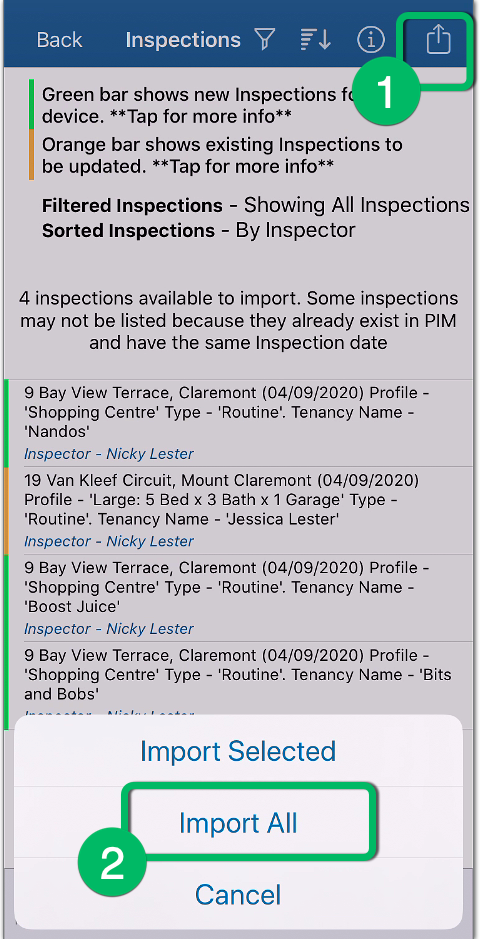 |
6Confirm the import type The import will create inspections using your default Property Profile and Inspection Type as shown in the confirmation message. If correct, tap Continue. 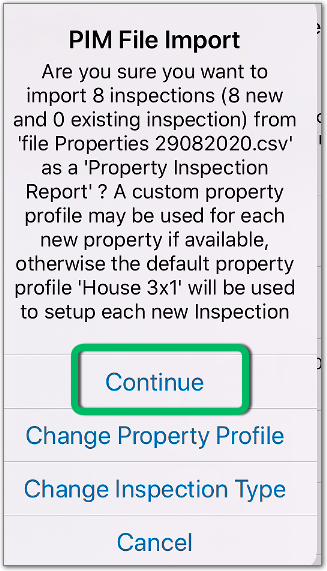 |
7Close the confirmation message Review the confirmation message then tap OK to close and return to the inspection list. 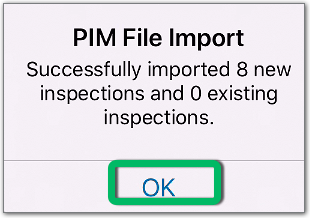 |
Completing the Inspection & Attaching the Report to GOAT
After importing, your scheduled inspections will be available under the Inspections tab.
Complete the inspection in the usual way — adding notes and photos — then tap Submit Inspection when done. Submitting the inspection will email you (as the inspector) a copy of the report in PDF format.
You can then open the corresponding property or inspection in GOAT and attach the PDF report to keep your records up to date.