|  |
MRI Property Tree Integration | How to Set Up |
Syncing your data and reports between MRI Property Tree and Property Inspection Manager (PIM) is simple. MRI Property Tree users can import their properties from MRI Property Tree with a single click in PIM, then automatically push their Routine, Ingoing/Outgoing, Cleaning-Maintenance, or Tenant Inspection reports back into Property Tree.
Note: Only inspections scheduled as Confirmed in MRI Property Tree are imported into PIM, as only these inspections have a confirmed date set by the Agent and Tenant.
Raise maintenance requests on site. Once connected, you can also raise a maintenance request directly from PIM while you are on site, with inspection photos attached. The request appears in Property Tree straight away. See the Maintenance Requests guide for how it works.
Before You Start
Make sure you have:
- MRI Property Tree administrator access. Only administrators can access the Partner Gateway.
- An active PIM account. Contact PIM Support if you do not already have one.
- The latest version of the PIM app installed on your device. v6.0.0or higher. In the app, go to Settings and you will see the version number in the top left corner.
Part 1: Activate PIM in the Partner Gateway
1Log in and open Configuration
In your web browser, log into your
Property Tree account and click
Configuration on the left-hand side.
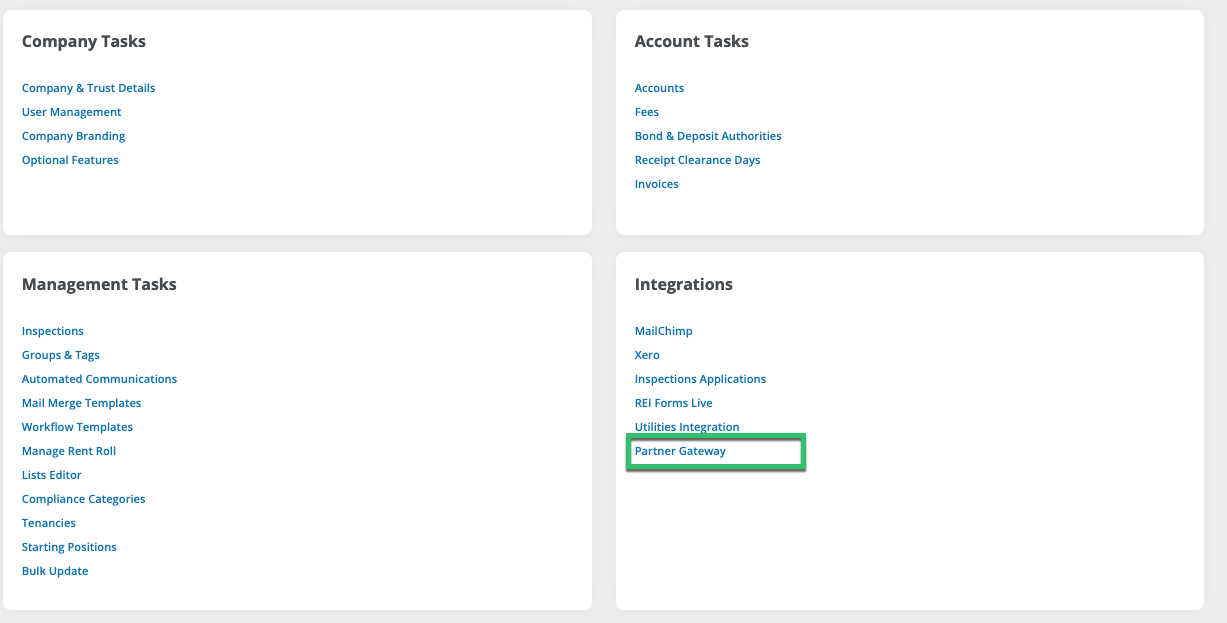
2Open the Partner Gateway
Go to Configuration > Integrations > Partner Gateway.
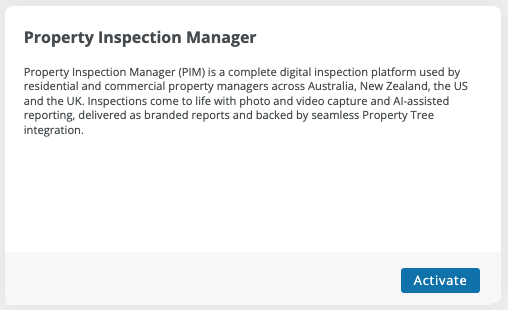
3Find PIM and activate
Find Property Inspection Manager in the list of partners and click Activate.
4Accept the terms
Review and accept the terms and conditions, then click Accept.
5Contact PIM Support
Send an email
PIM Support and let them know you have activated PIM in your Property Tree dashboard and we will help finalise your integration.
Note: After activating the integration in Property Tree, you may need to complete additional setup in the PIM app, such as selecting how far ahead inspections are imported (7, 14, or 21 days) and reviewing your residential and commercial profiles. These steps are covered in Part 4.
Part 4: Enable the Integration in the PIM App
6Enable Property Tree
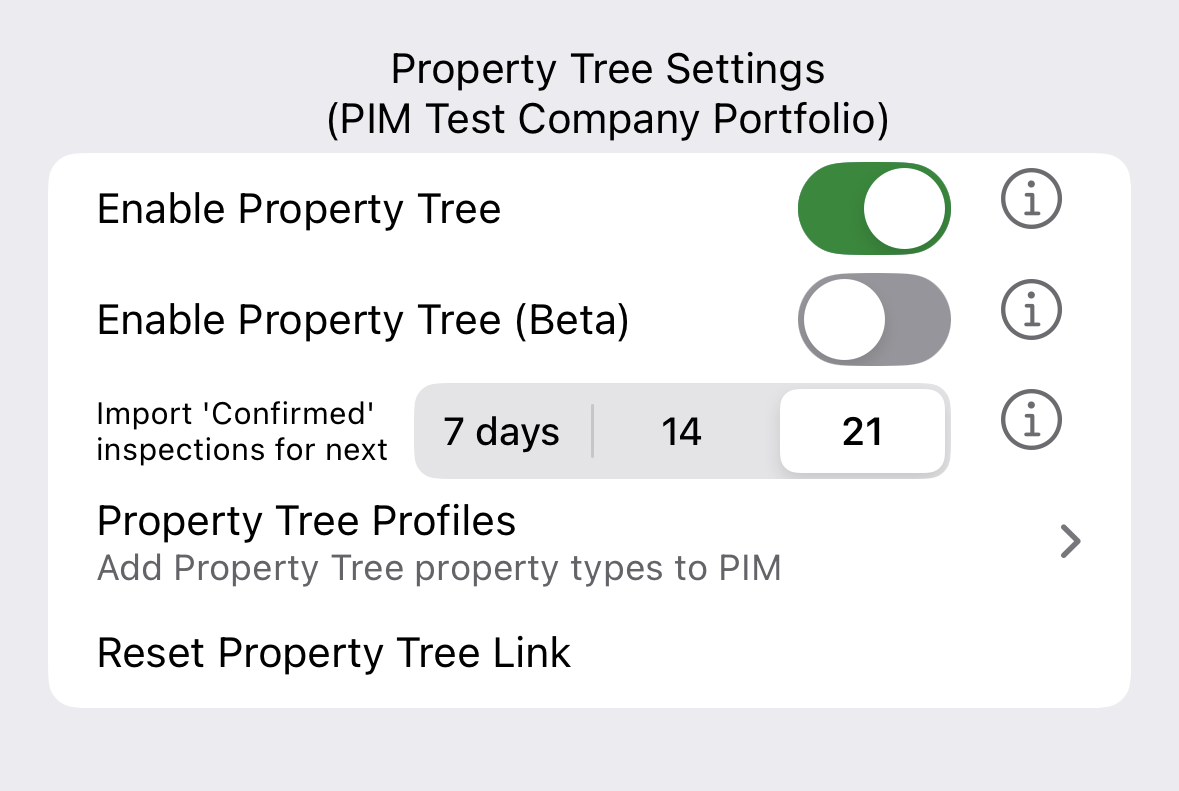
Once the API key has been uploaded, enable the integration on your device. In the PIM app, go to Settings > Advanced & Integrations, then tap Enable Property Tree (Beta). Once PIM validates the API key, your portfolio name will be displayed above.
7Choose your import window
You can choose to import the next 7, 14, or 21 days of Confirmed inspections. Tap the setting that suits you and it will be used whenever you import inspections from Property Tree.
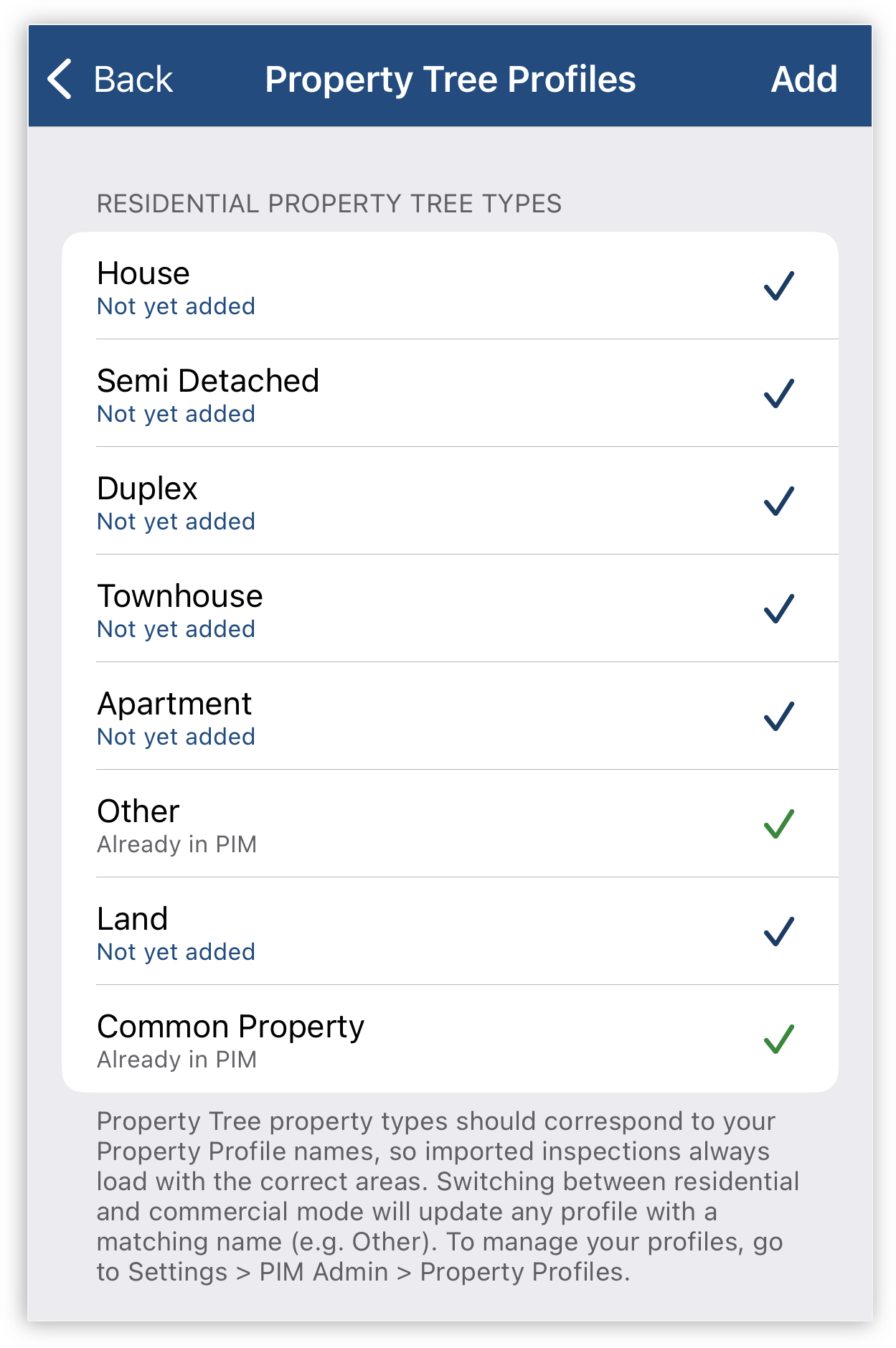
8Review your MRI Property Tree profiles
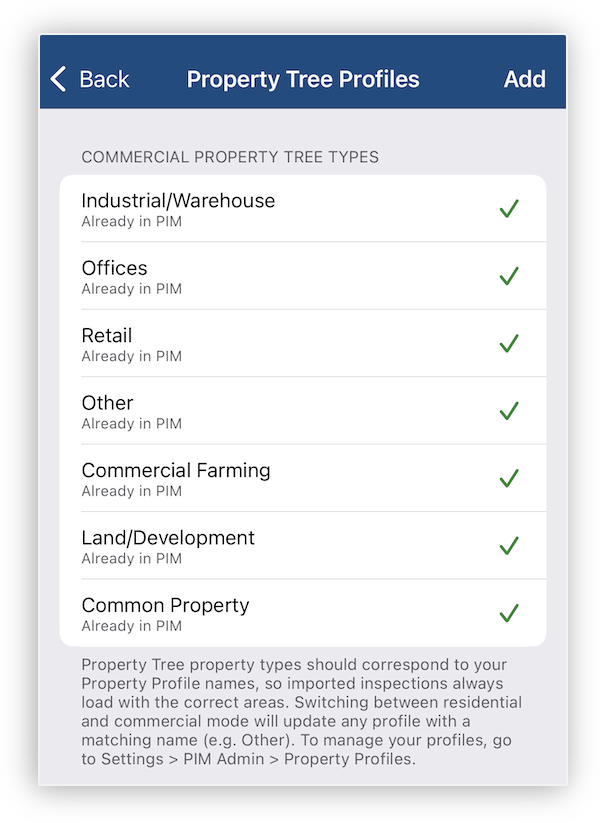
PIM automatically configures your MRI Property Tree profiles based on whether your device is set up for residential or commercial property management. Within the same MRI Property Tree integration section, tap Property Tree Profiles and you will see a list of profiles relevant to your device's mode. These are preselected by default, so untick any that are not relevant to you, then tap Add. Your inspections will now always load with the correct layout straight away, with no manual setup required.
Residential Property Profiles
Commercial Property Profiles
Next Steps
Ready to import your inspections from MRI Property Tree and sync your reports back? Head over to the Using PIM With Property Tree guide for more information.
Need help? Contact PIM Support.