 | Generic CSV Import Instructions |
Don’t use one of the more common property management systems? No problem! If you can export your data as a .csv file, you can follow these generic steps to bring your property information into PIM.
When importing, PIM will automatically capture key details wherever possible, including:
Property address
Tenant and owner emails and phone numbers
Rent amount and type
Key numbers
Inspector and Property Manager assigned
Property Profiles and more!
Updated January 2026:
The Inspection Next column now supports both date and time (e.g., 19/01/2026 or 19/01/2026 11:00).
Rooming inspections can now be included as an inspection type, defaulting to a Condition Report in PIM.
Rent amounts can now include decimal points for more accurate data.
Scroll down to the bottom of this guide to view sample data, which can help you format your CSV correctly for a smooth import.
Following these steps will make it easier to get your properties and inspections into PIM quickly and accurately.
Contents
- Export Data from your Property Database
- Upload CSV file to your PIM Online Account
- Prepare For a Successful Import
- Import Data Into PIM
- Complete the Inspection
Export Data From Your Property Management Database
You will need to prepare your property data into a CSV file format to allow import into PIM. Let's look at how to do this.
1. Download our sample CSV formatted file
Download our attached sample file and save to your computer.
2. Save your property data into the CSV file
Use the sample data at the bottom of this guide as a reference to make sure your formatting is correct, including date formats, and that all column headings remain unchanged—any differences may prevent a successful upload to PIM.
The Street, Suburb, and State columns are mandatory, while all other columns are optional.
We’ve also added a new column for Inspection Type, which allows you to specify the type of inspection for each property. Valid values are: Routine, Rooming, Entry, or Exit.

Note: once you have added your own data in the correct formats, you can remove our sample lines.
3. Give your CSV file a meaningful name
It’s a good idea to rename your export file to include the date it was created, for example: 29082020-Property.csv (showing it was exported on 29th August 2020). This makes it easier to identify files later, helps with future exports, and keeps your imports in PIM organised.
Upload CSV file to your PIM Online Account
You will need to upload the new file to your online account before it can be used within the PIM app on your IOS device.
1. Login to your PIM Online Account
Open your web browser and go to PIM Web App. Log in using your PIM Premium account credentials to access your dashboard and start managing your inspections. 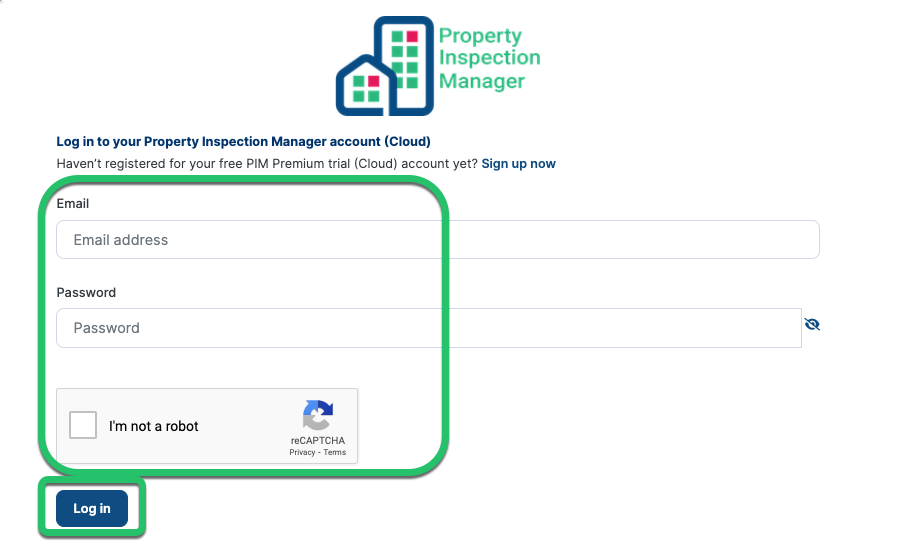
2. Go to the Import Files menu
Once logged in, go to the Import Files menu.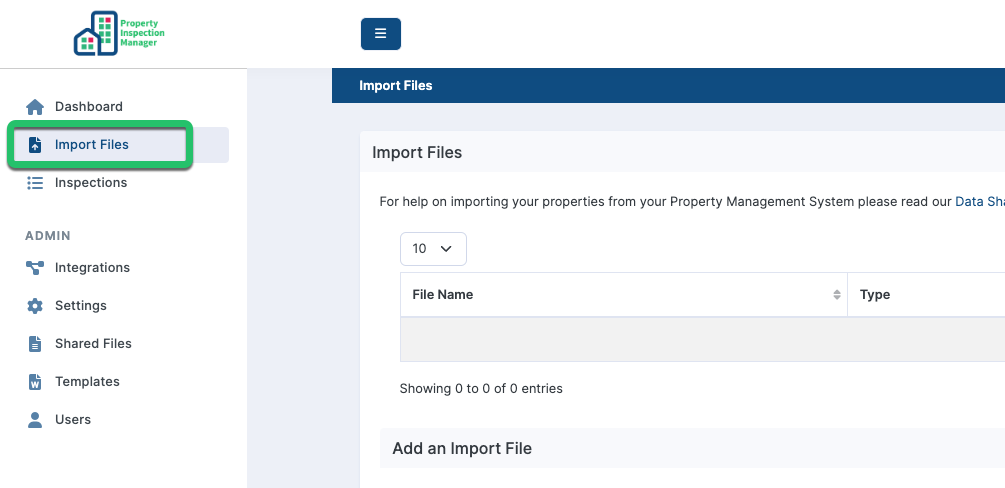
3. Select Generic Format under Product/Version.
Under the Add an Import File section, select Generic Format from the drop-down list.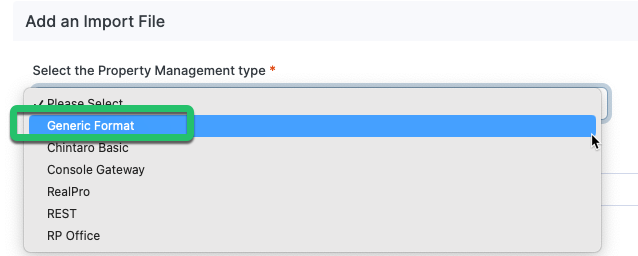
4. Upload Saved CSV File
Here we will pick up your previously saved CSV file. Under the Upload a File field click Choose File (1) and locate the saved file, then click Upload File (2). 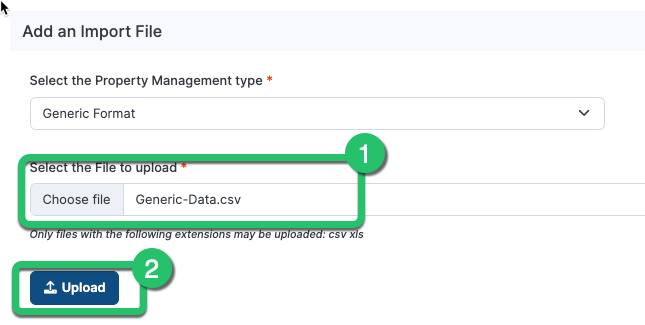
5. Confirm Success
If your upload is successful, a green File Upload Success message will appear at the top of the screen.
Prepare For A Successful Import
The import relies on information in PIM Settings so it is important to know how yours is set up.
1. Set Up Smart Property Profiles
Smart Property Profiles let you quickly set up inspections for the most common property types in your portfolio, such as a five-bedroom, three-bathroom house.
With a little setup in Settings > PIM Admin > Smart Property Profiles, you can replicate the property types you use in your existing property management system within PIM. This makes importing properties seamless and saves time later, so you won’t need to add or remove rooms during the inspection.

See the Smart Property Profiles Guide for more information.
2. Set Up Inspectors
Inspections will be imported against the default inspector in PIM which is always the first one listed. You can edit these inspectors in Settings > PIM Admin > Inspectors.

3. Assign an Inspection Type
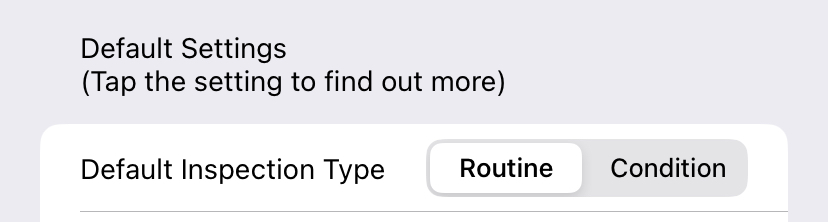
If no Inspection Type is specified in your CSV file, PIM will automatically use the default set in your account. You can update this default at any time by going to PIM Settings > PIM Admin > Default Settings > Inspection Type.
For a full overview of inspection types and how they work in PIM, check out the Inspections & Inspection Types Overview.
4. Turn on Quick Checks
Another time-saving feature is to have the quick check labels always ticked by default. To set this default go to Settings > PIM Admin > Routine or PCR inspections and toggle the 'Quick Check Always Ticked' to On position.

See the Customised Settings Guide for more information.
Import Data Into PIM
PIM imports property data from the online account sing the import process below.
1. Navigate to the Import tab.
This is at the bottom of the app.

2. Import the latest files from your online account.
Pulling down on the screen will refresh the data files. Once it apears, click to open.
3. View imported inspections.
Your properties will be listed with a colour code on the left.
Green indicates a property PIM has not seen before, so it will be treated as a new inspection.
Orange represents an existing property so a Repeat Inspection will be created.

4. Filter and Sort if required.
If your imported list includes a large number of properties, you can make it easier to navigate by using the Filter or Sort options.

5. Import the inspections.
When you are ready to complete the import, select the Action button (1) then choose one of the Import options (2).

Note: if you only want to import some, press cancel then tap against the properties you want. This will place a check on the right. You can then choose the Import Selected option instead of Import All.
6. Confirm the import type.
The import will create inspections based on your default Property Profile and Inspection Types displayed in the message. If you are happy with this, tap Continue.
7. Close the PIM File Import message.
Take note of the confirmation message then tap OK to close.
Complete The Inspection
After importing, your scheduled inspections will be available under the Inspections Tab.
Go ahead and complete the inspection in the usual way by adding notes and photos then Submit Inspection when done.
See our range of Inspection Guides for more information or contact PIM Support.
Was this article helpful?
That’s Great!
Thank you for your feedback
Sorry! We couldn't be helpful
Thank you for your feedback
Feedback sent
We appreciate your effort and will try to fix the article