First Time Set Up
Follow these steps to install Property Inspection Manager (PIM), log in, and set up your first inspector and templates. It takes just a few minutes.
Download and Log In
1Download the app. Search the App Store for PIM or Property Inspection Manager and install it.

2Open PIM. Find the PIM icon on your iPad or iPhone and tap it to open the app.

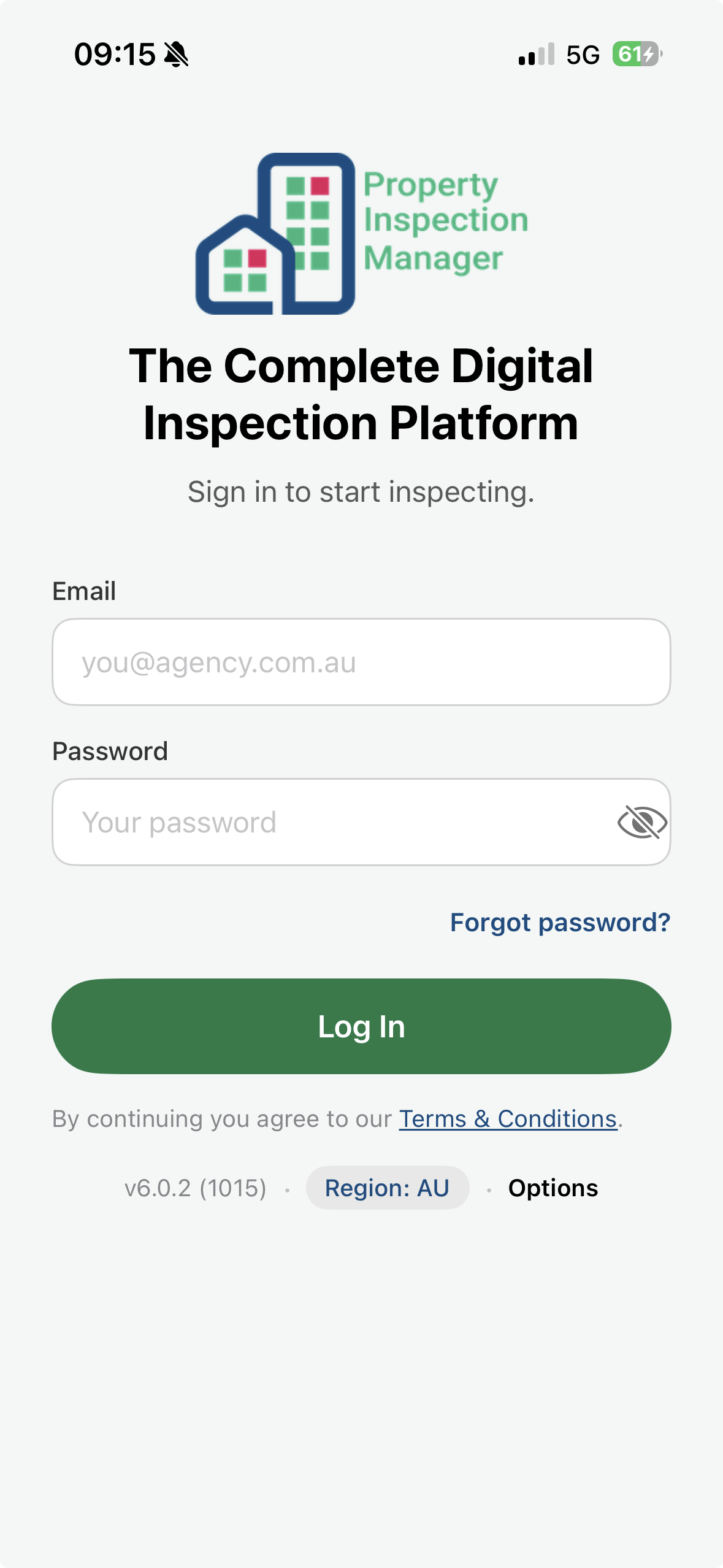
3Log in or sign up. Existing customers log in with the email and password from their Welcome Email. New to PIM? Start your free two-week trial at https://app.propertyinspectionmanager.com/register.
4Choose your property type. Select Residential or Commercial.

Tip: If you need both Residential and Commercial, please contact PIM Support and we will set this up for you.
5Choose your region and name your device. Select the region you work in, then give your device a name.

Set Up Your Inspector and Templates
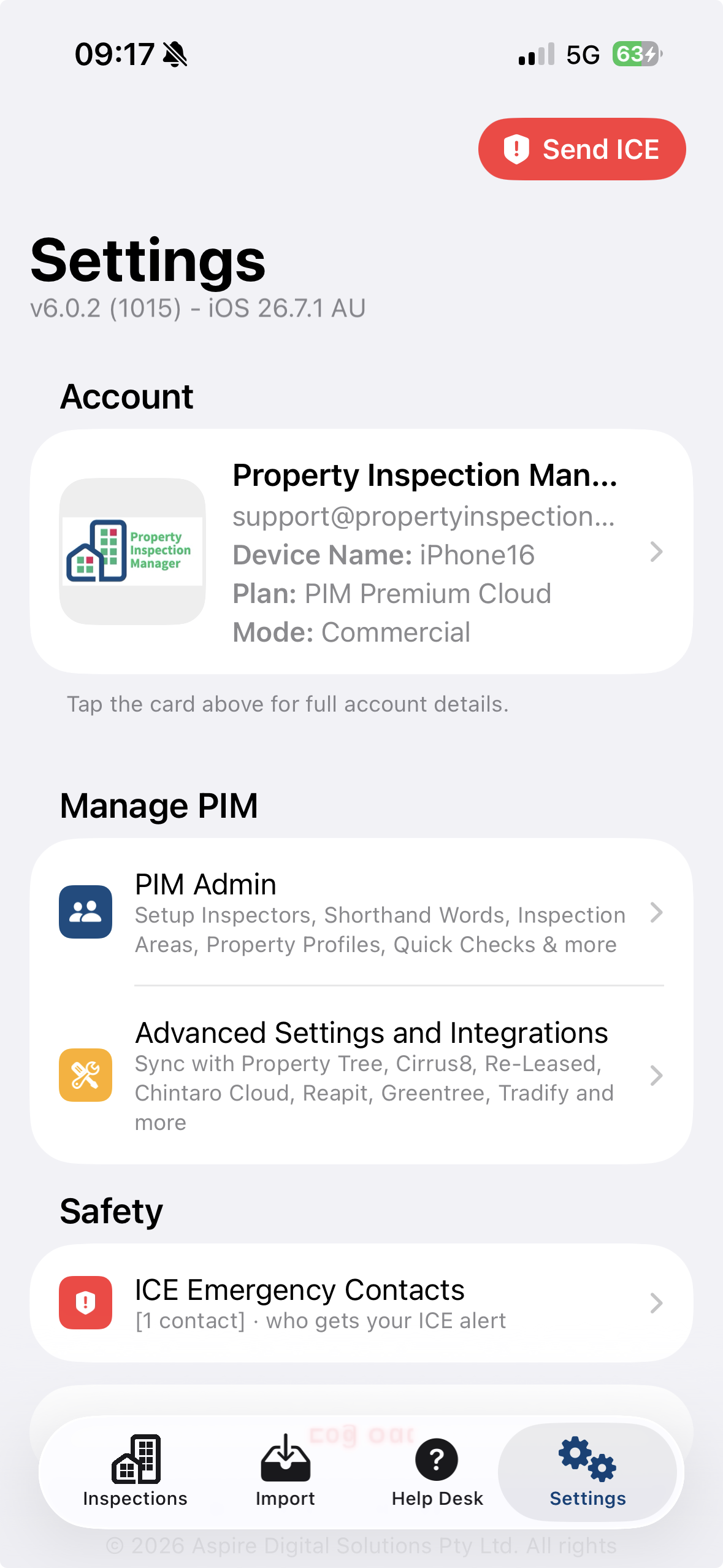
6Open Settings. Tap Settings in the bottom menu then tap PIM Admin.
8Open Inspectors and Templates. Tap Inspectors and Templates.
9Review your inspector. First-time users already have templates preselected. To make changes, tap your name. To add another inspector, tap the + icon.

10Enter the inspector details. Add the inspector's name and the email address that reports should be sent to. To send reports to more than one address, separate them with commas.

11Select the templates. New users will have their templates pre-selected. Existing users need to tap their name and select the templates listed below for their setup type, then tap Done.
Select the templates for your setup type. For each template type, tap it and then tap the matching file:
For Residential Setup
- Routine Inspection Report Template and then tap Inspection Template-Default.docx
- Condition Report Template and then tap your state/region Entry template.docx
- Cleaning Inspection Template and then tap Cleaning Template-Default.docx
- Tenant Report Template and then tap Tenant-Inspection Template-Default.docx
- Then tap Done
For Commercial Setup
- Routine Inspection Report Template and then tap Commercial Inspection Template-Default.docx
- Condition Report Template and then tap Commercial PCR Template-Entry.docx
- Cleaning Inspection Template and then tap Cleaning Template-Default.docx
- Tenant Report Template and then tap Tenant-Inspection Template-Default.docx
- Then tap Done
Note: If your templates have been customised, your company name appears in the template names.
Not sure your templates are right? Tap the Help Desk icon, then Contact Us (or Support) then send and we will check your setup.
Next Steps
Now that you are set up, these guides will help you get the most out of PIM:
Was this article helpful?
That’s Great!
Thank you for your feedback
Sorry! We couldn't be helpful
Thank you for your feedback
Feedback sent
We appreciate your effort and will try to fix the article